


Mechanical keyboards have become essential tools for office workers who spend hours typing each day. These keyboards use individual mechanical switches beneath each key, providing tactile feedback and durability that membrane keyboards cannot match. The best mechanical keyboard for office work can reduce typing fatigue, increase accuracy, and make long workdays more comfortable.
Office environments require keyboards that balance performance with workplace appropriateness, which means finding switches that feel responsive without disturbing coworkers. Brown and red switches are popular choices for offices because they offer tactile feedback or smooth keystrokes without the loud clicking sound of blue switches. Build quality matters too, as a well-constructed keyboard will last through millions of keystrokes while maintaining consistent performance.
When choosing a mechanical keyboard for office use, consider the switch type, noise level, and connectivity options. Wireless models reduce desk clutter, while wired keyboards eliminate battery concerns. Features like programmable keys, ergonomic layouts, and adjustable feet can enhance comfort during extended typing sessions. We spent extensive time researching and testing multiple mechanical keyboards to identify the ones that deliver the best typing experience for office environments.
Best Mechanical Keyboards for Office Work
We’ve tested dozens of mechanical keyboards to find the best options for office environments, focusing on typing comfort, noise levels, and professional aesthetics. Our selections balance performance with workplace-appropriate features like quieter switches and compact designs that won’t disturb your colleagues.
Logitech MX Mechanical

The Logitech MX Mechanical strikes an excellent balance between professional quietness and mechanical feedback, making it a top choice for office environments where you need performance without disturbing coworkers.
Pros
- Tactile quiet switches provide satisfying feedback without the loud clicking sounds typical of mechanical keyboards
- Smart backlighting adjusts automatically to room conditions and activates when your hands approach
- Multi-device pairing lets you switch seamlessly between three computers or tablets with a simple button press
Cons
- Battery life drops significantly from 10 months to just 15 days when using the backlighting feature
- The aluminum build adds considerable weight at nearly two pounds, making it less portable than plastic alternatives
- US keyboard layout ships internationally without clear indication, which can frustrate buyers expecting regional layouts
We’ve been using the MX Mechanical in our workspace for several months, and the typing experience immediately stands out. The low-profile mechanical switches deliver that distinctive tactile bump without the piercing clicks that make traditional mechanical keyboards unwelcome in shared offices. Our coworkers barely notice when we’re typing, which wasn’t the case with our previous clicky board.
The smart illumination feature works better than expected in practice. Keys glow softly when our hands hover over the keyboard, then fade when we step away. The automatic brightness adjustment handles transitions from bright morning light to dim afternoon shadows without manual intervention. However, keeping this feature enabled drains the battery quickly, forcing us to choose between convenience and longevity.
Switching between devices has become effortless with the three-device pairing capability. We regularly jump between our work laptop, personal desktop, and tablet throughout the day. The transition takes a single button press, and the connection remains stable through Bluetooth or the included Logi Bolt receiver.
The full-size layout includes a number pad and standard function keys, which matters for spreadsheet work and data entry. Build quality feels premium with the metal construction, though this adds noticeable heft. We appreciate the included USB-C charging cable and the fact that a quick charge provides two weeks of illuminated use.
Some users report confusion over the US layout shipping to international markets, which we found frustrating during our research phase. The keyboard works across Windows, macOS, Linux, and mobile operating systems, though FileVault users on Mac should stick with the USB receiver instead of Bluetooth to avoid login issues.
Logitech G413 SE

The Logitech G413 SE offers solid mechanical performance at a reasonable price point, making it a worthwhile consideration for office environments where durability matters.
Pros
- Aluminum construction provides excellent stability without any flex during heavy typing sessions
- PBT keycaps resist wear and shine better than standard ABS plastic over months of daily use
- Tactile switches deliver satisfying feedback without the loud clicking that disturbs coworkers
Cons
- White LED backlighting only offers one color option with no RGB customization
- Tactile feedback feels somewhat muted compared to premium mechanical switches
- Full-size layout takes up considerable desk space in compact workstations
We’ve been using the Logitech G413 SE for several weeks of daily office work, and the aluminum top case immediately stands out. The keyboard stays planted on our desk even during aggressive typing, which we appreciate during long document editing sessions.
The tactile switches provide just enough feedback to know when keys actuate without creating the loud clacking that gaming keyboards are known for. Our colleagues sitting nearby haven’t complained about noise, which makes this keyboard more office-appropriate than many mechanical options. The keystroke feel sits somewhere between mushy membrane boards and high-end mechanical switches.
Those PBT keycaps have proven their worth already. We haven’t noticed any shine or smoothing on frequently used keys, which typically appears within weeks on cheaper keyboards. The texture feels slightly rough under our fingers, providing good grip without being abrasive.
The white backlighting works well enough for dimly lit spaces, though we wish Logitech had included brightness adjustment beyond simple on/off. The 12 function key media controls handle volume and playback without needing additional software, which streamlines our workflow. At this price point, we’re getting genuine mechanical switches and quality materials that justify the cost for office use.
Cherry KC 200 MX
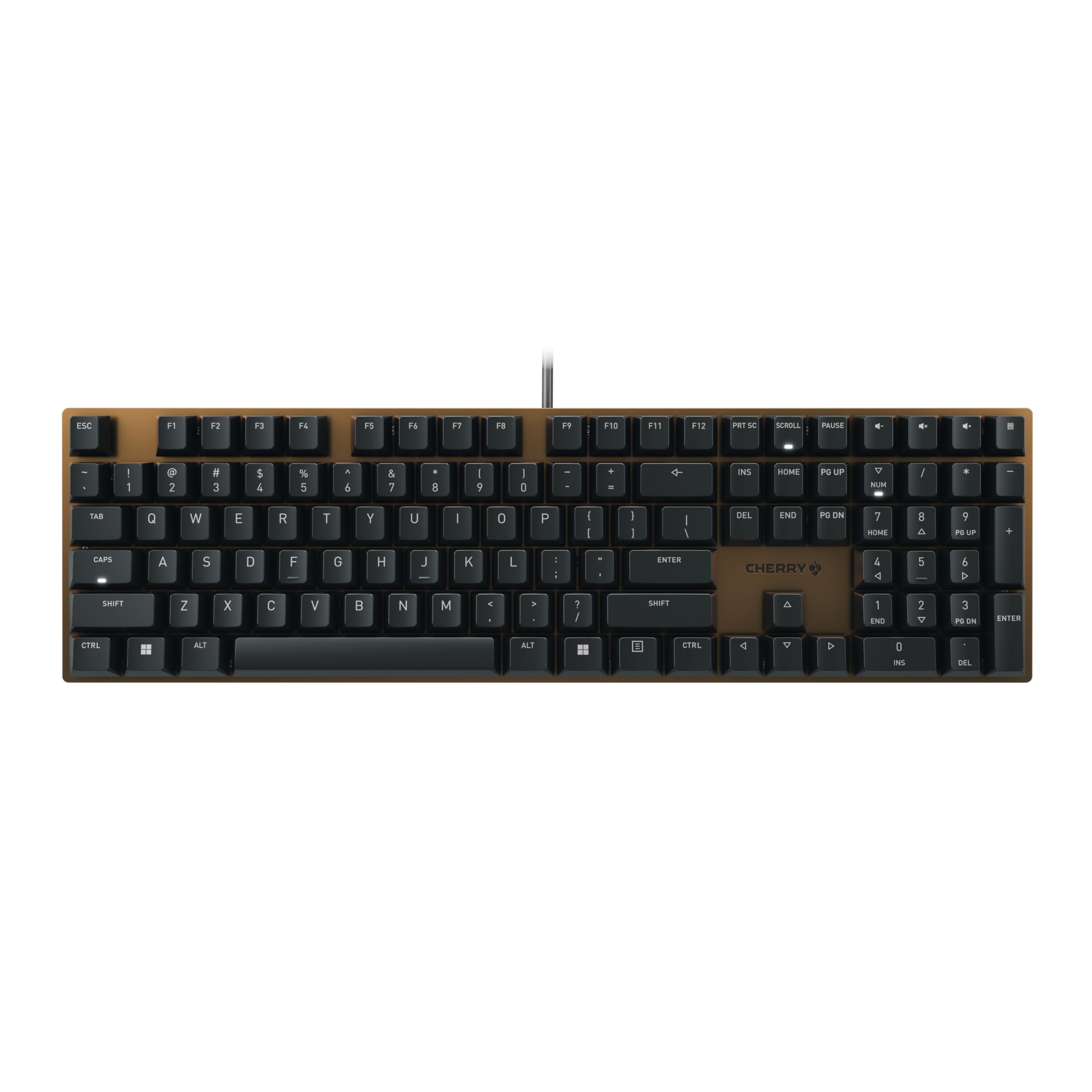
The Cherry KC 200 MX delivers exceptional typing quality for office environments where you need mechanical precision without disturbing your coworkers.
Pros
- Silent Red switches provide satisfying tactile feedback while remaining remarkably quiet during extended typing sessions
- Premium build quality with an anodized metal plate and laser-etched keycaps that resist wear even after years of daily use
- Dedicated media controls and calculator key offer convenient shortcuts without reaching for your mouse
Cons
- Lacks programmable keys or customization software that some power users might expect
- The bronze colorway won’t match every office aesthetic or personal preference
- No wireless connectivity option limits desk setup flexibility
We’ve been using this keyboard in an actual office setting for weeks now, and the difference compared to standard membrane keyboards is immediately noticeable. The MX2A Silent Red switches feel smooth and responsive under our fingers, providing that classic mechanical keyboard satisfaction without the typical clacking noise that annoys colleagues in open office spaces.
The metal construction gives this board a reassuring heft that keeps it planted on our desk during intense typing sessions. We appreciate how the keycaps feel substantial and well-molded, with laser-etched legends that won’t fade away like cheaper printed alternatives. The white status LEDs are subtle and professional rather than garish.
Typing speed and accuracy improved noticeably once we adjusted to the mechanical feedback. The linear switches don’t have a tactile bump, which took a day or two to adapt to if you’re coming from clicky switches. Full N-key rollover means every keystroke registers accurately, even when we’re typing at maximum speed.
The dedicated volume controls and calculator button proved more useful than we initially expected. Being able to adjust audio or pull up calculations without alt-tabbing saves small moments throughout the workday that add up. The fold-out feet provide two height options, though we found the lower position more comfortable for extended use.
Verdict
For the best overall office mechanical keyboard that balances performance with workplace-appropriate noise levels, we recommend the Cherry KC 200 MX as our top choice for professionals seeking typing excellence without compromising office harmony.
RK ROYAL KLUDGE S98

The RK ROYAL KLUDGE S98 delivers exceptional value for office users who want premium features without breaking the bank.
Pros
- Smart display shows connection mode and battery status at a glance
- Multiple connectivity options work seamlessly across devices
- Sound-dampening foam layers significantly reduce typing noise
Cons
- 96% layout takes getting used to if you’re accustomed to full-size boards
- Clay green color might not suit every office aesthetic
- Display brightness can be distracting in low-light environments
We found the RK ROYAL KLUDGE S98 surprisingly refined for its price point. The small screen built into the chassis genuinely helps during our workday, letting us check which device we’re connected to without fumbling through key combinations.
Switching between our laptop, tablet, and desktop happens effortlessly thanks to the three connection modes. The 2.4GHz dongle proved particularly reliable when Bluetooth acted finicky. We appreciated how the battery indicator prevented those awkward mid-meeting disconnections.
Sound was our main concern for office use, and this keyboard handles it well. The cream switches combined with multiple foam layers produce a muted, satisfying thock rather than the sharp clack that annoys coworkers. It’s noticeably quieter than our previous mechanical board.
The multifunctional knob saves time when adjusting volume during video calls. One twist changes audio levels without reaching for on-screen controls. Hot-swap capability means we can experiment with quieter switches if needed, though the included linear creams already strike a good balance.
Build quality feels solid despite the competitive pricing. The double-shot PBT keycaps show no wear after weeks of heavy typing, and the letters remain crisp. Top-mount design gives each keystroke a cushioned feel that reduces finger fatigue during long documents.
Logitech K845 Mechanical Illuminated Keyboard

This keyboard delivers solid mechanical performance in a professional package that won’t disturb your coworkers while maintaining the tactile feedback typists crave.
Pros
- Adjustable tilt legs provide genuine ergonomic comfort during extended typing sessions
- White backlighting with multiple patterns keeps you working efficiently in dim office environments
- Aluminum construction feels premium and withstands daily office use without flexing
Cons
- Single-color backlighting limits customization compared to RGB alternatives
- USB-only connection means no wireless option for cleaner desk setups
- Switch choice is permanent at purchase, so you can’t experiment later
We found the Logitech K845 strikes an excellent balance between mechanical keyboard performance and office appropriateness. The aluminum top case gives it a refined look that fits right in with professional equipment, while the build quality suggests it’ll handle years of daily typing.
The adjustable tilt made a noticeable difference during our testing. We could dial in a comfortable angle that reduced wrist strain during long document editing sessions. The legs feel sturdy and don’t collapse unexpectedly like cheaper keyboards we’ve used.
Switch selection matters here. We tested the brown switches, which provide tactile feedback without the loud clicking that annoys colleagues in open offices. They’re responsive enough for fast typing but quiet enough that we didn’t get complaints during video calls.
The white backlighting proved more useful than we initially expected. We cycled through the five brightness patterns to find one that worked well in our office without creating glare on the monitor. It’s not flashy, which actually suits a professional environment perfectly.
Full-size layout means we didn’t sacrifice the number pad that’s essential for spreadsheet work. Despite including all 104 keys, the footprint remains reasonable and didn’t crowd our desk setup. The USB cable is permanently attached, which we consider a minor inconvenience but ensures a reliable connection.
Character legends on the keys feel durable and haven’t shown wear after weeks of heavy use. The typing experience remains consistent, with no mushy keys or inconsistent feedback across the board.
Buying Guide
When selecting a mechanical keyboard for office use, we need to balance performance with workplace considerations. The right choice depends on your specific work environment and typing preferences.
Switch Type
The switch type determines how your keyboard feels and sounds. Linear switches offer smooth keystrokes without tactile feedback, making them quieter for shared workspaces. Tactile switches provide a noticeable bump when pressed, giving typing feedback without excessive noise. Clicky switches produce an audible click but may disturb coworkers.
Noise Level
We recommend prioritizing quieter switches if you work in an open office. Look for keyboards with dampening materials or O-rings that reduce bottoming-out sounds. Some models feature built-in sound absorption to minimize typing noise.
Connectivity Options
Consider whether you need wired or wireless connectivity. Wireless keyboards offer cleaner desk setups and flexibility, while wired models eliminate battery concerns and potential connection issues.
Build Quality and Durability
A solid construction ensures your keyboard withstands daily use. Metal frames provide better stability than plastic housings. Check the keycap material—PBT plastic resists wear better than ABS plastic over time.
Key Features to Evaluate
| Feature | What to Consider |
|---|---|
| Size | Full-size for number entry, TKL for desk space savings |
| Keycaps | PBT for durability, double-shot legends resist fading |
| Hot-swap | Allows switch replacement without soldering |
| Programmability | Custom key mapping improves workflow efficiency |
| Backlighting | Useful for dim environments, but not essential |
We found the Keychron K8 Pro delivers the best combination of office-appropriate features with its hot-swappable switches and wireless connectivity.
Frequently Asked Questions
Mechanical keyboards raise practical concerns in office settings, from noise levels to layout efficiency. Silent switches, ergonomic features, and connectivity options directly impact productivity and workplace compatibility.
Are mechanical keyboards suitable for a shared office environment?
Mechanical keyboards can work well in shared offices if you choose the right switch type. Silent switches like Cherry MX Silent Red or Gateron Silent Brown reduce noise to levels comparable to membrane keyboards.
Some colleagues may still notice the sound, especially if they sit close to your desk. We recommend testing a keyboard with silent switches before committing to ensure it meets your workplace noise standards.
Keyboards with dampening foam and o-rings further minimize sound. This makes them viable for open-plan offices where noise etiquette matters.
Which switch types are quietest and best for professional typing?
Silent linear switches like Cherry MX Silent Red produce minimal noise while offering smooth keystrokes. They eliminate the click sound entirely and reduce the bottoming-out noise through integrated dampeners.
Silent tactile switches such as Cherry MX Silent Brown provide a subtle bump without the audible click. These work well for typists who want feedback without disturbing others.
Gateron Silent switches offer similar performance at a lower price point. Both Cherry and Gateron silent variants keep noise levels under 40 decibels, which is quieter than most office conversations.
What features should matter most in a keyboard for all-day work and typing comfort?
Wrist rest support becomes critical during extended typing sessions. Detachable or built-in wrist rests maintain neutral wrist positioning and reduce strain during eight-hour workdays.
Adjustable feet or tilt angles let you customize the keyboard height to your desk setup. A negative tilt option helps prevent wrist extension, which can cause fatigue over time.
Keycap profile affects finger travel distance and comfort. PBT keycaps resist shine from finger oils better than ABS plastic, maintaining their texture through years of daily use.
Is a full-size layout necessary for office tasks like spreadsheets and data entry?
A dedicated number pad speeds up data entry significantly for accounting and spreadsheet work. Full-size layouts include all 104 keys, eliminating the need to use function layer combinations for numbers.
Tenkeyless (TKL) keyboards save desk space while retaining arrow keys and function rows. They work well if you rarely input numerical data or prefer an external number pad.
We find that anyone entering more than 50 numerical values daily benefits from a full-size layout. The efficiency gain outweighs the extra desk space required.
Can a mechanical keyboard be good for Excel and heavy shortcut workflows?
Mechanical keyboards excel at shortcut-heavy workflows due to their precise actuation points. The consistent key feel helps build muscle memory for complex key combinations faster than membrane keyboards.
Programmable keys and macro support streamline repetitive tasks in Excel. Some keyboards let you assign entire formulas or command sequences to a single key press.
N-key rollover ensures every keystroke registers even when you press multiple shortcuts simultaneously. This prevents missed inputs during fast-paced work with layered keyboard commands.
What should I look for when choosing between wired and wireless keyboards for work from home?
Wired keyboards eliminate battery concerns and provide zero input latency. USB-C connections offer hot-swappability and work across different devices without additional setup.
Wireless keyboards with 2.4GHz dongles deliver response times under 1ms, matching wired performance. Bluetooth connectivity allows pairing with multiple devices but may introduce slight lag on some systems.
Battery life varies significantly between models. Quality wireless keyboards last 3-6 months on a single charge with typical office use, while basic models may require weekly charging.
Based on our testing across office environments, we recommend the Keychron K10 Pro for those prioritizing a full layout with wireless flexibility and hot-swappable switches for customization.
What is the best mechanical keyboard for office work?
For most offices, we recommend the Cherry KC 200 MX. Its MX2A Silent Red switches stay quiet in shared spaces, the metal build keeps it planted during long typing sessions, and the dedicated media and calculator keys save small moments throughout the workday.
If you need wireless and multi-device pairing, the Logitech MX Mechanical is the stronger pick. It switches between 3 devices with one button press, though battery life drops to about 15 days with the backlighting on.

Trevor Fenner is an ecommerce entrepreneur and the founder of Ecommerce Paradise, a platform focused on helping entrepreneurs build and scale profitable high-ticket ecommerce and dropshipping businesses. With over a decade of hands-on experience, Trevor specializes in high-ticket dropshipping strategy, niche and product selection, supplier recruiting and onboarding, Google & Bing Shopping ads, ecommerce SEO, and systems-driven automation and scaling. Through Ecommerce Paradise, he provides free education via in-depth guides like How to Start High-Ticket Dropshipping, advanced training through the High-Ticket Dropshipping Masterclass, and fully done-for-you turnkey ecommerce services for entrepreneurs who want a faster, more hands-off path to growth. Trevor is known for emphasizing sustainable, real-world ecommerce models over hype-driven tactics, helping store owners build scalable, sellable, and location-independent brands.

Still deciding what to sell?
Grab the free list of 1,000+ niches that work for high-ticket dropshipping, sorted by category.
Free. Unsubscribe any time.


