


How to Switch Shopify Themes Without Losing Sales or SEO Rankings
Switching your Shopify theme is kind of like renovating your store while customers are shopping inside. You need to be strategic, careful, and really really intentional about every step. I see store owners panic about theme migrations all the time, worried they’re going to tank their rankings or lose sales in the process. The good news? It’s totally manageable if you know what you’re doing.
At E-Commerce Paradise, we’ve helped countless clients through this process without losing a single sale or ranking position. In this guide, I’m going to walk you through exactly how to do a Shopify theme migration the right way. We’ll cover everything from your pre-migration checklist to post-launch monitoring, plus the common mistakes I see store owners make that actually hurt their business.
Why Theme Migration Matters More Than You Think
Your Shopify theme isn’t just about how your store looks. It’s the foundation of your user experience, your page speed, your mobile responsiveness, and frankly, your ability to sell stuff. When you pick the wrong theme or leave a broken theme running for too long, you’re losing money every single day through lower conversions and worse search rankings.
I’ve seen stores with beautiful themes that load in 1.2 seconds, and I’ve seen stores with outdated themes that take 6 seconds to load. That’s the difference between a customer buying something and bouncing to a competitor. Google rewards fast sites with better rankings, so your theme choice literally impacts your visibility in search results.
The other thing is customizations. If you’ve been running your store for a year or two, you probably have custom code, custom CSS, custom apps, and custom configurations baked into your current theme. Migrating to a new theme means you have to carefully move all that over without breaking anything.
Pre-Migration Checklist: The Foundation for Success
This is where most people skip steps and regret it later. You need a solid pre-migration checklist before you touch anything. I’m talking about backing up your entire store, documenting every customization you’ve made, and auditing your current theme settings.
First, create a full backup of your store. Shopify doesn’t automatically backup your theme files in a way you can easily restore them. Use a tool like Shopify’s backup apps or export your products, customers, and orders through the admin. Keep these files somewhere safe because you’re going to need them if something goes wrong.
Fourth, check your SEO foundations. Run your current store through a site audit tool and note any existing issues. Check your meta tags on key pages, verify your structured data is correct, and make sure your XML sitemap is being generated properly. You’ll use this as a baseline to compare after migration.
Auditing Your Current Theme Performance
Before you migrate, you need to know how your current theme is performing. This gives you a benchmark to make sure your new theme is actually better. I always run a performance audit using tools like Google PageSpeed Insights and GTmetrix.
Check your current page load times on mobile and desktop. Look at your Core Web Vitals score, which is a huge ranking factor for Google. Document your conversion rates if you can. Take screenshots of your mobile experience because a lot of people underestimate how bad their current theme looks on phones.
Also audit your current theme for broken links, missing alt text on images, and any pages that are getting crawl errors. You want to know what problems exist before you migrate so you can either fix them or make sure they don’t carry over to your new theme.
Choosing the Right Replacement Theme
This is where a lot of people make emotional decisions instead of strategic ones. You might fall in love with a theme because it looks gorgeous, but if it’s slow, bloated with unnecessary features, or has poor mobile responsiveness, you’re making a mistake that will cost you money.
Here’s what I look for in a Shopify theme: fast page load times, modern responsive design that looks great on mobile, clean and organized theme code, good customer support, regular updates, and built-in features that match your business model. If you’re running a high-ticket business, this matters even more because your customers expect a premium experience.
If you’re doing high-ticket dropshipping or any complex business model, make sure the theme supports the features you need. Check if it integrates well with the apps you’re using. Some themes work beautifully with certain app ecosystems and fight with others.
Setting Up Your New Theme in Preview Mode
Here’s the move that keeps me sane during migrations: set up your new theme in preview mode before you publish it. This lets you customize and test everything without customers seeing the changes.
Go to your Shopify admin, add the new theme to your store, and click “Preview” instead of “Publish.” You now have a private version of your store running the new theme that only you can see. This is your sandbox where you can experiment without any risk.
Add your custom sections and pages. If you had a custom page layout or a special collection page design, recreate it in the new theme. Again, some of this might be built-in functionality in your new theme, which is awesome, and some of it might require custom code.
Mobile and Desktop Testing Is Non-Negotiable
I’m not being dramatic when I say this is the difference between a successful migration and a disaster. You need to test your new theme thoroughly on multiple devices and browsers before you launch it to customers.
Start by testing on your phone. Go through the entire customer journey. Add items to your cart, go through checkout, view product pages, browse collections. Does everything work? Are images loading? Are buttons clickable? Is the text readable? On mobile, everything needs to work perfectly or you’re leaving money on the table.
Test with your apps. Run your email marketing app and make sure it’s capturing emails correctly. Test your customer review app and make sure reviews are displaying properly. Test your loyalty app, your upsell app, whatever tools you’re using to make money. Each one needs to work flawlessly in the new theme.
Handling URL Structure and Redirects
This is the technical stuff that most people skip but actually matters for SEO. If your URL structure changes during the migration, you need to set up redirects so you don’t lose your rankings.
First, check if your new theme uses the same URL structure as your old theme. Most modern Shopify themes use standard Shopify URLs, so you should be fine. But if you customized your URLs or if the new theme handles URLs differently, you need to pay attention.
After you set up the redirects, test them. Click through some of your old URLs and make sure they’re directing to the new ones correctly. Check your Google Search Console after a few days to make sure Google is recognizing the redirects and updating its index.
Preserving Meta Tags and Structured Data
Your meta titles and meta descriptions are critical for your search rankings and click-through rates. When you migrate themes, you absolutely cannot lose these. They’re one of the first things Google looks at when evaluating your pages.
Export all your current meta tags and structured data before you switch themes. You can do this through Shopify’s product export or through a tool that scrapes your site. Create a spreadsheet with each product URL and its corresponding meta title and description.
For SEO optimization during your migration, create a simple checklist of every element that impacts your rankings. Meta tags, headings, image alt text, internal links, structured data. Make sure each element is correct in your new theme before you launch.
The Migration Day Checklist
Okay, you’ve done all the prep work. You’ve tested everything. You’re ready to launch. Here’s exactly what you do on migration day to minimize any disruption.
First, pick a low-traffic time to do the migration. If you’re a US-based store, don’t do it during peak shopping hours. Tuesday through Thursday afternoon usually sees lower traffic than Friday through Monday. If you’re international, adjust accordingly. You want to minimize the number of customers who experience any potential issues.
Sixth, monitor your store closely for the first few hours. Watch your sales, watch your traffic, watch your error logs. Most issues will show up in the first hour or two after launch. If something’s broken, you can revert to your old theme and troubleshoot what went wrong.
Post-Migration Monitoring and Optimization
The migration isn’t over once you publish your new theme. You need to monitor everything closely for the first few weeks to make sure you didn’t lose any traffic, rankings, or sales.
Check your Google Analytics daily for the first week. Look at your traffic volume, your bounce rate, and your conversion rate. If these metrics are suddenly worse, you might have a problem. Maybe your new theme is slower, maybe your pages are less user-friendly, maybe something’s broken. The data will tell you.
Check your mobile traffic and mobile conversion rate separately. Mobile is where most of your traffic comes from these days, so if mobile performance is suffering, that’s a big deal. If your new theme has mobile issues, you need to fix them quickly.
Common Mistakes That Actually Hurt Your Business
I’ve seen a ton of migrations go sideways because store owners skip steps or make assumptions that turn out to be wrong. Here are the mistakes I see most often.
Mistake number one: launching the new theme without thoroughly testing it first. You publish it, something’s broken, customers see it, you lose sales. Take the time to test everything in preview mode before you go live. It’s not sexy work, but it saves you money.
Mistake number six: not monitoring closely after the migration. You go live with your new theme and then check your store a week later to see that something’s been broken the whole time. You’ve lost a week of sales. Monitor daily for the first week.
Timeline Expectations for Your Migration
How long does a Shopify theme migration actually take? It depends on how complex your store is, but here’s what I tell my clients.
For a simple store with no customizations, you’re looking at one or two days of work. You pick your theme, customize the settings, test it, and launch. That’s it.
Here’s my advice: don’t rush it. A migration that takes three weeks is better than a migration that takes three days and breaks your store. Plan ahead, do your work in preview mode, test thoroughly, and launch when you’re confident everything’s going to work.
Using Tools to Make Migration Easier
There are apps and tools that can make your Shopify theme migration smoother. I use these with my clients to reduce the risk and speed up the process.
Use Ubersuggest to analyze your keywords before and after the migration. This helps you understand if your SEO strategy is still working with the new theme. You’ll know if the migration impacted your keyword rankings.
Use Tidio for customer support during the migration. Customers might have questions or experience issues with the new store, and you want to be able to help them quickly. A live chat tool makes this easy.
Migration Strategy for High-Ticket Businesses
If you’re running a high-ticket dropshipping operation or any business selling expensive items, your theme migration needs extra care. Your customers are making big decisions and expecting a premium experience.
Make sure your new theme projects professionalism and trustworthiness. High-ticket customers look for signals that your business is legitimate and that you can handle their transaction securely. Your theme design, your product photography, your customer reviews, and your checkout process all matter.
Set up email marketing properly with Klaviyo. High-ticket customers usually need more education and nurturing before they buy. Klaviyo’s segmentation and automation features are perfect for this.
When to Call in Professional Help
Some store owners can handle a theme migration on their own, and some really should call in a professional. Be honest with yourself about your technical skills and your available time.
If you have zero coding experience and your store has custom code, you probably want a professional. Custom code can be finicky to transfer between themes, and one small mistake can break something important. It’s worth paying someone who knows what they’re doing.
If you’ve already tried the migration and something went wrong, definitely call a professional. Don’t keep digging if you’re not sure what you’re doing. The faster you get expert help, the faster you get back to normal.
Final Thoughts on Shopify Theme Migrations
A Shopify theme migration doesn’t have to be scary. If you follow the steps in this guide, you’re going to be fine. Do your homework in advance, test everything thoroughly, and monitor closely after launch. That’s the formula for a successful migration that doesn’t hurt your sales or your SEO rankings.
Remember, your theme is the foundation of your entire business. It impacts your customer experience, your conversion rates, your page speed, and your search rankings. So take your time, make the right choice, and execute the migration carefully. Your future self and your bottom line will thank you.
For more ecommerce insights, the Shopify blog regularly publishes content about platform features and best practices.
One thing I always tell my clients is to take screenshots of every single page on your current theme before you start the migration. That includes your homepage, collection pages, product pages, cart page, and checkout. These screenshots become your reference point for making sure the new theme matches or improves on what you had before.
Testing is where most people cut corners and pay for it later. I recommend spending at least two full days testing your new theme in preview mode before going live. Check every product page, test the checkout flow, verify that all your apps still work, and make sure your email capture forms are functional.
Industry research from Search Engine Journal provides data-driven perspectives on ecommerce optimization strategies.
For comparative ecommerce insights, BigCommerce publishes useful benchmarks that apply across platforms.
If you’re new to this business model, start by reading my comprehensive guide to high-ticket dropshipping to understand the fundamentals.
Choosing the right niche is really really important for your success. Check out our complete list of high-ticket niches to find opportunities in your market.
Your suppliers make or break your business. Read our step-by-step guide on finding the best suppliers to build a reliable supply chain.
Before you go too far, make sure your legal and financial foundation is solid. My business formation checklist covers everything from LLC setup to tax planning for high-ticket businesses.
Getting organic traffic to your store is a long-term game that pays off massively. Check out my SEO resources for strategies specifically designed for ecommerce stores.
I recommend using Ubersuggest to research keywords in your niche before building out your content strategy. Understanding search demand is critical.
I recommend using Shopify as your platform foundation because it integrates with everything and handles high-ticket operations beautifully.
For email marketing automation, Klaviyo is the tool I use with all my clients because the segmentation and flow features are really really powerful.
Customer support is critical for high-ticket stores, and I recommend Gorgias because it centralizes all your support channels in one place.
Social proof drives conversions, especially for expensive items. Yotpo makes it easy to collect and display customer reviews that build trust.
For fraud prevention, ClearSale protects your business from chargebacks that can be devastating when selling high-ticket products.

Trevor Fenner is an ecommerce entrepreneur and the founder of Ecommerce Paradise, a platform focused on helping entrepreneurs build and scale profitable high-ticket ecommerce and dropshipping businesses. With over a decade of hands-on experience, Trevor specializes in high-ticket dropshipping strategy, niche and product selection, supplier recruiting and onboarding, Google & Bing Shopping ads, ecommerce SEO, and systems-driven automation and scaling. Through Ecommerce Paradise, he provides free education via in-depth guides like How to Start High-Ticket Dropshipping, advanced training through the High-Ticket Dropshipping Masterclass, and fully done-for-you turnkey ecommerce services for entrepreneurs who want a faster, more hands-off path to growth. Trevor is known for emphasizing sustainable, real-world ecommerce models over hype-driven tactics, helping store owners build scalable, sellable, and location-independent brands.
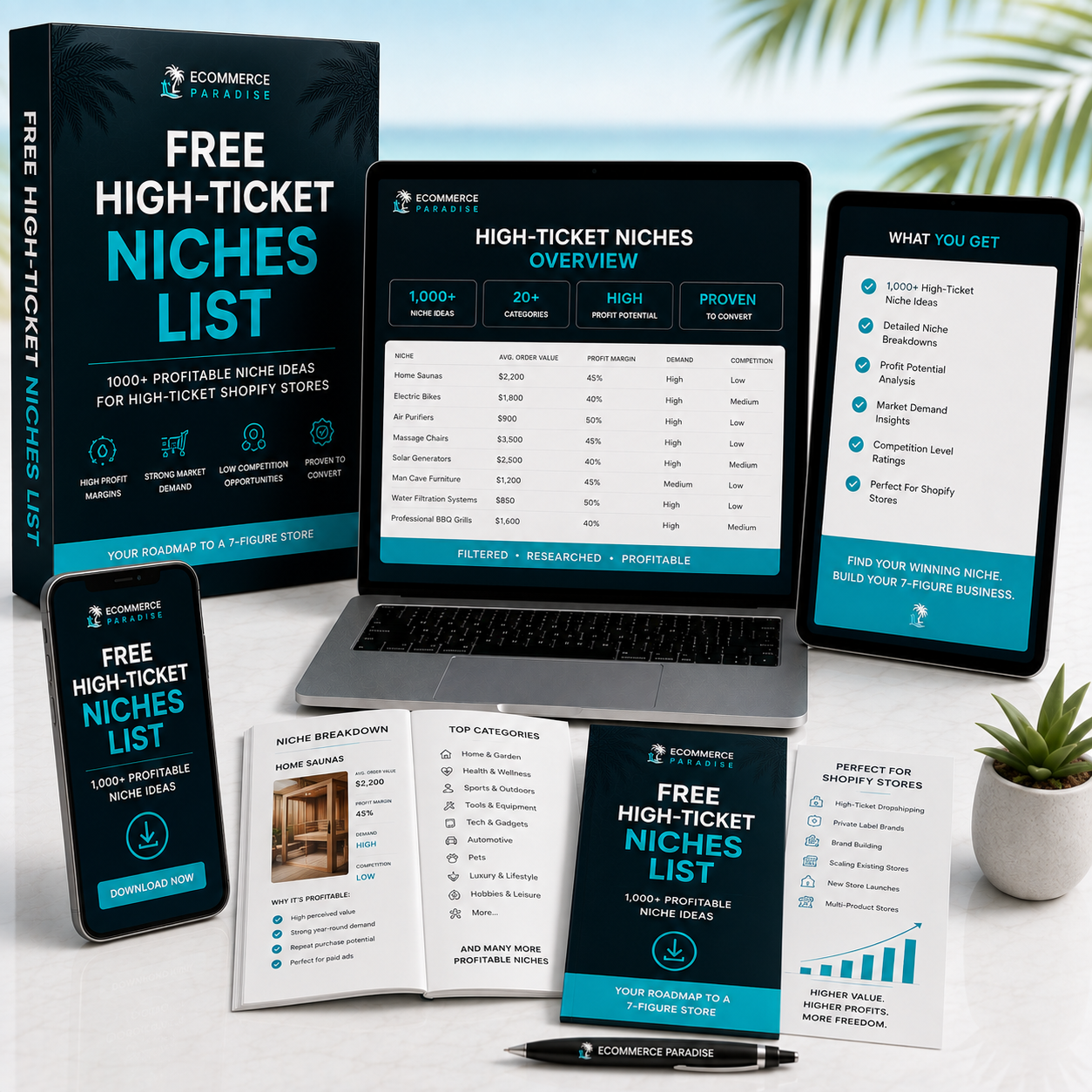
Still deciding what to sell?
Grab the free list of 1,000+ niches that work for high-ticket dropshipping, sorted by category.
Free. Unsubscribe any time.


