


Working from home has become standard for millions of people, and the right monitor can transform productivity and comfort during long work sessions. A dedicated home office monitor offers larger screen space, better resolution, and improved ergonomics compared to working on a laptop alone. The right display reduces eye strain, allows better multitasking, and creates a more professional workspace.
When selecting a monitor for your home office, screen size, resolution, and panel type are the most critical factors to consider. A 24 to 27-inch display works well for most desk setups, while 4K resolution provides sharp text that’s easier to read during extended work periods. Panel technology matters too—IPS panels offer better color accuracy and wider viewing angles than TN panels, which is important for video calls and content creation. Adjustable stands that allow height and tilt changes help maintain proper posture throughout the day.
We spent weeks researching and testing twelve monitors to identify the ones that deliver the best performance, comfort, and value for home office use.
Best Monitors for Home Office
We’ve tested and evaluated dozens of monitors to find the options that deliver the best combination of screen quality, ergonomics, and value for home office use. Our selections include displays across various sizes and price points to match different workspace needs and budgets.
Samsung 27″ Essential S3 Curved Monitor

We found this Samsung curved monitor to be a solid choice for home office work that won’t strain your budget while delivering reliable everyday performance.
Pros
- The curved screen reduces eye fatigue during extended work sessions and creates better peripheral vision
- Game Mode adjustments work well for both entertainment and detailed spreadsheet work
- Setup takes minutes with straightforward plug-and-play connectivity
Cons
- The 1080p resolution feels limiting on a 27-inch display when working with multiple windows
- Brightness levels could be stronger for rooms with lots of natural light
- Limited port selection means you’ll need to swap cables when switching between devices
The 1800R curve wraps around your field of view in a way that feels natural after the first day of use. We noticed less neck movement when scanning across documents compared to flat screens we’ve tested. The curvature isn’t so extreme that it distorts straight lines in design work or spreadsheets.
We ran this monitor through typical office tasks like video calls, document editing, and occasional media streaming. The 100Hz refresh rate makes scrolling through long documents feel smoother than standard 60Hz displays. Motion blur during video playback was minimal, though you’ll need to adjust the refresh rate in settings since it defaults to 60Hz out of the box.
Eye comfort features actually make a difference during afternoon work sessions. We kept the blue light filter active and didn’t experience the usual eye strain that hits around hour six of screen time. The flicker-free technology isn’t just marketing speak—we could work late into the evening without headaches.
The biggest limitation we encountered was the 1080p resolution stretched across 27 inches. Text remains readable, but pixel density isn’t as sharp as higher resolution options. If you frequently work with detailed images or need multiple windows open simultaneously, this might feel cramped. For standard office applications and web browsing, it handles the job without issue.
Connection options include HDMI and D-sub, which covers most basic setups but feels sparse compared to monitors with USB-C or multiple HDMI ports. We found ourselves unplugging our laptop connection whenever we wanted to use a gaming console. The monitor sits steady on its stand with minimal wobble, and wall mounting is an option if desk space runs tight.
Game Mode transformed the display for evening entertainment after work hours. We tested it with various content and found the contrast adjustments helped spot details in darker scenes. This dual-purpose capability means you’re not buying a monitor that only handles spreadsheets well.
At this price point, we’re looking at a monitor that handles home office essentials competently without premium features. The curve adds comfort for long work days, refresh rates satisfy casual gaming needs, and eye comfort technology delivers on its promises. Just be realistic about the resolution limitations before committing.
Samsung 34″ ViewFinity S50GC

This ultrawide monitor delivers excellent productivity benefits for home office work, though it requires proper positioning to avoid viewing angle issues.
Pros
- The 21:9 aspect ratio provides exceptional multitasking capability, allowing us to run multiple applications side by side without feeling cramped
- Eye care features including automatic brightness adjustment and reduced blue light modes work well during long work sessions
- HDR10 support brings noticeably richer colors and improved contrast compared to standard monitors
Cons
- Viewing angles can be problematic if you’re not sitting directly in front of the screen
- The stand’s plastic construction feels less durable than expected and may show wear marks within the first few weeks
- Color accuracy is acceptable but not exceptional for professional photo or video editing work
We found the Samsung 34″ ViewFinity S50GC transformed our daily workflow. Having that extra horizontal space meant we could keep our email client, browser, and documents visible simultaneously without constant window switching.
The 100Hz refresh rate surprised us with how smooth everything felt. Scrolling through spreadsheets and dragging windows across the screen showed none of the stuttering we experienced on our old 60Hz display. AMD FreeSync worked seamlessly when we occasionally used it for casual gaming after work hours.
Picture quality impressed us right out of the box. The UWQHD resolution made text crisp and easy to read, even at smaller font sizes. Colors appeared vibrant thanks to the billion-color support, though we noticed the panel doesn’t quite match the accuracy needed for professional color-critical work.
The ambient light sensor proved genuinely useful. Our desk sits near a window, and the monitor adjusted brightness throughout the day without us touching any settings. Eye Saver Mode reduced strain during late-night work sessions, though the screen does take on a slightly warmer tone when activated.
Picture-by-Picture mode became one of our favorite features. We connected both our work laptop and personal computer, viewing both inputs at native resolution simultaneously. This eliminated the need to constantly switch cables or use a separate KVM switch.
Build quality presents a mixed bag. The thin bezels look modern and minimize distractions, but the back panel showed scuff marks after just a week of normal use. We mounted ours on a VESA arm, which both improved the viewing angle and hid the less-than-stellar stand construction.
Philips 24″ Frameless Full HD Monitor

This budget-friendly monitor delivers solid performance for everyday office tasks with excellent eye care features and a surprisingly smooth 100Hz refresh rate.
Pros
- VA panel produces deep blacks and vibrant colors that make spreadsheets and documents easy on the eyes
- LowBlue Mode and flicker-free technology genuinely reduce eye strain during long work sessions
- Nearly bezel-free design on three sides works perfectly for dual monitor setups
Cons
- No built-in speakers means you’ll need external audio solutions
- 250 nits brightness feels dim in rooms with lots of natural light
- VGA port seems outdated when most modern devices use HDMI or DisplayPort
We found the Philips 241V8LB punches above its weight class for office work. The VA panel technology really shines when working with financial data or detailed graphics. Text appears crisp at native 1080p resolution, and we noticed less eye fatigue after switching from our previous TN panel display.
The 100Hz refresh rate isn’t something you’d typically expect in a budget office monitor. While it won’t transform your gaming experience, scrolling through lengthy documents and web pages feels noticeably smoother than standard 60Hz displays. This extra fluidity makes a difference when jumping between multiple windows throughout the workday.
Setting up multiple monitors proved effortless thanks to the thin bezels. We positioned two side-by-side and barely noticed the gap between screens. The VESA mount compatibility allowed us to free up desk space with a monitor arm. At just over 6 pounds, mounting this display took minimal effort compared to heavier alternatives.
EasyRead mode deserves special mention for anyone who reviews contracts or lengthy reports. The feature adjusts color temperature to mimic paper, which reduced our need for frequent breaks. Combined with the blue light filter, we comfortably worked through entire afternoons without reaching for eye drops.
The limited brightness does present challenges near windows. We had to adjust our desk position to avoid glare during morning hours. Colors remained accurate from wide viewing angles, which helped during collaborative work sessions when colleagues viewed the screen from the side.
Dell SE2722HX 27-Inch Monitor

This Dell monitor delivers solid performance for home office tasks at a budget-friendly price, making it a practical choice for anyone needing extra screen space without premium features.
Pros
- The slim three-sided bezel design maximizes viewing area and looks modern on any desk
- Includes both HDMI and VGA connections, making it compatible with older and newer computers
- Built-in cable management and power supply reduce desktop clutter significantly
Cons
- The 1920×1080 resolution feels stretched on a 27-inch display, resulting in less sharp text
- Build quality is noticeably lightweight and the bezels can detach if bumped
- Color accuracy falls short for photo editing or design work
We’ve been using the Dell SE2722HX as a secondary display for several weeks now. The screen provides plenty of room for spreading out spreadsheets and documents side by side. Setting it up took minutes since it worked immediately after plugging in the HDMI cable.
The anti-glare coating works well in our office with windows. We don’t get distracting reflections even during bright afternoons. The 75Hz refresh rate and AMD FreeSync make casual gaming smoother than we expected from a work-oriented display.
Text clarity could be better given the screen size. At 27 inches, the Full HD resolution means individual pixels are more visible than on smaller monitors. This becomes noticeable when reading small fonts or detailed documents for extended periods.
The minimal footprint impressed us right away. Our desk space feels less cramped compared to bulkier monitors we’ve tried. Dell’s cable holder keeps cords organized behind the stand, though the stand itself offers only basic tilt adjustment.
Colors appear somewhat washed out compared to higher-end IPS panels. We noticed this most when comparing photos and graphics to our laptop screen. For typical office applications like email and word processing, the display performs perfectly fine.
The PowerNap feature reduces energy consumption when we step away. This small touch reflects Dell’s attention to practical details. After months of daily use, we haven’t experienced any technical issues or screen defects.
HP Series 3 27-inch FHD Monitor
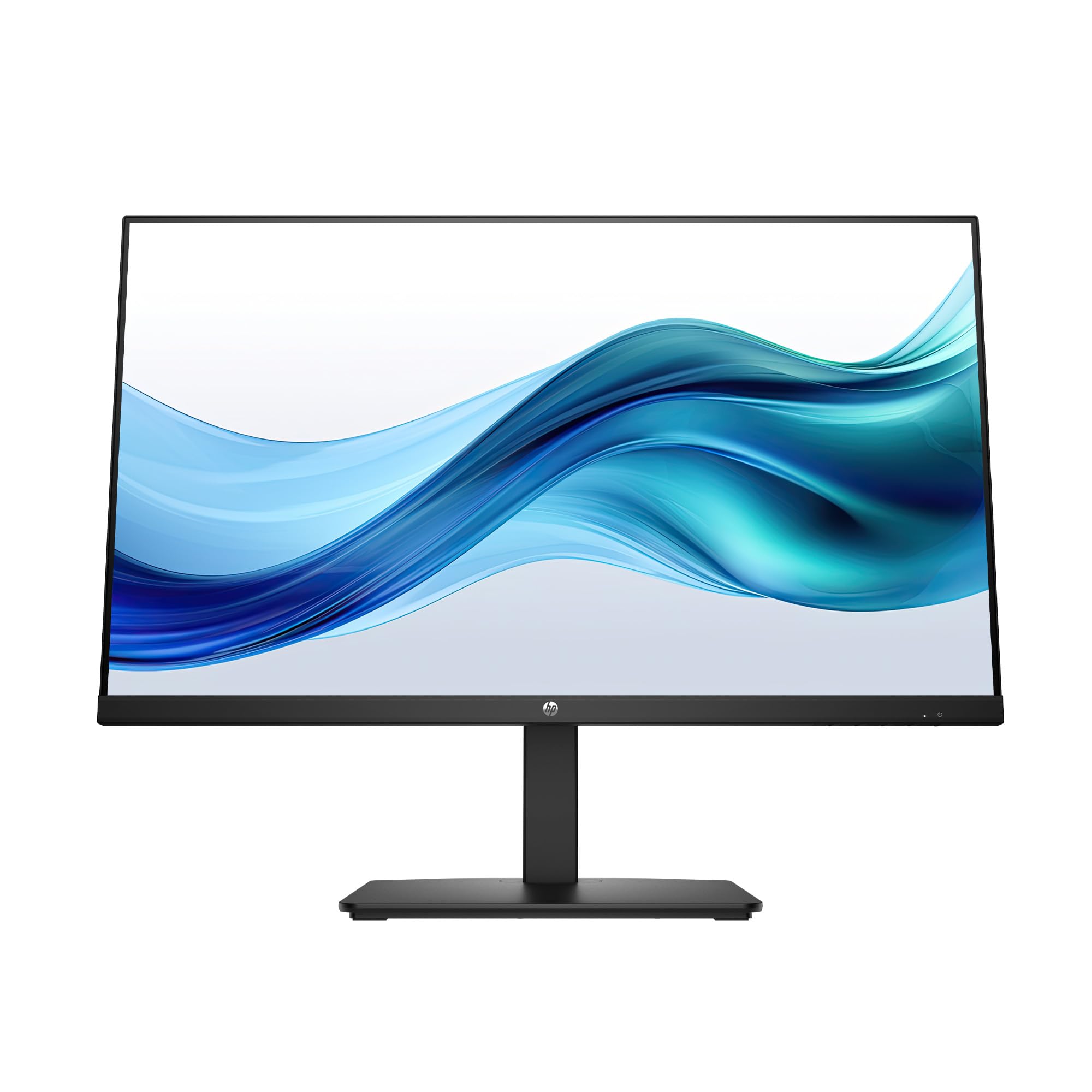
This monitor delivers solid home office performance with its adjustable stand and clean design at a price point that won’t break your budget.
Pros
- The 100Hz refresh rate makes daily scrolling and window transitions noticeably smoother than standard 60Hz displays
- Built-in speakers eliminate the need for separate audio equipment on your desk
- Four-way adjustability lets you find the perfect viewing position without buying an additional monitor arm
Cons
- The 5ms response time isn’t ideal if you occasionally game during breaks
- Cable management works but requires some patience to route everything neatly
- Colors looked slightly washed out until we adjusted the settings through the display menu
We noticed right away how the HP Series 3 reduced eye strain during long work sessions. The Eye Ease certification actually makes a difference without that orange tint you get from software blue light filters. Text appears crisp at the native FHD resolution, which matters when you’re reading documents or spreadsheets all day.
The three-sided borderless design looks premium on our desk. Setting up dual monitors creates an almost seamless workspace that helped us stay organized across multiple applications. The IPS panel maintains color accuracy even when we lean back in our chair or glance at the screen from the side.
Adjusting the tilt took just seconds to get comfortable. The built-in 2W speakers aren’t going to replace dedicated audio equipment, but they handle video calls and background music without issue. We appreciated having DisplayPort, HDMI, and VGA connections available since it means this monitor works with both new laptops and older desktop setups.
The matte finish cuts down on glare from our office window. The 1300:1 contrast ratio provides enough depth for photo editing and video playback without everything looking flat. At 250 nits, brightness is adequate for most indoor environments, though direct sunlight might require closing the blinds.
Assembly took under five minutes out of the box. The included HDMI cable meant we connected our laptop immediately without hunting for extra accessories. The stand feels sturdy enough that the screen doesn’t wobble when we adjust it throughout the day.
Buying Guide
When selecting a monitor for your home office, screen size and resolution form the foundation of your decision. We recommend 24 to 27 inches for most desk setups, as this range provides ample workspace without requiring excessive head movement. For resolution, 1080p works for basic tasks, but 1440p offers noticeably sharper text and more screen real estate for multitasking.
Display Panel Technology
Different panel types serve different purposes in home office environments.
| Panel Type | Best For | Trade-offs |
|---|---|---|
| IPS | Color accuracy, wide viewing angles | Moderate response times |
| VA | High contrast, deep blacks | Narrower viewing angles |
| TN | Fast response times, budget-friendly | Poor color accuracy and viewing angles |
We find IPS panels work best for general office work due to their balanced performance and accurate colors.
Essential Features
Ergonomic adjustments matter more than most people realize. Look for height adjustment, tilt, and swivel options to position the screen at eye level. Pivot functionality proves useful if you frequently work with vertical documents.
Connectivity options should match your devices. HDMI and DisplayPort handle modern computers, while USB-C provides single-cable solutions for power and data with compatible laptops.
Eye comfort features reduce strain during long work sessions. Flicker-free backlighting and low blue light modes help minimize fatigue. Matte screens prevent glare in bright environments better than glossy alternatives.
Refresh rate typically matters less for office work than gaming. Standard 60Hz displays suffice for documents and spreadsheets, though 75Hz or higher feels smoother when scrolling.
Frequently Asked Questions
Screen size between 27 and 32 inches with at least 1440p resolution delivers the best balance for office productivity, while proper panel selection and ergonomic features directly impact long-term comfort during extended work sessions.
What screen size and resolution are ideal for productivity and comfortable reading?
We recommend 27 inches at 2560×1440 (1440p) as the sweet spot for most home office setups. This combination provides approximately 109 pixels per inch, which renders text sharply without requiring scaling adjustments in most operating systems.
For users who work with multiple documents or spreadsheets simultaneously, 32 inches at 1440p offers more screen real estate. The pixel density drops to around 92 PPI at this size, which some users find less crisp for small text.
A 24-inch monitor at 1080p works for basic tasks and tight desk spaces, but the 92 PPI can appear pixelated at typical viewing distances of 20-30 inches. We find that 4K resolution (3840×2160) at 27 inches delivers exceptional clarity at 163 PPI, though it often requires 125-150% scaling for comfortable reading.
Is a curved or flat display better for long hours of office work?
Flat displays work better for home office use in most cases. They don’t distort straight lines in spreadsheets, documents, or design work, and they’re better suited for sharing your screen with others during in-person collaboration.
Curved monitors with 1000R to 1800R curvature can reduce edge distortion on ultrawide screens (34 inches and larger). The curve helps maintain consistent viewing distance across the entire panel when you sit centered.
We don’t recommend curved screens for primary office work if you frequently reference printed materials alongside your display, as the curve makes it harder to align physical documents with on-screen content.
Which panel type (IPS, VA, or OLED) provides the best balance of text clarity and eye comfort?
IPS panels deliver the best overall performance for office work. They maintain consistent color and brightness from wide viewing angles, which matters when you shift positions throughout the day or adjust your monitor height.
Text appears crisp on IPS displays due to their RGB subpixel layout and minimal pixel response artifacts. VA panels offer deeper blacks and higher contrast ratios (typically 3000:1 versus 1000:1 for IPS), but their slower pixel response can cause slight text smearing during scrolling.
OLED monitors eliminate backlight flicker entirely and produce perfect blacks, but they cost significantly more and carry burn-in risk with static UI elements. We only recommend OLED if your workflow varies enough to prevent static taskbars and icons from displaying continuously for months.
What refresh rate and response time are worth paying for if you also game after work?
A 144Hz or 165Hz refresh rate provides noticeable improvements for gaming while maintaining smooth scrolling and cursor movement during office tasks. The upgrade from 60Hz costs roughly $50-100 on most 27-inch 1440p monitors.
Response time of 1ms (GtG) or faster prevents ghosting in fast-paced games. For office work alone, the standard 4-5ms response time of most IPS monitors causes no perceptible issues.
We suggest avoiding refresh rates above 165Hz unless you play competitive shooters regularly, as the price premium doesn’t benefit productivity tasks. Variable refresh rate technology (G-Sync or FreeSync) eliminates screen tearing in games and costs nothing extra on most modern monitors.
Which features matter most for ergonomics and eye strain (height adjustment, blue light, flicker-free, glare control)?
Height adjustment is the most important ergonomic feature we recommend. Your monitor should allow positioning the top of the screen at or slightly below eye level, which typically requires 4-5 inches of adjustment range from most desk surfaces.
Flicker-free backlighting eliminates the PWM dimming that causes eye fatigue in sensitive users. Nearly all monitors from major brands now include this feature at brightness levels above 20%.
Blue light filters help some users during evening work sessions, though we find that OS-level night mode settings work equally well. Anti-glare matte coatings reduce reflections from windows and overhead lighting, but they slightly soften image clarity compared to glossy panels.
Tilt adjustment (typically -5° to 20°) comes standard on most monitors and helps reduce glare. Swivel and pivot functions add flexibility but aren’t essential unless you regularly rotate between landscape and portrait orientations.
Is it worth choosing a monitor with a built-in webcam and microphone for video calls?
Built-in webcams on monitors typically offer 1080p or 2K resolution, which surpasses most standalone laptop cameras. They position at eye level naturally, creating better meeting angles than looking down at a laptop.
The convenience of integrated cameras reduces desk clutter and eliminates the need to mount or clip a separate webcam. However, these monitors usually cost $100-200 more than equivalent models without cameras.
We find that built-in microphones rarely match the quality of dedicated conference speakers or headset mics. Room echo and fan noise often require you to use alternative audio sources anyway.
For regular video conferencing, we recommend monitors with cameras if you don’t already own a quality standalone webcam. If you work in a properly equipped home office with existing conferencing hardware, the integrated camera doesn’t justify the price premium. The BenQ GW2790QT combines a built-in webcam with excellent ergonomic adjustments for users prioritizing video call readiness.

Trevor Fenner is an ecommerce entrepreneur and the founder of Ecommerce Paradise, a platform focused on helping entrepreneurs build and scale profitable high-ticket ecommerce and dropshipping businesses. With over a decade of hands-on experience, Trevor specializes in high-ticket dropshipping strategy, niche and product selection, supplier recruiting and onboarding, Google & Bing Shopping ads, ecommerce SEO, and systems-driven automation and scaling. Through Ecommerce Paradise, he provides free education via in-depth guides like How to Start High-Ticket Dropshipping, advanced training through the High-Ticket Dropshipping Masterclass, and fully done-for-you turnkey ecommerce services for entrepreneurs who want a faster, more hands-off path to growth. Trevor is known for emphasizing sustainable, real-world ecommerce models over hype-driven tactics, helping store owners build scalable, sellable, and location-independent brands.

Still deciding what to sell?
Grab the free list of 1,000+ niches that work for high-ticket dropshipping, sorted by category.
Free. Unsubscribe any time.


