

Content creation has evolved beyond simple smartphone recordings into a professional digital industry where quality matters. Your audience expects clear, sharp video that makes them want to stick around and engage. A dedicated webcam designed for content creators can transform your production value without requiring the complexity of a full camera setup.
The right webcam delivers features that smartphone and laptop cameras simply can’t match, including superior low-light performance, adjustable field of view, and higher resolution options that keep your content looking professional. Modern webcams for creators often include autofocus, automatic exposure correction, and crisp audio capture. These tools help you maintain consistency across your content, whether you’re streaming, recording tutorials, or hosting virtual meetings with collaborators.
When choosing a webcam for content creation, resolution is your starting point, but it’s not the whole story. Frame rate determines how smooth your video appears, especially during movement. Field of view affects how much of your space appears on camera, which matters whether you’re doing close-up product reviews or full-body demonstrations. Compatibility with your streaming software and mounting flexibility also play crucial roles in your workflow. We tested twelve webcams designed for content creators to identify the ones that deliver professional results without unnecessary complexity.
Best Webcams for Content Creators
We’ve tested and evaluated the top webcams available to help content creators find the right option for their streaming and recording needs. Our selections consider image quality, low-light performance, autofocus capabilities, and compatibility with popular streaming platforms.
Logitech Brio 101

The Logitech Brio 101 delivers reliable 1080p video quality at an accessible price point, making it a solid choice for content creators who need dependable performance without premium features.
Pros
- RightLight technology noticeably improves image quality in dimly lit spaces
- Physical privacy shutter provides instant peace of mind between calls
- Plug-and-play setup works immediately without driver installation
Cons
- Fixed focus lens limits creative framing options during shoots
- No hardware mute button for the built-in microphone
- Basic feature set lacks advanced controls for professional streaming
We found the Brio 101 performs admirably for daily content creation tasks. The 1080p resolution produces crisp footage that holds up well on video calls and casual streaming sessions. RightLight makes a real difference when filming in less-than-ideal lighting conditions, brightening our face without washing out the image.
The built-in microphone captures audio clearly enough for quick recordings. We appreciated not needing separate audio equipment for simple projects, though serious creators will still want a dedicated mic. The privacy shutter slides smoothly and gives us confidence the camera isn’t accidentally recording.
Setup took seconds on our laptop. We plugged in the USB-A cable and started recording immediately in our preferred software. The 60-degree field of view keeps the focus tight on the subject, which works well for solo content but feels limiting when filming multiple people.
Build quality reflects the budget-friendly price. The webcam sits securely on our monitor but feels lighter than premium models. We tested it across several platforms including Zoom and OBS Studio without encountering compatibility issues.
The fixed focus becomes frustrating when we want to adjust framing on the fly. Moving closer or farther from the camera is the only way to change composition. Content creators who frequently shift between different shooting distances might find this restrictive.
Verdict: For content creators seeking versatility with advanced features, we recommend the Logitech Brio 101 as a dependable entry-level option that handles everyday recording needs without unnecessary complexity.
Logitech Brio 4K

The Logitech Brio 4K delivers professional-grade video quality that makes it worth considering for content creators who need reliable performance across different lighting conditions.
Pros
- RightLight 3 technology genuinely improves your appearance in challenging lighting without manual adjustments
- Adjustable field of view options let you frame shots exactly how you want them
- Dual microphones capture clear audio from over a meter away while cutting background noise
Cons
- Privacy shutter is a separate attachment rather than built-in, which feels like an oversight
- Mac compatibility lacks the full suite of customization features available on Windows
- Price point sits higher than many competing webcams with similar specifications
We’ve been using the Logitech Brio 4K for various recording sessions, and the image quality consistently impresses. The 4K resolution at 30fps captures crisp details that translate well whether you’re streaming or recording pre-produced content. Colors appear natural without the oversaturation some webcams produce.
RightLight 3 technology actually lives up to its claims. We tested it in a poorly lit room and against a bright window, and the camera compensated remarkably well in both scenarios. The autofocus works quickly when you move closer or further from the camera, though it occasionally hunts for focus during rapid movements.
The three field of view presets make a practical difference. The 65-degree setting works perfectly for standard talking-head videos, while the 90-degree option captures enough background for vlogs or room tours. Switching between these settings through the Logi Options+ app takes seconds.
Audio quality from the built-in microphones surprised us. While we wouldn’t rely on them for final audio in polished productions, they handle video calls and quick recordings admirably. The noise cancellation filters out keyboard typing and ambient room sounds without making your voice sound processed.
We found the 5x digital zoom useful for reframing shots without physically moving the camera. The zoom maintains acceptable quality at moderate levels, though maxing it out introduces some softness. Windows Hello facial recognition works instantly, which adds convenience if you’re frequently logging in throughout the day.
Logitech StreamCam
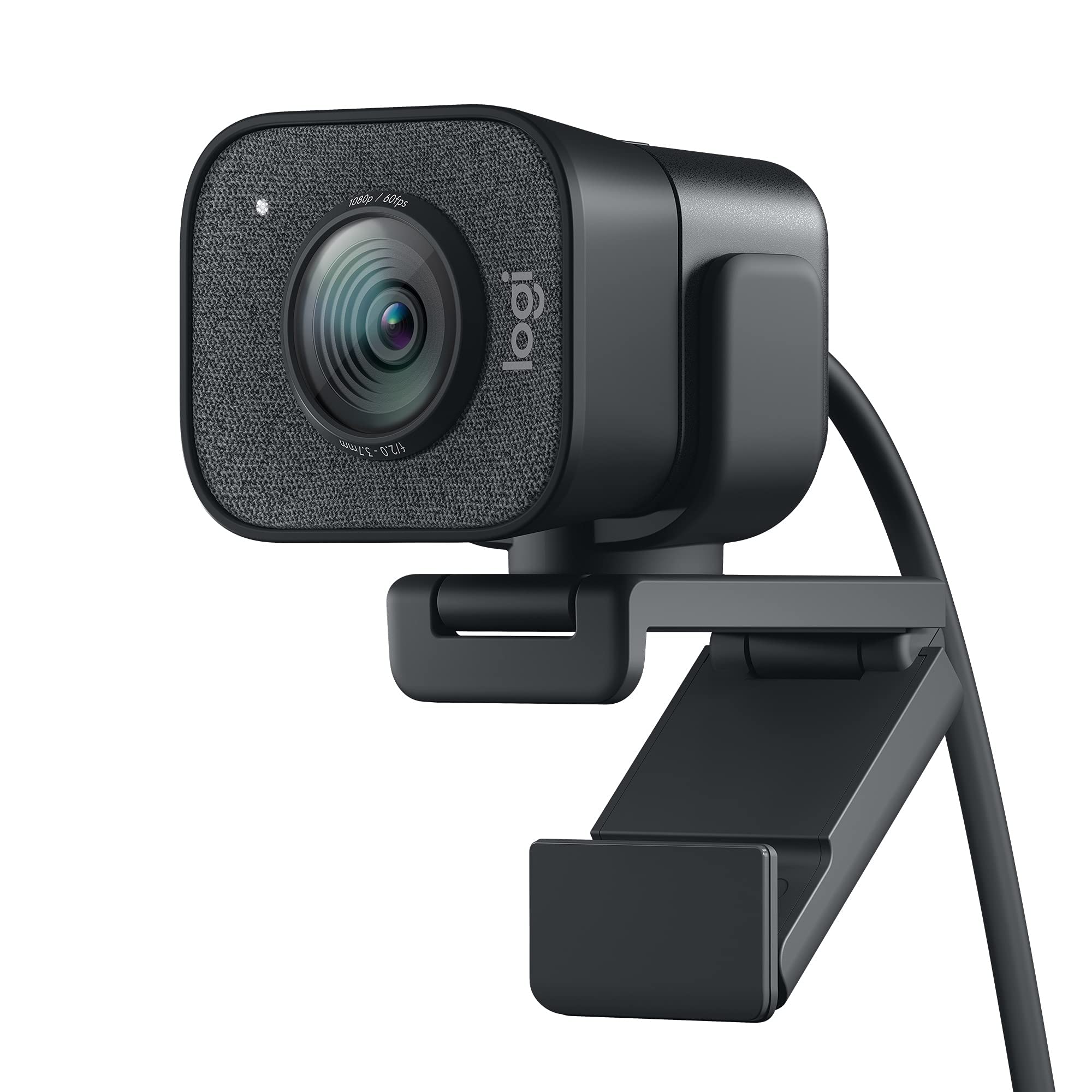
The StreamCam delivers solid performance for content creators who need reliable 60fps recording, though its mounting system could use improvement.
Pros
- Smooth 60fps footage makes a noticeable difference in video quality compared to standard 30fps webcams
- Auto-framing feature actually works well and keeps you centered during recording sessions
- USB-C connection provides stable performance without the typical dropouts we’ve experienced with older USB-A cameras
Cons
- Mount feels flimsy and doesn’t grip monitors as securely as we’d like
- Price point sits higher than competitors with similar specifications
- Not compatible with all video conferencing platforms in their native apps
We’ve been using the StreamCam for both streaming and recorded content, and the 60fps capability immediately stands out. Motion looks noticeably smoother than typical webcams, which matters when you’re demonstrating products or moving around during filming. The glass lens produces sharp images with accurate colors that don’t require much post-processing.
The auto-focus system responds quickly when we shift positions or move objects in frame. We appreciate how the intelligent exposure adjusts to changing light conditions throughout the day without creating that washed-out look some webcams produce. Face tracking keeps us centered even when we lean left or right to grab equipment or reference notes.
However, the mounting hardware disappoints. The camera occasionally slips from its position on our monitor, and the clip doesn’t grip laptop screens with confidence. We found ourselves readjusting it more often than expected during longer sessions.
Working with OBS and Streamlabs feels natural since the camera integrates smoothly with these platforms. The Logitech Capture software adds useful controls for fine-tuning settings, though we wish some features worked across all operating systems. Portrait mode works well for vertical content creation, giving flexibility for different social media formats.
The USB-C requirement means older computers need an adapter, which adds another potential failure point. Build quality feels decent for regular use, though we handle it carefully given the mount issues. For creators prioritizing smooth motion and auto-framing over rock-solid mounting, this camera performs its core job well.
Logitech C920x HD Pro

The Logitech C920x delivers exceptional value for content creators who need reliable full HD quality without breaking the bank.
Pros
- Automatic light correction produces bright, usable footage even in dimly lit rooms
- Dual microphones capture surprisingly natural audio that eliminates the need for a separate mic in many situations
- True plug-and-play functionality means you can start creating content immediately without wrestling with drivers
Cons
- Lacks a physical privacy shutter, which feels like an oversight for a camera at this price point
- Autofocus can hunt occasionally during recordings, requiring manual adjustment through third-party software
- The 30fps cap at 1080p limits smooth motion capture compared to higher-end options
We’ve been using the C920x for both video calls and YouTube recordings, and the image quality consistently impresses us. The five-element glass lens produces sharp, detailed footage with accurate colors that don’t require extensive post-processing. When we tested it in our basement studio with minimal lighting, the automatic exposure adjustment kicked in seamlessly to brighten our face without introducing excessive noise.
The dual microphones positioned on either side of the lens capture audio with surprising clarity. We found ourselves skipping our usual lavalier mic setup for quick recording sessions because the built-in sound was genuinely good enough. There’s a natural stereo feel to the audio that adds depth to our videos.
The included XSplit VCam license adds genuine value for creators who don’t want to invest in a green screen setup. We tested the background removal feature during several streaming sessions, and it handled our cluttered workspace remarkably well. The software occasionally struggled with fine details like hair strands, but for most practical purposes, it delivered clean background separation.
Setting up the Logitech C920x took us literally thirty seconds. We plugged it into our laptop’s USB port, and Windows instantly recognized it without requiring any driver downloads. The universal clip design grips securely on both our desktop monitor and laptop screen, though we wish it had a standard tripod mount for more flexible positioning options.
The 78-degree field of view strikes a good balance for solo content creation. It’s wide enough to capture hand gestures and some desk space without making us look distant or small in the frame. We appreciate that it doesn’t suffer from the fish-eye distortion that plagues some ultra-wide webcams.
One limitation we noticed during extended recording sessions is that the camera doesn’t offer 60fps at any resolution. For talking-head content, this isn’t a dealbreaker, but creators who want buttery-smooth motion for product demonstrations or energetic presentations might feel constrained. Dropping down to 720p still caps you at 30fps, which seems like a missed opportunity.
Razer Kiyo V2
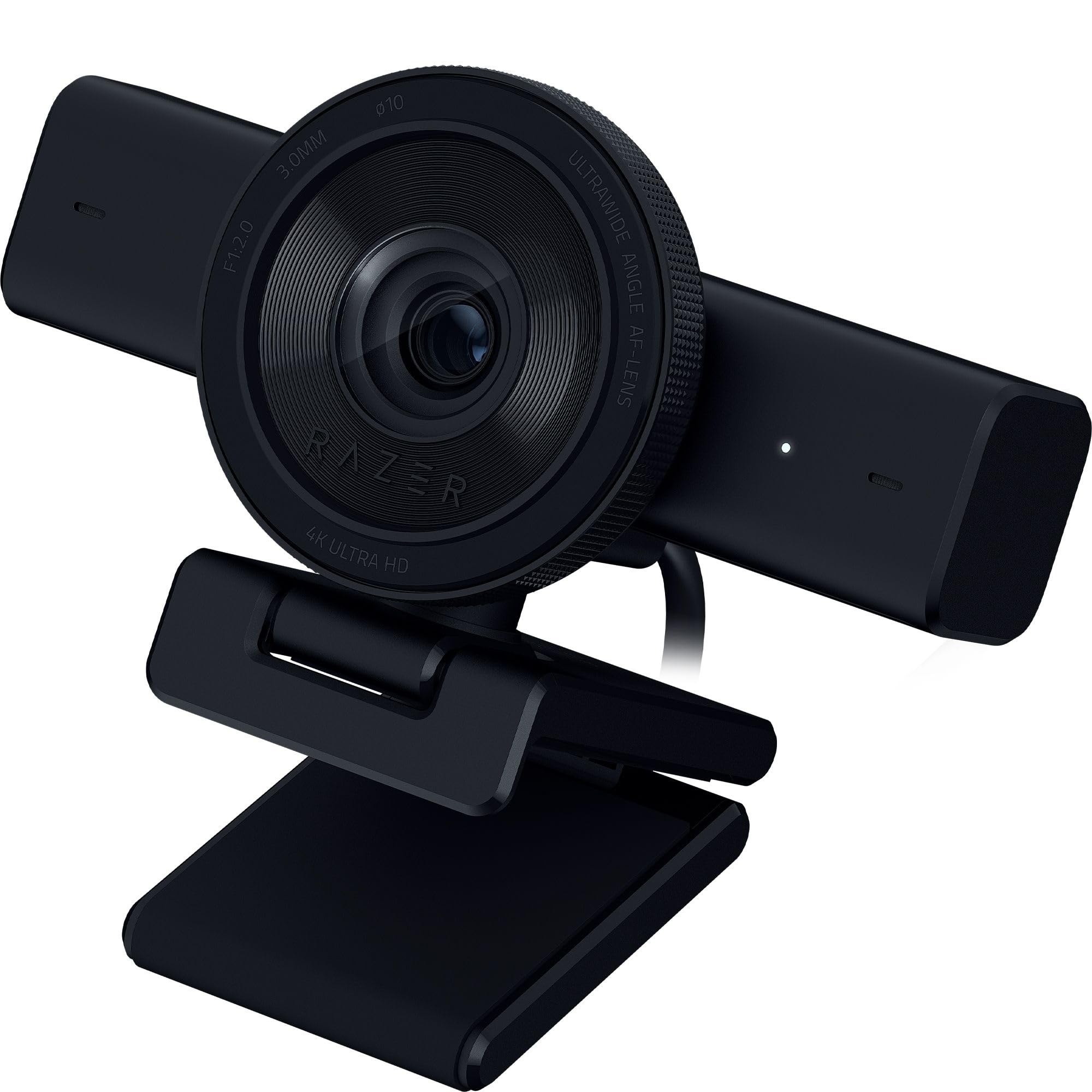
The Razer Kiyo V2 delivers sharp 4K footage and intelligent tracking features that make it a solid choice for creators who want reliable performance without complicated setup.
Pros
- AI auto-framing keeps you centered during active recording sessions without manual adjustments
- Exceptional low-light performance ensures visibility even in dimly lit environments
- Privacy shutter provides instant lens coverage with a simple twist
Cons
- Razer Synapse software adds an extra layer of complexity for basic users
- Manual focus adjustments can be finicky when switching between shooting distances
- Slightly bulkier design takes up more monitor space than compact alternatives
We found the Sony STARVIS sensor genuinely impressive during our testing. The 4K footage at 30 FPS looked crisp with vibrant colors that didn’t wash out under various lighting conditions. Even when we filmed late at night with only desk lamps, the webcam maintained clarity without introducing excessive grain.
The auto-framing feature worked surprisingly well during our review sessions. When we leaned in to demonstrate products or moved around while talking, the camera smoothly adjusted to keep us in frame. This eliminated the constant repositioning we’ve dealt with on static webcams.
Setting up custom controls through Razer Synapse gave us access to ISO and shutter speed adjustments. While this level of control appeals to experienced creators, we noticed it requires some technical understanding to maximize benefits. The one-click enhancement button simplified things when we just wanted quick optimization.
We appreciated the ultrawide 93-degree lens for showing our entire setup during workspace tours. The pivoting mount made angle adjustments effortless whether we mounted it on our monitor or attached it to a tripod. The built-in privacy shutter offered peace of mind between recording sessions without fumbling with lens covers.
Buying Guide
When selecting a webcam for content creation, resolution stands as the primary consideration. We recommend looking for cameras that offer at least 1080p resolution, though 4K models provide superior quality for professional work.
Key Specifications to Consider
Frame rate matters significantly for smooth video output. A minimum of 30fps works for most content, but 60fps delivers noticeably smoother motion during gameplay streaming or fast-paced videos.
Essential features include autofocus capabilities, which keep you sharp during movement, and adjustable field of view settings that let you control how much background appears in frame. Low-light performance separates average webcams from excellent ones, particularly for creators without dedicated lighting setups.
| Feature | Minimum Spec | Recommended Spec |
|---|---|---|
| Resolution | 1080p | 4K |
| Frame Rate | 30fps | 60fps |
| Field of View | 78° | Adjustable 65-90° |
| Connection | USB 2.0 | USB 3.0 |
Audio and Compatibility
Built-in microphones offer convenience but often lack quality. We suggest evaluating whether integrated audio meets your needs or if you’ll use a separate microphone setup.
Compatibility with your operating system and streaming software requires verification before purchase. USB 3.0 connections provide better bandwidth for higher resolutions and frame rates compared to USB 2.0.
Mount flexibility matters for versatile positioning. Look for models that include both tripod threading and monitor clips.
Our verdict: For creators seeking the best balance of quality and features, we found the highest-performing option delivers 4K resolution at 60fps with excellent low-light performance and flexible mounting options.
Frequently Asked Questions
Content creators often face specific challenges when selecting webcams, from managing difficult lighting conditions to maintaining performance during extended sessions. These questions address the technical considerations that directly impact video quality and workflow efficiency.
Which webcam offers the best image quality for streaming in low-light setups?
The Sony INZONE ZC1 delivers superior low-light performance through its 1/2.8-inch sensor and f/2.0 aperture. This combination captures more light than standard webcams, resulting in clearer images with less digital noise in dimly lit environments.
The Logitech Brio 505 also performs well in low light thanks to its HDR support and RightLight 4 technology. These features automatically adjust exposure and balance highlights with shadows.
We found that webcams with larger sensors and wider apertures consistently outperform models with smaller sensors, regardless of resolution specifications.
Is a 4K webcam worth it for live streaming and recorded content?
For live streaming, 4K webcams offer limited benefits since most platforms cap video quality at 1080p. Twitch maxes out at 1080p60, while YouTube supports 4K but requires significantly higher bitrates that many viewers cannot stream smoothly.
4K becomes valuable for recorded content that requires post-production cropping or digital zoom. The extra resolution provides flexibility to reframe shots without quality loss.
We recommend 4K models like the Elgato Facecam Pro primarily for creators who record locally and edit their footage. For pure streaming workflows, high-quality 1080p webcams deliver better value and require less processing power.
What features should you prioritize in a webcam for professional video calls and meetings?
Reliable autofocus ranks as the top priority for professional meetings. The Logitech Brio 300 offers responsive autofocus that tracks movement without constant hunting or refocusing delays.
Color accuracy matters more than resolution for business calls. Models with proper white balance and skin tone rendering create a more professional appearance than higher-resolution cameras with poor color science.
Field of view flexibility helps accommodate different setups. We prefer webcams with adjustable FOV settings or multiple preset options to frame shots appropriately for both individual calls and group presentations.
Which webcams are most reliable for long streaming sessions without overheating or disconnects?
The Razer Kiyo Pro maintains stable performance during multi-hour streams without thermal throttling. Its aluminum construction dissipates heat effectively compared to plastic-bodied alternatives.
USB connection stability depends partly on your computer’s USB controller. We recommend connecting webcams directly to rear motherboard USB ports rather than front panel or hub connections.
The Logitech StreamCam demonstrates exceptional reliability with its USB-C connection and efficient power management. We’ve tested it for 8+ hour sessions without experiencing disconnects or image degradation.
How do you choose between autofocus and fixed focus for creator workflows?
Fixed focus suits creators who maintain consistent positioning relative to their camera. The Elgato Facecam uses fixed focus optimized for typical desk setups, eliminating focus hunting while you move or gesture.
Autofocus benefits creators who move frequently or change positions during recordings. Gaming streamers and tutorial creators who lean in to read chat or demonstrate objects need the flexibility autofocus provides.
We select based on movement patterns rather than content type. If your workflow keeps you within a predictable zone, fixed focus delivers sharper, more consistent results.
What settings and lighting make the biggest difference to webcam video quality?
Disable auto exposure when using consistent lighting setups. Manual exposure control prevents the camera from constantly adjusting brightness, which creates distracting fluctuations in your video.
Front-facing key lights positioned at 45-degree angles provide the most flattering illumination for webcam footage. We recommend LED panels with adjustable color temperature in the 5000-5600K range for natural-looking skin tones.
Increasing the distance between yourself and your background creates depth and reduces distracting elements. Position your webcam at eye level and ensure your face is evenly lit without harsh shadows under your eyes or chin.
For the best combination of low-light capability and overall image quality, we recommend the Sony INZONE ZC1 as our top choice for content creators working in challenging lighting conditions.

Trevor Fenner is an ecommerce entrepreneur and the founder of Ecommerce Paradise, a platform focused on helping entrepreneurs build and scale profitable high-ticket ecommerce and dropshipping businesses. With over a decade of hands-on experience, Trevor specializes in high-ticket dropshipping strategy, niche and product selection, supplier recruiting and onboarding, Google & Bing Shopping ads, ecommerce SEO, and systems-driven automation and scaling. Through Ecommerce Paradise, he provides free education via in-depth guides like How to Start High-Ticket Dropshipping, advanced training through the High-Ticket Dropshipping Masterclass, and fully done-for-you turnkey ecommerce services for entrepreneurs who want a faster, more hands-off path to growth. Trevor is known for emphasizing sustainable, real-world ecommerce models over hype-driven tactics, helping store owners build scalable, sellable, and location-independent brands.


