


Bluehost’s guided setup wizard makes it easy to go from signup to a live WordPress site, but the default path pushes upsells at nearly every step and skips a few things you actually need before taking your first order. I run Ecommerce Paradise, where I teach high-ticket dropshipping, and getting hosting set up correctly the first time saves real headaches later.
Here is exactly how to set up Bluehost for a WooCommerce store, including which upsells to skip and which to keep.
| Step | What You’re Doing | Time Required |
|---|---|---|
| 1 | Choose the WooCommerce Essential plan and register your domain | 10 minutes |
| 2 | Skip the unnecessary add-ons at checkout | 5 minutes |
| 3 | Complete the guided WordPress and WooCommerce install | 10 minutes |
| 4 | Verify SSL is active and set up daily backups if needed | 10 minutes |
| 5 | Configure the Cloudflare CDN | 5 minutes |
| 6 | Install your theme and connect a payment gateway | 20 minutes |
Haven’t picked a plan yet? See the full Bluehost pricing breakdown first →
Step 1: Choose WooCommerce Essential and Register Your Domain
Skip Starter and Business for an actual store, WooCommerce Essential comes with WooCommerce pre-installed and configured, which saves real setup time. If you do not already own a domain, Bluehost includes one free for the first year on most plans. Pick something short and relevant to your niche.
Step 2: Skip the Unnecessary Add-Ons at Checkout
Bluehost’s checkout flow presents several add-ons by default. Premium SSL at $44.99 a year is unnecessary since the free Let’s Encrypt SSL included on every plan is sufficient. Domain privacy is already free on Business plan and higher, so do not pay extra for it if you are on the right tier. CodeGuard Backup Basic, on the other hand, is worth keeping if your plan does not already include daily backups by default.
Step 3: Complete the Guided WordPress and WooCommerce Install
Bluehost’s setup wizard walks you through WordPress installation and WooCommerce activation in a single guided flow. Choose a starter theme when prompted, you can always change it later, and let the wizard configure your store’s basic settings (currency, shipping zones, tax settings) rather than skipping ahead.
Step 4: Verify SSL and Set Up Daily Backups
SSL should activate automatically, but confirm your site loads with https:// before moving on. If you are on the Starter plan (not recommended for a store, but if you started there), enable CodeGuard now. Business and WooCommerce plans include daily backups by default, but it is worth confirming the backup schedule is actually running in your dashboard rather than assuming it.
Step 5: Configure the Cloudflare CDN
Bluehost includes Cloudflare CDN integration on all plans. Enable it from your hosting dashboard to improve load times for visitors outside your primary server region. According to WPBeginner’s WordPress performance guides, a CDN is one of the highest-impact, lowest-effort performance improvements available on shared hosting.
Step 6: Install Your Theme and Connect a Payment Gateway
Install a lightweight, WooCommerce-compatible theme rather than a bloated multipurpose one, since shared hosting performs meaningfully better with fewer resources demanded per page load. Connect your payment gateway (Stripe, PayPal, or WooCommerce Payments) and run a full test transaction before your store goes live. According to Forbes Advisor’s hosting setup guidance, testing checkout end to end before launch catches configuration issues that are far more annoying to fix once real orders start coming in. According to Crazy Egg’s WooCommerce setup research, a lightweight theme paired with minimal plugins is consistently the biggest factor in shared hosting checkout speed.
Common Setup Mistakes to Avoid
The most common mistake is accepting every add-on offered at checkout without checking whether it is already included in the plan. The second most common mistake is skipping the CDN setup in Step 5, which is free and takes five minutes but gets overlooked because it is not part of the guided wizard.
Setting Up Bluehost Alongside Your Broader Store Stack
Hosting is one piece of the setup. Once WooCommerce is live, connect an email marketing tool, set up analytics, and confirm your supplier integrations before driving any paid traffic to the store.
Budgeting the Setup Into Your Business Costs
If you are still working through business formation and financial planning, hosting setup is mostly a time cost rather than a money cost once you skip the unnecessary add-ons. Budget your first month around the renewal rate, not the intro rate, so there are no surprises later.
Frequently Asked Questions
How long does it take to set up Bluehost for WooCommerce?
About an hour total if you follow the steps above, including domain registration, WordPress and WooCommerce installation, and payment gateway setup.
Which Bluehost add-ons should I actually buy?
CodeGuard Backup Basic if your plan does not already include daily backups. Skip Premium SSL and domain privacy if you are already on a plan that includes them free.
Do I need to install WooCommerce manually?
Not on the WooCommerce Essential or Premium plans, it comes pre-installed. On Starter or Business plans, you will need to install and activate it yourself from the WordPress plugin directory.
Does Bluehost’s CDN cost extra?
No. Cloudflare CDN integration is included on all Bluehost plans and just needs to be enabled from the hosting dashboard.
Should I test my payment gateway before launching?
Yes, always. Run a full test transaction through your chosen payment gateway before driving any traffic to confirm checkout works correctly end to end.
Building a WooCommerce store and want your setup handled for you? See how my done-for-you store build service works →
Or grab my free beginner’s guide to see how hosting fits into a complete high-ticket dropshipping system.

Trevor Fenner is an ecommerce entrepreneur and the founder of Ecommerce Paradise, a platform focused on helping entrepreneurs build and scale profitable high-ticket ecommerce and dropshipping businesses. With over a decade of hands-on experience, Trevor specializes in high-ticket dropshipping strategy, niche and product selection, supplier recruiting and onboarding, Google & Bing Shopping ads, ecommerce SEO, and systems-driven automation and scaling. Through Ecommerce Paradise, he provides free education via in-depth guides like How to Start High-Ticket Dropshipping, advanced training through the High-Ticket Dropshipping Masterclass, and fully done-for-you turnkey ecommerce services for entrepreneurs who want a faster, more hands-off path to growth. Trevor is known for emphasizing sustainable, real-world ecommerce models over hype-driven tactics, helping store owners build scalable, sellable, and location-independent brands.
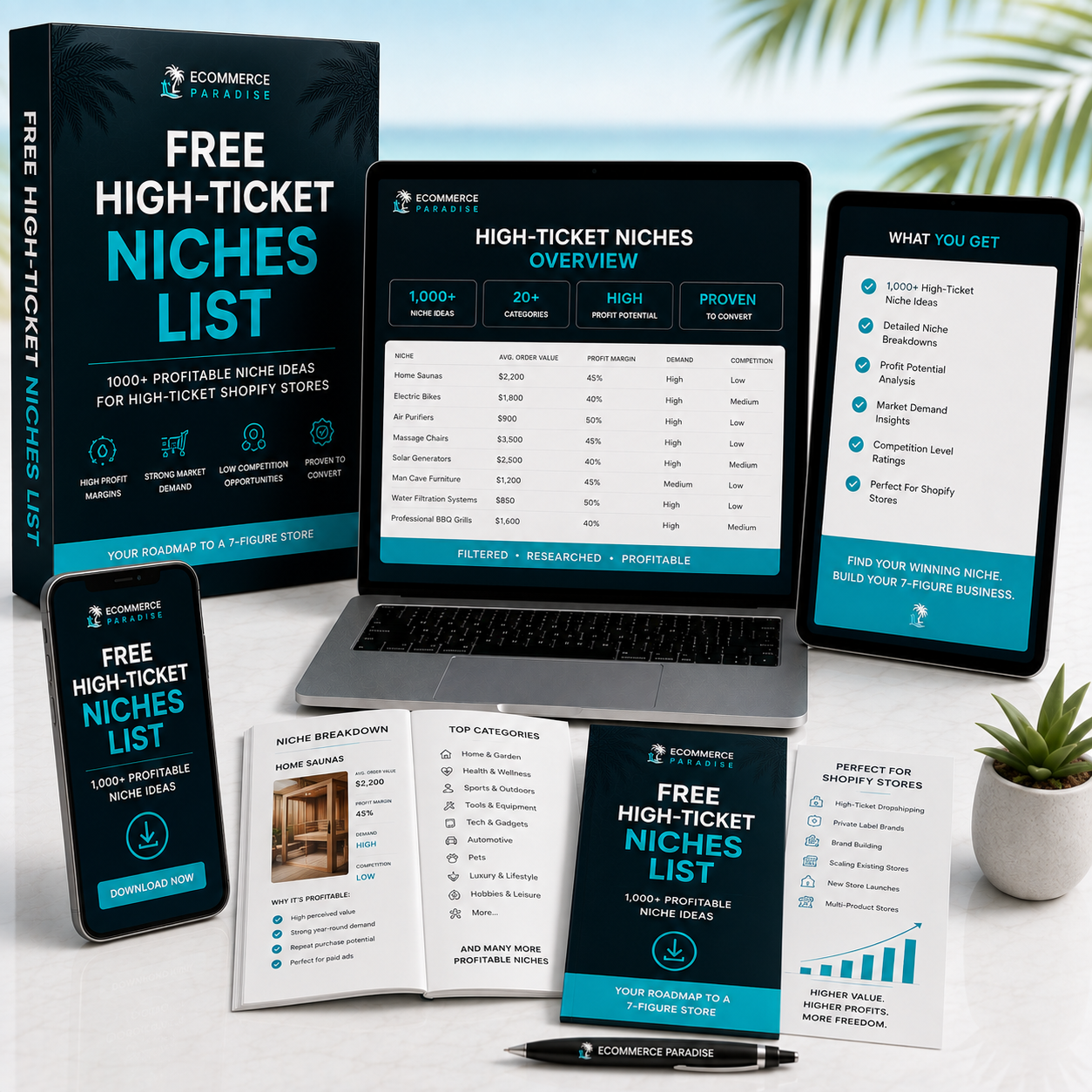
Still deciding what to sell?
Grab the free list of 1,000+ niches that work for high-ticket dropshipping, sorted by category.
Free. Unsubscribe any time.


