


Google Shopping Ads is the single most effective paid traffic channel for high-ticket dropshipping stores. When someone searches “outdoor sauna for sale” or “best standing desk 2026,” Google Shopping shows product images, prices, and store names right at the top of the results page — exactly where purchase-intent buyers are looking. At Ecommerce Paradise, Google Shopping is the first ad channel we set up for every client store, and it’s the foundation of our Google Shopping Ads management service. Here’s the complete guide to running it yourself.
Why Google Shopping Works So Well for Dropshipping
Google Shopping targets buyers who are actively searching for products to buy — not passively scrolling through a social media feed. This search intent makes it the highest-converting paid traffic source for ecommerce. On a high-ticket dropshipping store selling $500-3,000 products, even a 0.5-2% conversion rate on Shopping traffic generates meaningful revenue. Compare this to Facebook Ads where you’re interrupting passive scrollers who weren’t thinking about your product at all.
MAP pricing enforcement (which is standard in high-ticket dropshipping) means you’re competing at the same price as every other authorized dealer — which levels the playing field for smaller stores against larger retailers. Your Shopping ad success then depends on your product data quality, your bidding strategy, and your product page conversion rate rather than your ability to undercut on price.
Step 1: Set Up Google Merchant Center
Google Merchant Center is where your product data lives — it’s the feed that Google Shopping pulls from to show your products in ads. Go to merchants.google.com and create an account. Enter your business name, website URL, and country. Verify and claim your website by adding a meta tag or DNS record as Google instructs.
Configure your shipping settings in Merchant Center to match your actual store shipping policy. If you offer free shipping on all orders, set that up here. Inaccurate shipping information causes product disapprovals. Also set up your return policy in Merchant Center — Google shows return policy information in Shopping listings, which improves click-through rates.
Step 2: Connect Your Product Feed
Your product feed is the data file that tells Google what products you sell, at what prices, with what descriptions and images. For a Shopify store, the easiest way to connect your feed is through Shopify’s Google & YouTube app or a dedicated feed app. This automatically syncs your Shopify product catalog to Merchant Center and keeps it updated as you add or change products.
Product data quality is critical for Google Shopping performance. Google uses your product titles and descriptions to match your products to relevant searches. Optimize your product titles to include brand name, product type, and key specifications: “XYZ Brand Model 500 Outdoor Infrared Sauna 4-Person” is much better than “Outdoor Sauna” for matching relevant searches. Include GTINs (Global Trade Item Numbers — UPC/EAN codes) for your products wherever available. Products with GTINs tend to perform better in Shopping because Google can better categorize and match them.
After connecting your feed, review the Diagnostics section in Merchant Center for any product disapprovals. Common issues: mismatched prices between your feed and your website, missing required attributes, policy violations (prohibited products, restricted content). Fix all disapprovals before launching ads. Products that aren’t approved won’t show in Shopping.
Step 3: Create Your Google Ads Account and Link to Merchant Center
Go to ads.google.com and create a Google Ads account. In the setup process, select “Switch to Expert Mode” to get full control over your campaign settings — the Smart campaigns Google tries to push you toward by default are not appropriate for dropshipping stores. Link your Google Ads account to your Merchant Center account in the linked accounts section of both platforms.
Set up conversion tracking before you create any campaigns. In Google Ads, go to Tools > Conversions and create a conversion action for purchases from your website. Install the conversion tracking tag on your Shopify store. You cannot optimize your campaigns intelligently without knowing which clicks are converting to sales — this step is non-negotiable. Configure tracking via the Google Ads tag or through Google Tag Manager. Verify that conversions are firing correctly by placing a test order.
Step 4: Launch Your First Shopping Campaign
For a multi-brand high-ticket store, start with a feed-only Performance Max campaign: your product feed and nothing else, no headlines, images, or videos. With no creative to work with, Google has almost nothing to show except your product listings, so most of the spend lands on Shopping ads on Google Search, where buyers are already typing the brand and model. It pools learning across your whole catalog, which matters when you only get a dozen or two sales a month. Standard Shopping is the fallback: switch to it if the channel performance report shows spend leaking into Display or YouTube, or when you want manual bids on a small set of products. I break down both in my guide to feed-only PMax versus the three-tier Shopping structure.
Campaign structure for a new dropshipping store: create one campaign containing all your approved products, and split later by margin, price band, or brand tier once you pass roughly 30 sales a month. Set a daily budget of $30 to $50 to start. Skip every asset prompt so the campaign stays feed-only, turn off final URL expansion and auto-generated assets, and set location targeting to people present in your country. Bid on Maximize conversion value with no target ROAS at launch, then add a target ROAS at your actual 30-day ROAS once you have 30 or more conversions in 30 days. The full build with every setting and 10 AI prompts is in the Feed-Only PMax Setup SOP.
Set negative keywords from day one. Performance Max now accepts campaign-level negative keywords and shared negative lists, so build one universal list and attach it to every campaign. Common negatives for a high-ticket store: “cheap,” “discount,” “used,” “secondhand,” “DIY,” “how to build,” “repair,” and “jobs.” Add a brand exclusion for your own store name too, so PMax does not take credit for people who already know you. These filters save your budget for buyers who are ready to purchase.
Step 5: Monitor, Optimize, and Scale
Check your campaign performance daily for the first two weeks. The metrics to focus on: impressions (is your product showing?), clicks (are people clicking?), cost per click (is it within budget?), conversions (are clicks turning into purchases?), and ROAS (return on ad spend — revenue generated per dollar spent).
Identify your Search Terms report in Google Ads — this shows the actual searches triggering your ads. Add irrelevant searches as negative keywords. Look for high-performing search terms and ensure your product pages are optimized for those specific queries.
As your campaign matures, segment your products. Create separate campaigns or ad groups for your top-performing products so you can allocate more budget to what’s working. Pause products that have spent $50-100 without generating any clicks or conversions — they may need better product data, better product page content, or may simply not have enough search volume to justify ad spend. For a deeper dive into the right niches that perform on Google Shopping, our niche list identifies categories with proven search volume and commercial intent. And for the business foundation that supports a healthy Google Ads account, proper LLC setup, business address, and clean payment methods all matter for Google’s account review process. The High-Ticket Dropshipping Masterclass covers Google Shopping strategy in depth. Our Google Shopping Ads management service sets up and manages your campaigns professionally. And private coaching includes hands-on Google Ads guidance tailored to your store and niche. For supplier-sourced products with strong MAP enforcement, Google Shopping is where your business comes alive.

Trevor Fenner is an ecommerce entrepreneur and the founder of Ecommerce Paradise, a platform focused on helping entrepreneurs build and scale profitable high-ticket ecommerce and dropshipping businesses. With over a decade of hands-on experience, Trevor specializes in high-ticket dropshipping strategy, niche and product selection, supplier recruiting and onboarding, Google & Bing Shopping ads, ecommerce SEO, and systems-driven automation and scaling. Through Ecommerce Paradise, he provides free education via in-depth guides like How to Start High-Ticket Dropshipping, advanced training through the High-Ticket Dropshipping Masterclass, and fully done-for-you turnkey ecommerce services for entrepreneurs who want a faster, more hands-off path to growth. Trevor is known for emphasizing sustainable, real-world ecommerce models over hype-driven tactics, helping store owners build scalable, sellable, and location-independent brands.
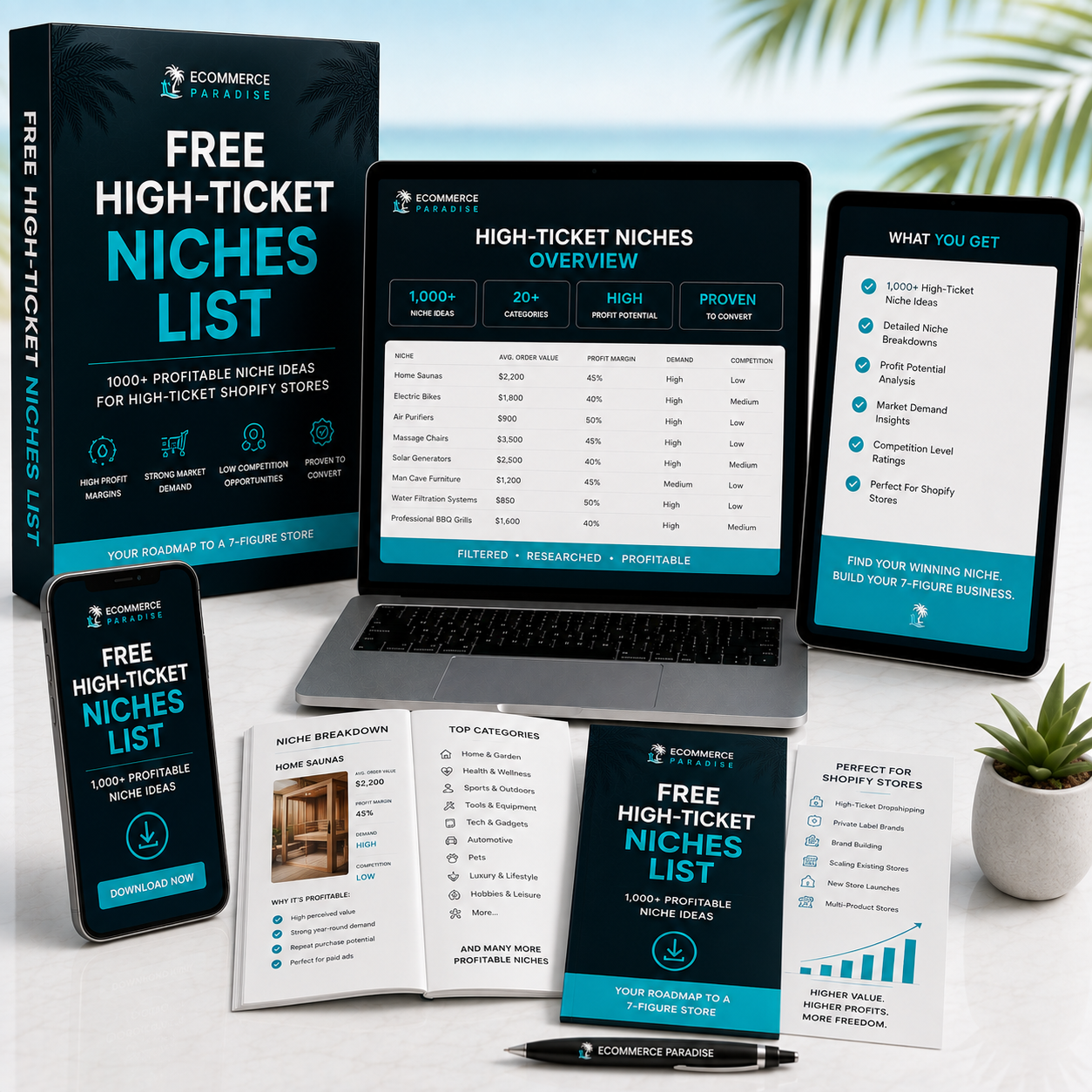
Still deciding what to sell?
Grab the free list of 1,000+ niches that work for high-ticket dropshipping, sorted by category.
Free. Unsubscribe any time.


