


A helpdesk that just sits there as a fancier inbox is not actually saving you any time. I run Ecommerce Paradise, where I teach high-ticket dropshipping.
Here is exactly how to set up Zoho Desk so it actually cuts your ticket handling time, plus a link to picking the right niche before support volume becomes a real consideration.
| Step | What You’re Doing | Time Required |
|---|---|---|
| 1 | Set up your help center and departments | 20 minutes |
| 2 | Connect your support channels | 15 minutes per channel |
| 3 | Build canned responses for common tickets | 45 minutes |
| 4 | Configure automation and assignment rules | 30 minutes |
| 5 | Set up SLA policies | 15 minutes |
| 6 | Test the full ticket lifecycle | 20 minutes |
Haven’t decided if Zoho Desk is the right fit yet? Read my full Zoho Desk review first →
Step 1: Set Up Your Help Center and Departments
Create your Zoho Desk account and build your public help center first, publishing articles for your most common questions like return policies and shipping timelines before you ever open a ticket queue. Set up departments if you run multiple storefronts or brands, since tagging tickets by department from day one makes reporting meaningfully cleaner later.
Step 2: Connect Your Support Channels
Under Settings and Channels, connect each channel your customers actually use to reach you: email, web forms, live chat, and social if relevant. Connect one channel at a time and confirm tickets are routing correctly before adding the next, rather than connecting everything simultaneously and troubleshooting multiple integrations at once.
Step 3: Build Canned Responses for Common Tickets
Most ecommerce support tickets fall into a handful of predictable categories: order status, shipping delays, returns, and product questions. Build canned responses for each of these categories before you go live, since this is what actually makes Zoho Desk’s automation pay off rather than treating it as a glorified shared inbox.
Step 4: Configure Automation and Assignment Rules
Set up workflow rules that auto-assign tickets by department, priority, or keyword so agents are not manually sorting a shared queue. For a supplier-related ticket category, route those directly to whoever owns supplier communication rather than a general queue, since supplier issues often need faster escalation than a routine product question.
Step 5: Set Up SLA Policies
On Standard plans and up, configure SLA policies that set response and resolution time targets by ticket priority. This is what keeps a growing team accountable to response times without a manager manually checking every ticket, and it becomes genuinely important once you have more than one or two agents sharing the queue.
Step 6: Test the Full Ticket Lifecycle
Before going live, submit a test ticket through each connected channel and walk it through the full cycle: ticket received, automatically routed, canned response applied, resolved, and closed. Catching a broken automation rule in testing costs you nothing. Catching it on a real customer ticket costs you a frustrated customer and a slower resolution.
Common Mistakes to Avoid
The most common mistake is treating Zoho Desk purely as a shared inbox and never configuring the canned responses, automation rules, or help center that actually justify the subscription cost over a free email client. According to G2’s Zoho Desk reviews, teams that invest real setup time upfront report meaningfully faster resolution times than teams that skip configuration and just start answering tickets manually. Capterra’s Zoho Desk reviews point to the same pattern.
Budgeting the Setup Time Into Your Launch Plan
Factor the full setup, channel connections, canned response building, and testing into your business formation and financial planning as a real time cost. A properly configured Zoho Desk setup following the steps above realistically takes 2 to 3 hours total, worth scheduling deliberately before your first real support volume rather than rushing through it after tickets start piling up.
Using Zia AI to Speed Up Replies
Once your help center content is published, enable Zia’s Reply Assistant so agents get suggested replies pulled from your existing knowledge base content. This works best once your help center actually has enough articles to draw from, so prioritize publishing your top 10 to 15 most common questions before leaning heavily on AI-suggested replies.
Connecting Zoho Desk to Your CRM
If you are running Zoho CRM alongside Zoho Desk, enable the native integration so agents see a customer’s purchase and interaction history directly inside the ticket view. This context-aware setup is Zoho Desk’s most distinctive feature, and skipping this integration if you already have the CRM in place leaves real value on the table.
Setting Up Light Agents for Internal Collaborators
On Standard plans and up, add light agents for internal team members, like a warehouse manager or supplier liaison, who need to view or comment on specific tickets without a full agent license. This keeps your agent seat count accurate while still giving relevant stakeholders visibility into tickets that affect their part of the operation.
Reviewing Your Automation Rules Monthly
Set aside 20 to 30 minutes a month to review which automation rules are actually firing and which canned responses agents use most often. Ticket patterns shift as your product catalog and order volume change, and automation rules built at launch often need adjustment once you have a few months of real ticket data to work from.
Measuring Whether the Setup Is Actually Working
Track your average first-response time and resolution time over your first month live. A properly configured setup following the steps above should show measurable improvement within the first few weeks as canned responses and automation absorb the repetitive share of your ticket volume. If those metrics are not improving after a month, the most likely culprit is under-configured automation rather than the platform itself. Research.com’s Zoho Desk review notes the same pattern across independent user feedback.
Frequently Asked Questions
How long does it take to properly set up Zoho Desk?
Core setup takes about 2 to 3 hours including channel connections, canned responses, and testing. Ongoing maintenance is closer to 20 to 30 minutes a month once it’s running.
Do I need the Standard plan to use SLA policies?
Yes, SLA management unlocks starting on the Standard tier and up.
Can I use Zoho Desk without Zoho CRM?
Yes, it functions as a standalone helpdesk, though connecting Zoho CRM unlocks the context-aware ticket view that is Zoho Desk’s most distinctive feature.
Should I connect all my support channels on day one?
No. Connect one channel at a time and verify tickets route correctly before adding the next, since troubleshooting a single connection is far easier than isolating an issue across several connected at once.
What is the fastest way to reduce ticket volume?
A well-maintained help center with articles covering your most common questions, published before you go live, measurably reduces the number of tickets agents need to handle manually.
Want your entire operations stack set up the right way from day one? See how my done-for-you store build service works →
Or grab my free beginner’s guide to see how customer support fits into a complete high-ticket dropshipping system.

Trevor Fenner is an ecommerce entrepreneur and the founder of Ecommerce Paradise, a platform focused on helping entrepreneurs build and scale profitable high-ticket ecommerce and dropshipping businesses. With over a decade of hands-on experience, Trevor specializes in high-ticket dropshipping strategy, niche and product selection, supplier recruiting and onboarding, Google & Bing Shopping ads, ecommerce SEO, and systems-driven automation and scaling. Through Ecommerce Paradise, he provides free education via in-depth guides like How to Start High-Ticket Dropshipping, advanced training through the High-Ticket Dropshipping Masterclass, and fully done-for-you turnkey ecommerce services for entrepreneurs who want a faster, more hands-off path to growth. Trevor is known for emphasizing sustainable, real-world ecommerce models over hype-driven tactics, helping store owners build scalable, sellable, and location-independent brands.
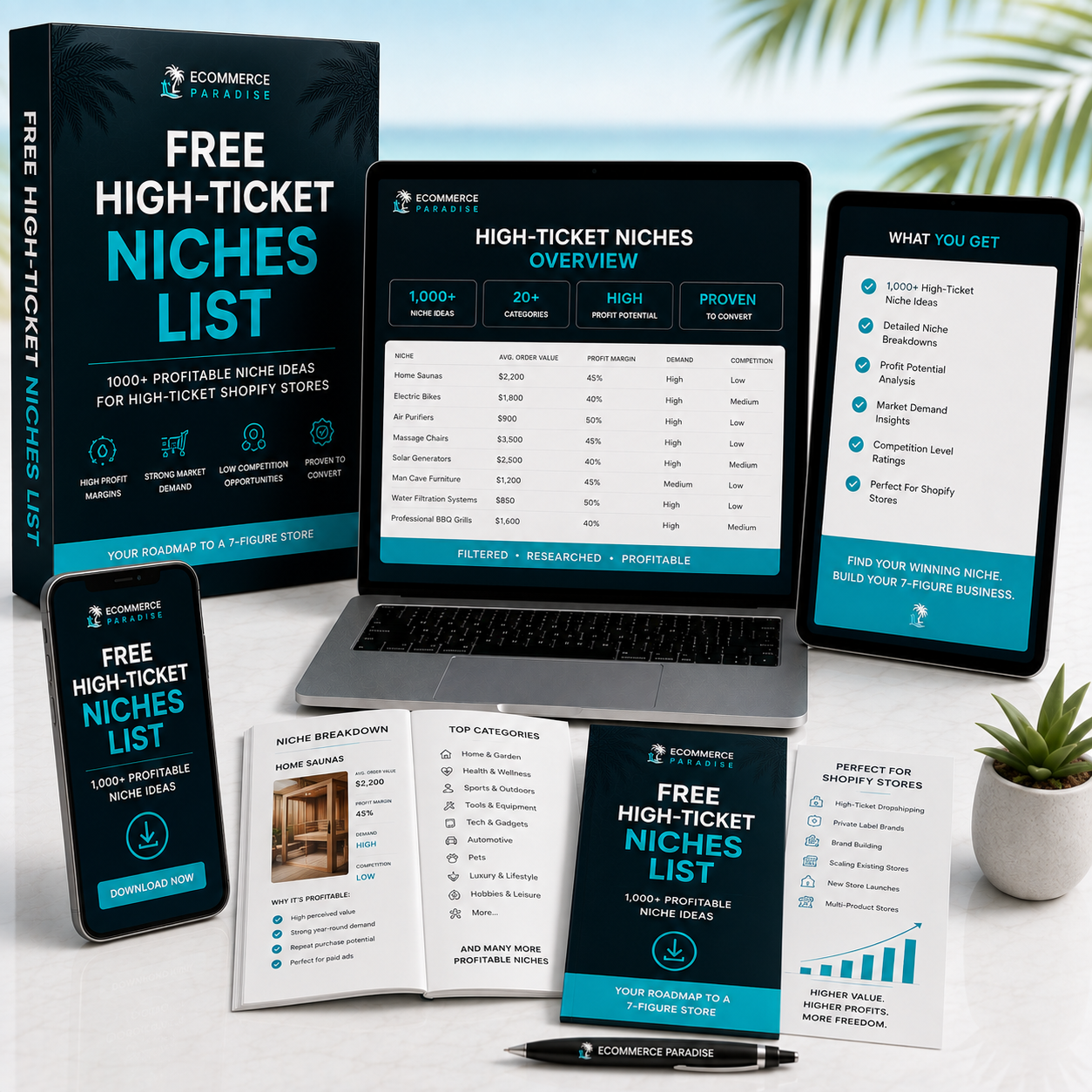
Still deciding what to sell?
Grab the free list of 1,000+ niches that work for high-ticket dropshipping, sorted by category.
Free. Unsubscribe any time.


