


Turbo’s speed advantage only shows up if the theme is actually configured to use it. I run Ecommerce Paradise, where I teach high-ticket dropshipping, and for a large-catalog store, setup order determines whether Turbo’s preloading and navigation features actually get used or just sit unconfigured in the settings.
Here is exactly how to set up Turbo Theme, step by step.
| Step | What You’re Doing | Time Required |
|---|---|---|
| 1 | Purchase and select a preset | 15 minutes |
| 2 | Build your mega menu structure | 30-60 minutes |
| 3 | Enable predictive search | 10 minutes |
| 4 | Configure quick shop on collections | 15 minutes |
| 5 | Build homepage sections | 2-3 hours |
| 6 | Test preloading and publish | 30 minutes |
Not sure Turbo is the right fit yet? Read my full Turbo review first →
Step 1: Purchase and Select a Preset
All six Turbo presets (Portland, Seoul, Florence, Chicago, Dubai, Tennessee) ship in one purchase. Pick the preset closest to your brand’s aesthetic and catalog style as your starting point, since Turbo’s real value comes from its performance architecture, not from which preset you launch with.
Step 2: Build Your Mega Menu Structure
Map your top 6 to 10 categories before building the mega menu in the theme editor. For a large-catalog store, this is the navigation customers will use most, so organize it around how customers actually think about your products rather than how your suppliers categorize them.
Step 3: Enable Predictive Search
Turn on predictive search so customers can type a product name or category and see matching results immediately. According to web.dev’s Core Web Vitals guidance, search-driven navigation reduces the number of full page loads per session, which compounds well with Turbo’s preloading architecture rather than competing with it.
Step 4: Configure Quick Shop on Collection Pages
Enable quick shop so customers can add items to cart directly from collection pages without a full product page load. Turbo only loads quick shop product data when triggered, so this feature doesn’t slow down your collection pages even with a large catalog.
Step 5: Build Out Homepage Sections
Turbo includes 25+ sections. Build 4 to 6 sections for your homepage rather than stacking everything available. According to the Out of the Sandbox Help Center, a focused homepage section count keeps initial load fast, which matters even on a preloading-optimized theme since the first page a visitor lands on doesn’t benefit from preloading.
Step 6: Test Preloading Behavior and Publish
Test the preloading behavior directly: hover toward navigation links on desktop and tap links on mobile, and confirm page transitions feel near-instant. Independent theme reviews at EcomExpert note that preloading’s benefit is most noticeable on larger catalogs with many page-to-page transitions per session, so verify it’s actually working across your specific collection and product page structure before publishing.
Common Mistakes to Avoid
The most common mistake is skipping mega menu planning and letting the default navigation structure carry over from a smaller catalog, which defeats the purpose of investing in a large-catalog theme. The second is overloading the homepage with more sections than the store actually needs, which adds load weight without adding conversion value.
Using Turbo Alongside Your Broader Business Stack
A properly configured theme is one piece of running a high-ticket ecommerce business at scale. Pair it with solid supplier relationships that can support the catalog size Turbo is built to handle.
Also make sure your business formation is properly set up before you’re processing real transactions through your new store.
Frequently Asked Questions
How long does a full Turbo setup take?
Roughly 3 to 4 hours for a thorough first setup, most of it spent on mega menu structure and homepage sections rather than the theme installation itself.
Do I need to configure preloading manually?
No, page preloading is built into Turbo’s core architecture and works automatically once the theme is installed.
Which preset should I start from?
Whichever of the six presets fits your brand’s visual identity and catalog style. Portland and Dubai are common starting points for general and multi-category stores.
Can I change my mega menu structure after launch?
Yes, mega menu configuration remains fully editable in the theme settings after your store is live.
Should I enable every feature Turbo offers?
No. Enable predictive search, quick shop, and mega menu since those directly support large-catalog browsing. Add other sections only as your homepage genuinely needs them.
Building a large-catalog high-ticket store and want it set up right the first time? See how my done-for-you store build service works →
Or grab my free beginner’s guide to see how theme setup fits into a complete high-ticket dropshipping system.

Trevor Fenner is an ecommerce entrepreneur and the founder of Ecommerce Paradise, a platform focused on helping entrepreneurs build and scale profitable high-ticket ecommerce and dropshipping businesses. With over a decade of hands-on experience, Trevor specializes in high-ticket dropshipping strategy, niche and product selection, supplier recruiting and onboarding, Google & Bing Shopping ads, ecommerce SEO, and systems-driven automation and scaling. Through Ecommerce Paradise, he provides free education via in-depth guides like How to Start High-Ticket Dropshipping, advanced training through the High-Ticket Dropshipping Masterclass, and fully done-for-you turnkey ecommerce services for entrepreneurs who want a faster, more hands-off path to growth. Trevor is known for emphasizing sustainable, real-world ecommerce models over hype-driven tactics, helping store owners build scalable, sellable, and location-independent brands.
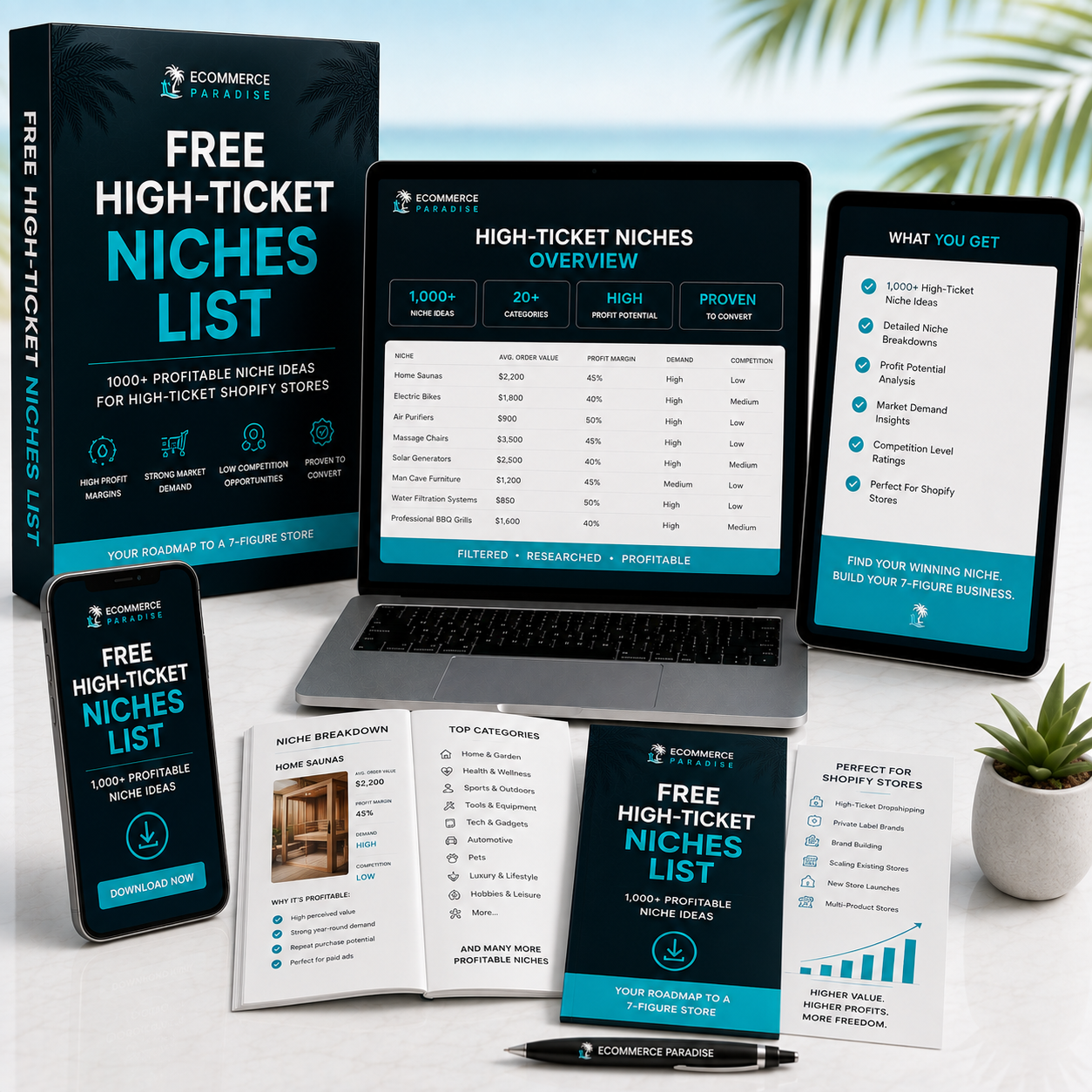
Still deciding what to sell?
Grab the free list of 1,000+ niches that work for high-ticket dropshipping, sorted by category.
Free. Unsubscribe any time.


