


The best video editing software in 2026 is not one program. It is whichever tool matches how you actually make video, and what you are willing to pay for it every year. A free editor can carry a whole store’s worth of product clips, a $295 one-time license can last years, and an AI editor can let you cut a talking-head video by editing text instead of a timeline.
At Ecommerce Paradise I teach store owners to build high-ticket businesses, and video keeps showing up in that work: product demos, ad creatives, founder introductions and YouTube content. If you are still deciding on a model, start with my guide to what high-ticket dropshipping is, then come back here once you know you will be making video for a real store.
One thing before the list. I have not benchmarked these editors on my own footage for this post. Everything below comes from each company’s own pricing and product pages as I read them in October 2026, plus a published TechRadar roundup, and I flag where sources disagree. Prices change often, so confirm the number on the signup page before you pay.
Disclosure: I may earn a commission if you sign up through my Descript or invideo links, at no extra cost to you. It does not change the ranking below, and I say where each of those two is not the right tool.
| Software | Best for | Price as of October 2026 | Free option |
|---|---|---|---|
| DaVinci Resolve | Best overall value, color and full control | Free, or $295 one time for Studio | Yes, full free version |
| Descript | Talking-head, tutorial and podcast video | From $16 a month (annual billing) | Yes, watermarked, 720p |
| invideo | AI-generated clips and fast ad drafts | From $20 per seat a month (annual billing) | None listed on the pricing page |
| Adobe Premiere Pro | Professional workflows and Adobe users | $22.99 a month (single app, annual plan billed monthly) | 7-day trial |
| Final Cut Pro | Mac and iPad editors | $12.99 a month or $129 a year (Apple Creator Studio), or $299.99 one time | 30-day trial (Apple Creator Studio) |
| CapCut | Short vertical social video | Free to download; Pro price not confirmed | Yes |
| Filmora | Beginners who want templates | About $49.99 to $59.99 a year, or about $79.99 perpetual (promo prices) | Yes, watermarked |
| Camtasia | Screen recordings and training videos | From $179.88 a year for the Essentials tier | 14-day money-back guarantee; free trial not confirmed |
Cut Your Next Store Video by Editing the Transcript
Descript lists a free plan with 60 media minutes a month, and paid plans from about $16 a month on annual billing with Studio Sound, filler word removal and 1080p watermark-free export.
How I Evaluated These Editors
I judged each tool on five things: what it costs over three years, how steep the learning curve looks, what AI help it offers, which computers it runs on, and whether there is a free way to try it. I weighted the list toward store owners, not film students. That means product demos, ad cuts, YouTube videos and the occasional founder video, not feature films.
Pricing and feature claims come from the vendors’ own pages, which I opened in October 2026. Where I quote a roundup, it is TechRadar’s best video editing software guide, which was last updated on January 14, 2026 and so predates some of the current prices. When the two disagree, I trust the vendor page for the price and the roundup for the general verdict.
Anything about how hard a tool is to learn is my judgment from the feature lists, not a stopwatch test. For AI-first editors only, my best AI video editor roundup goes deeper on that narrower group.
The Short Answer: Best Video Editing Software by Situation
If you do not want to read eight reviews, pick the line that sounds like you.
- You want the most capability for the least money: DaVinci Resolve, free version first.
- You talk to a camera, record tutorials or edit interviews: Descript.
- You want AI to draft ads and clips from a prompt: invideo.
- You already pay for Adobe apps: Premiere Pro.
- You use a Mac or iPad and hate subscriptions: Final Cut Pro.
- You mainly post vertical clips to social: CapCut.
- You want a gentle start with templates: Filmora.
- You record screens to teach or train: Camtasia.
It is common to use two tools, one for the main edit and one for quick social cuts, and that keeps each subscription small.
The 8 Best Video Editing Programs Ranked for Store Owners
1. DaVinci Resolve: Best Overall Value
DaVinci Resolve is the one I would try first, mostly because the free version is not a demo. Blackmagic’s page says the free version works with virtually all 8-bit video formats at up to 60 frames per second and resolutions as high as Ultra HD (3840 x 2160), and it includes multi-user collaboration and HDR grading. It runs on Mac, Windows and Linux, and the page lists version 21 as current.
Resolve Studio is a one-time $295 purchase on the company’s page. It adds the DaVinci AI Neural Engine, more Resolve FX, noise reduction, text-based editing and support for higher bit depths and frame rates. TechRadar’s January roundup quotes Studio at $300, so treat the two figures as the same price rounded differently and confirm at checkout.
The downside is scope. Resolve puts editing, color, effects, motion graphics and audio in one program, and that is a lot of buttons for someone who only wants to trim a clip and add captions.
Who it fits: anyone who wants a long-term editor without a monthly bill, especially if product color accuracy matters for items like furniture, jewelry or outdoor gear.
2. Descript: Best for Talking-Head and Tutorial Video
Descript works differently from a timeline editor. It transcribes your footage, then you edit the transcript and the video follows, so deleting a sentence removes that moment from the video. Descript’s own pages say it runs on Mac, Windows and the web, and that its Underlord assistant can tighten cuts, remove silences, improve audio and generate captions.
For a store owner this is the fast way to turn a ten-minute phone-sales explainer, a supplier interview or a product walkthrough into something clean. Descript is where I would start if your videos are mostly you talking, because the filler word removal and Studio Sound tools handle the cleanup that eats editing time.
The pricing page lists a free plan with 60 media minutes a month, 100 one-time AI credits and 720p exports with a watermark. Hobbyist is $16 a month on annual billing ($24 monthly) with 10 media hours and 1080p watermark-free export. Creator is $24 on annual billing ($35 monthly) with 30 media hours and 4K export, and Business is $50 ($65 monthly) with 40 media hours.
The limit is the format. Descript is built around speech, so footage that is mostly b-roll, motion graphics or music is a weaker match. If you want the full breakdown, my Descript review covers the tool in depth.
3. invideo: Best for AI-Generated Clips and Fast Ad Drafts
invideo is the odd one out here, because it leans on AI generation more than classic editing. The pricing page lists a timeline editor with color, audio and 3D tools on every plan, but the headline is credits for generative models. That is useful when you need a b-roll shot, a social ad draft or a concept video without filming anything.
As the page reads today, Starter is $20 per seat a month billed annually and includes 400 credits. Plus is $36 per seat a month on annual billing ($60 monthly) with 2,000 credits, and Max is $75 ($150 monthly) with 5,000 credits. The page also says unused credits do not roll over, and I did not see a free plan listed.
The credit math matters more than the plan name. The page’s own estimates put a fast-model clip at about 30 credits, and a 5-second clip on the premium Seedance 2.5 model at roughly 56 to 96 credits depending on resolution, though the page lists that model from the Plus plan up. A Starter plan therefore covers about 15 fast-model clips a month, not a library. invideo fits best when you generate a handful of clips a week and edit the rest yourself.
Do not expect it to replace a real editor for long, detailed product films. It is a drafting tool first, and my guide to AI video generation for ecommerce product ads shows where that fits in a store workflow.
4. Adobe Premiere Pro: Best for Professional Workflows
Premiere Pro is the standard many agencies and freelancers expect, which matters if you plan to hire an editor. Adobe’s page lists the single-app plan at $22.99 a month on an annual plan billed monthly, a seven-day free trial, and a free standalone Premiere mobile app. Adobe’s fine print can limit introductory prices to new subscribers or the first year, and I could not confirm what the single app costs at renewal, so check that number before you commit.
Adobe’s help documentation also describes text-based editing in Premiere, where you edit video by working with the transcript, so it now covers some of the same ground as Descript. The catch is that it lives inside a larger subscription world. Creative Cloud Pro bundle pricing differed by source: TechRadar’s January roundup quoted $59.99 a month, while Adobe’s page as I retrieved it showed a regular price of $69.99 with a 50% promotional discount for the first three months (new subscribers only), so check the current bundle price if you want more than one Adobe app.
Who it fits: editors who already know Adobe tools, teams that share project files, and anyone who will outsource editing and wants a common format. If you are alone and cost-sensitive, Resolve gives you more for free.
5. Final Cut Pro: Best for Mac and iPad Editors
Final Cut Pro is Apple’s editor, available on Mac and iPad. Apple’s page says it is included in an Apple Creator Studio subscription, which has a 30-day free trial and then costs new subscribers $12.99 a month or $129 a year, and it is also sold as a one-time $299.99 Mac purchase. Student and educator subscriptions are listed at $2.99 a month or $29.99 a year.
The system requirements are worth reading before you buy. Apple lists macOS 15.6 or later, 8GB of memory (16GB recommended) and 7.2GB of disk space for the Mac version, and iPad versions need an M1 chip or later or the listed newer iPad models.
Who it fits: Mac users who edit regularly and would rather pay once. If you edit on Windows, skip it, because it is not an option there.
6. CapCut: Best for Short Vertical Social Video
CapCut is free to download and runs on desktop, online, tablet and mobile, according to its own site. The desktop FAQ lists Windows 7 or above (Windows 10 recommended) and macOS 10.14 or above. TechRadar’s roundup describes it as mostly free with an optional Pro subscription for extra features and AI tools.
I could not confirm the current Pro price from a page I could open, so I am not going to quote one. Check the in-app upgrade screen before you assume a number from another site. TechRadar notes CapCut is linked to TikTok by default, and its US terms name the operating company, so read them if your business has rules about where your footage and data go.
Who it fits: store owners making short vertical clips for social channels, where speed matters more than precise control.
7. Filmora: Best for Beginners Who Want Templates
Filmora is a friendly middle ground between a phone editor and a pro suite. Its pricing page shows promotional prices against struck-through regular ones: a Basic annual plan at $49.99 (regular $59.99), an Advanced annual plan at $59.99 (regular $69.99) with 1,000 AI credits a month and 10GB of cloud storage, and a perpetual license at $79.99 (regular $129.99). Promotions come and go, so expect the regular prices to apply at some point.
The perpetual license covers updates within the current major version only, which the page lists as Filmora 16, and it is tied to either Windows or Mac. The Basic and Advanced plans work on both. The free edition exports with a watermark, so budget for a paid plan if you want clean output.
Who it fits: first-time editors who want a template-driven start and a lower yearly cost than Adobe.
8. Camtasia: Best for Screen Recordings and Training
Camtasia, from TechSmith, is built around recording your screen and turning it into a polished tutorial. The pricing page lists Essentials at $179.88 a year with the Camtasia Editor, text-based video editing, filler word removal and transcription, Create at $249 a year with AI voiceover tools, and Pro at $599. A Starter plan at $39 a year includes a watermarked editor, and the page lists a 14-day money-back guarantee on all plans. I could not confirm a free trial.
It supports Windows 10 and 11 and macOS 14 or later. For a store, the use cases are support walkthroughs, supplier onboarding videos and how-to content for customers who bought a complex product.
It costs more per year than most rivals here, so it is a pick for people who record screens weekly. For product footage and ads, one of the others is a better fit.
Skip the Steep Learning Curve and Draft Videos From a Prompt
invideo lists plans from $20 per seat a month on annual billing, with a timeline editor, color, audio and 3D tools on every plan plus credits for AI-generated clips.
What You Will Really Pay: Three-Year Cost Scenarios
Sticker prices hide the real comparison, because some of these are one-time purchases and some renew every year. This is my own arithmetic from the list prices above, ignoring promotions, taxes and any future price changes. It is an illustration, not a quote.
| Software and plan | Year one | Three years |
|---|---|---|
| DaVinci Resolve (free version) | $0 | $0 |
| DaVinci Resolve Studio (one time) | $295 | $295 |
| Final Cut Pro (one-time Mac purchase) | $299.99 | $299.99 |
| Final Cut Pro (Apple Creator Studio, annual) | $129 | $387 |
| Camtasia Essentials | $179.88 | $539.64 |
| Descript Hobbyist (annual billing) | $192 | $576 |
| Descript Creator (annual billing) | $288 | $864 |
| invideo Starter (annual billing) | $240 | $720 |
| Premiere Pro single app (assumes $22.99 holds) | $275.88 | $827.64 |
Two things stand out. The one-time options (Resolve Studio and the Final Cut Pro purchase) look expensive on day one and cheap by year three. The subscriptions look cheap on day one and keep going, but they bundle cloud storage, AI credits and updates in ways a one-time license may not.
Billing cycle matters too. Descript Creator on monthly billing would be $35 a month, or $420 a year, against $288 on annual billing, so committing annually saves $132 if you are confident you will keep it. A short trial or the free plan first is a cheap way to find out.
Matching Software to the Videos a Store Actually Needs
The software choice gets easier once you list the videos you will make. Most high-ticket stores need the same four kinds of video.
Product demo and walkthrough videos
A buyer considering an expensive item wants to see it working. A walkthrough with clear audio and accurate color does more than a polished montage, so Resolve’s color tools or a Descript cleanup pass are both sensible. If you are choosing what to sell, my high-ticket niches list shows categories where a demo video moves buyers.
Good footage still matters more than the editor. My guide to shooting product photos without a studio covers lighting and backgrounds that carry over to video.
Short ads and social cuts
Ads need fast iteration: three hooks, two lengths, different crops. CapCut and invideo are built for that pace, and Resolve or Premiere work if you have templates saved. Keep the first draft cheap and test before you polish.
Founder and trust videos
For high-ticket sales, trust does a lot of the selling, and a short video of you or your team explaining the process helps. This is where a talking-head tool like Descript earns its fee. A decent microphone matters more than a better editor, and my best microphone for streaming guide will help you choose one.
Supplier and customer education videos
If you work with suppliers, ask what footage and brand assets they allow you to use, and get the answer in writing before you build ads around it. My step-by-step supplier guide walks through the questions to ask. For customer how-to videos, Camtasia or Descript are the natural fits.
Export Settings That Save You Re-Uploads
Whatever editor you choose, the export preset decides how your video looks after upload. YouTube’s own help page recommends an MP4 container with H.264 video and AAC-LC audio, and it suggests about 8 Mbps for 1080p video at standard frame rates (24 to 30 fps) and 12 Mbps at 48 to 60 fps. Read the full list on YouTube’s recommended upload encoding settings.
It also says to export at the same frame rate you recorded, so do not convert 24 fps footage to 60 fps for no reason. Most of the editors above have a YouTube preset that does this for you, and I would use the preset until you have a reason not to.
Disclosure Rules When You Mention Products on Video
If your videos include affiliate links, free products or paid placements, the FTC expects you to disclose the connection. The agency’s guide for influencers says that when you make an endorsement in a video, the disclosure should be in the video and not just in the description. It also notes that viewers are more likely to notice disclosures made in both audio and video.
Read the full guidance in the FTC’s Disclosures 101 for Social Media Influencers. That is general information, not legal advice, and I am not a lawyer, so ask a professional if your campaigns are large.
Mistakes to Avoid When Picking an Editor
The first mistake is paying for an annual plan before you have finished one real video in the tool. Use the free plan or trial first, make a complete video from raw footage to export, and only then commit.
The second is buying for features you will not use. Resolve Studio’s AI tools, Descript’s 4K tier and invideo’s top plan are useful for the right user, but a store owner making two videos a month rarely needs them. The third is ignoring your computer. Final Cut Pro lists a minimum macOS version and memory, and heavy editors can run slowly on weak hardware, so check each vendor’s system requirements before you buy.
The last is treating the editor as the business. A great video does not fix a weak offer, which is why my business formation guide is worth reading before you spend on any recurring software. It is easier to keep subscriptions tidy when your business has its own bank account and bookkeeping from day one.
My Verdict: Which Video Editor Should You Pick?
If you only pick one, start with the free version of DaVinci Resolve and see if you like the workflow. It costs nothing, and you can add Studio later for a one-time $295 if you need the extras.
If your videos are mostly you talking to a camera, Descript’s free plan is the quickest way to find out whether transcript editing saves you hours. If you want to draft ad concepts from a prompt, invideo is worth a short look, as long as you understand the credit limits first.
For Mac users, Final Cut Pro is a strong value, and for Adobe users, Premiere Pro keeps everything in one place. CapCut, Filmora and Camtasia each fill a specific gap: social clips, template-driven beginners and screen recording.
Pick one, make one real video this week, and judge the tool on that result. If you want help with the rest of the store, my free mini course is a good place to begin.
If you would rather have a plan built around your own store, my one-on-one coaching covers the video, ads and sales side alongside the business setup.
Pick Your Editor and Publish a Video This Week
Resolve has a free version, Descript has a free plan with 60 media minutes a month, and paid Descript plans start near $16 a month on annual billing. Test on one real video before you commit.
Frequently Asked Questions
What is the best free video editing software in 2026?
DaVinci Resolve’s free version is the strongest free option I found, with Ultra HD export at up to 60 fps on the vendor’s page. CapCut is also free to download, and Descript offers a free plan with a watermark and 720p exports. Check each company’s current limits before you rely on them.
What is the best video editing software for beginners?
Filmora and CapCut are the gentlest starts because of their templates, while Descript is easiest if you mostly talk to a camera, since you edit text instead of a timeline. Descript’s free plan lets you test that before paying. Resolve is beginner friendly in the sense that it is free, but expect a longer learning curve.
Is Adobe Premiere Pro worth paying for?
It is worth it if you already use Adobe apps, collaborate with Adobe-based editors or plan to hire one. At $22.99 a month on the annual plan billed monthly, as Adobe’s page lists it, you would spend about $276 a year. If you are working alone, compare it with Resolve and Final Cut Pro first.
Can AI video editors replace a traditional editor?
For talking-head videos, quick ad drafts and short clips, often yes. For longer product films that need precise color and careful pacing, a timeline editor like Resolve or Premiere still gives you more control. Pairing one AI tool with one traditional editor is a workable setup.
Do I need a powerful computer for video editing?
It depends on the software and footage. Final Cut Pro lists 8GB of memory as a minimum and 16GB as recommended, and 4K footage is harder on a computer than 1080p. Cloud-based tools can shift some of the work off your machine, but check how each one runs and what internet speed it expects.
Want a Store Built So You Can Focus on Content?
My team builds the store and lines up supplier relationships, so your time goes into product videos and sales, not setup.
Related Articles
If you found this useful, these guides go deeper on related topics:
- Descript Review 2026: Is This the Best AI Video Editor for Talking-Head and Podcast Content?
- InVideo AI Review 2026: The Best AI Video Generator for Ecommerce Brands and Content Creators?
- Best AI Video Generators in 2026: Top Tools for Creators, Marketers, and Ecommerce Brands
- 6 Best Descript Alternatives in 2026: Riverside, DaVinci Resolve, Premiere, and More
- High-Ticket Niches List: 150+ Best Dropshipping Niches for 2026

Trevor Fenner is an ecommerce entrepreneur and the founder of Ecommerce Paradise, a platform focused on helping entrepreneurs build and scale profitable high-ticket ecommerce and dropshipping businesses. With over a decade of hands-on experience, Trevor specializes in high-ticket dropshipping strategy, niche and product selection, supplier recruiting and onboarding, Google & Bing Shopping ads, ecommerce SEO, and systems-driven automation and scaling. Through Ecommerce Paradise, he provides free education via in-depth guides like How to Start High-Ticket Dropshipping, advanced training through the High-Ticket Dropshipping Masterclass, and fully done-for-you turnkey ecommerce services for entrepreneurs who want a faster, more hands-off path to growth. Trevor is known for emphasizing sustainable, real-world ecommerce models over hype-driven tactics, helping store owners build scalable, sellable, and location-independent brands.
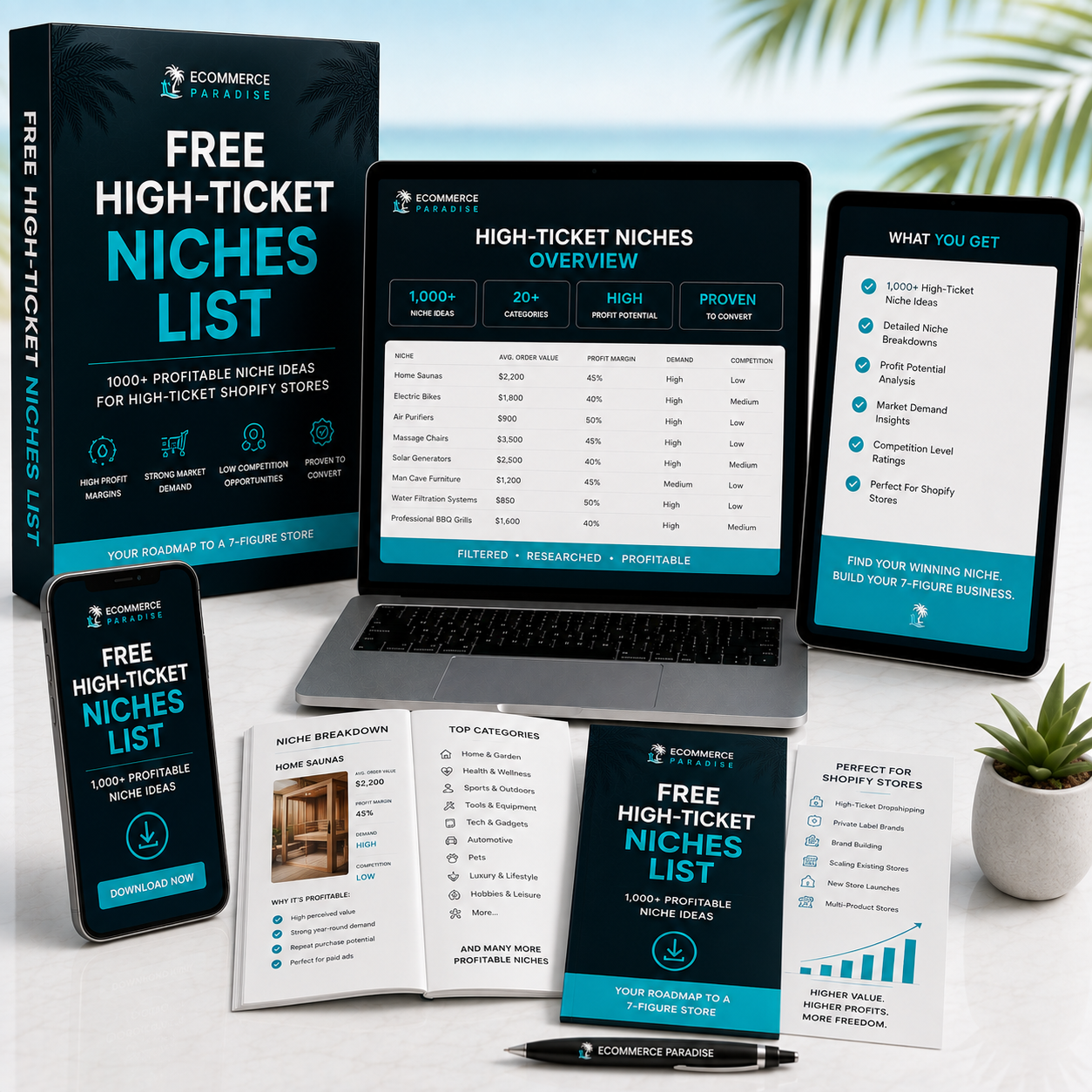
Still deciding what to sell?
Grab the free list of 1,000+ niches that work for high-ticket dropshipping, sorted by category.
Free. Unsubscribe any time.


