


Google Workspace is simple to buy and surprisingly common to leave half set up. You sign up, get an inbox, and never open the Admin console, the shared drives or the security settings that make a paid plan worth the money.
I have been in ecommerce for 15+ years, and at Ecommerce Paradise I treat business email as plumbing you want to get right once. When a customer is deciding whether to spend $2,000 or more on a single order, an address like you@yourstore.com reads very differently from a free inbox, and that matters in the high-ticket model I explain in my guide on what high-ticket dropshipping is.
This walkthrough follows the order I would use: sign up, verify the domain, point mail at Google, authenticate it, add people, then learn Gmail, Drive, Meet, Calendar, security and the phone apps. I read Google’s own help pages on October 7, 2026 (the Admin console pages show last-updated dates between September 24 and October 6, 2026) plus a few independent sources. I have not set up a fresh account for this post, and Google moves menus around, so follow the labels on your screen if they differ from the paths below.
Disclosure: I may earn a commission if you sign up through my Google Workspace link, at no extra cost to you.
| Part of the product | What it does for a store | Where you find it | Plan note |
|---|---|---|---|
| Google Workspace Admin console | Add users, set security, manage domains and billing | admin.google.com, signed in as an administrator | Every Business plan |
| Gmail | Email on your own domain, filters, delegate access for an assistant | mail.google.com or the Gmail app | Needs a verified domain for a custom address |
| Google Drive | Documents, spreadsheets, supplier files, link sharing | drive.google.com | 30 GB per user on Starter, 2 TB on Standard, 5 TB on Plus |
| Shared drives | Team folders that belong to the business, not one person | Shared drives in the Drive sidebar | Included on every Business plan with a verified domain; Standard and Plus add advanced controls |
| Google Meet | Video calls with suppliers and your team | meet.google.com, Gmail or Calendar | 100, 150 or 500 participants; recording from Standard |
| Google Calendar | Shared schedules and booking pages | calendar.google.com | Appointment schedules on every Business plan (basic, one booking page, on Starter) |
| Google Groups | Shared addresses such as support@ with assignable conversations | Admin console, Directory, Groups | Created by an administrator |
Send Supplier Emails From You@YourStore.com This Week
The domain verification record takes about 10 minutes to add, the mail record is a single smtp.google.com entry, and Google’s pricing page lists a 14-day trial. TechRadar lists Business Starter at $7 per user per month.
What You Are Actually Getting in Google Workspace
Google Workspace bundles Gmail, Drive, Docs, Sheets, Slides, Meet, Calendar and Chat under one admin account. Your business owns the data and the logins, which is the real difference from a free Gmail address: when a virtual assistant leaves, you remove their access in one place instead of changing passwords everywhere.
There are three Business plans for a store of our size. TechRadar’s Google Workspace review, last updated in October 2025, lists them at $7, $14 and $22 per user per month. The same annual rates appear in 9to5Google’s report on Google’s January 2025 price change, which also lists flexible billing at $8.40, $16.80 and $26.40. Google’s pricing page says one-year commitments save 16% compared with monthly billing. I could not read the dollar figures on Google’s own pricing page with my tools, so confirm the current price at signup.
The feature split matters more than the price for most stores. Google’s edition comparison, updated October 6, 2026, gives Starter 30 GB per user and Meet for up to 100 people. Standard adds 2 TB per user, meetings for up to 150 people, recording to Drive and advanced shared drive controls, while Plus adds 5 TB, meetings for up to 500 people and Vault.
The same page lists shared drive creation and membership on all three Business plans once your domain is verified, with Standard and Plus adding advanced sharing, access and storage limits. So Starter can still give you team-owned folders, just with fewer controls. If you want the full price math, my Google Workspace pricing guide goes plan by plan. My promo code guide covers which discounts you can verify and which you cannot.
Before You Sign Up: Domain, Plan and Your Admin Login
Google’s sign-up page describes three routes: a personal Gmail address, a business email address without domain verification, or a verified domain for more features. For a store, you want the verified domain, because that is what gives you an address on your own name. You can use a domain you already own or buy one during signup.
For the domain route you need your domain name, an administrator username in that domain (like yourname@yourstore.com), and a recovery email that is not in your domain. That last one matters: if your own domain mail ever breaks, the recovery address is how you get back in, so use an inbox that does not depend on the domain you are setting up.
Pick the plan you expect to use, not the cheapest one. Business plans cap at 300 users per Google’s pricing page, which is far beyond what a typical high-ticket store needs. If you are unsure, Google Workspace starts with a trial you can use to test the real setup. My free trial guide explains the terms and billing traps.
One more decision before you click anything: who owns the account. If you are forming a company, put the administrator login under the business, not under a contractor or a friend who set it up for you. My business formation guide covers the other accounts a store should have in the company’s name, and your mail and your bank are the two I would line up together.
Step 1: Sign Up and Verify Your Domain
Complete the sign-up flow on Google’s page, choose the domain route, and enter the details above. Google’s help text says verification is how it confirms the owner of a domain is the one signing up, and that DNS records are the best way to do it. The record lives at your domain registrar or wherever your DNS is managed.
How Long Verification Takes
Google says adding the verification record takes about 10 minutes, and that how fast it becomes active depends on your domain host. Confirmation can take up to an hour, though Google says it usually happens quickly. Google says you find your verification code in the Google Workspace setup tool while signed in as the administrator, then enter it at your domain registrar as a TXT record.
There is a deadline, and it is a harsh one. Google says you must verify within the first 9 days of your free trial or when you start a paid contract, otherwise your account is automatically deleted within 21 days of signup. Google adds that an account with billing set up and an active subscription is not deleted, but do not count on that. Put the date in your calendar the day you sign up.
Where to Make the DNS Change
If your domain is at a registrar, log in there and find the DNS or advanced DNS area. If you bought the domain during Google signup, treat it as its own purchase and check where you will manage and renew it later. I keep a short note of where each store’s domain lives, which is a habit that saves a panicked search months later.
Step 2: Point Your Email at Google With the MX Record
Verification proves you own the domain, but it does not send any mail to Google. For that you add an MX record. Google’s current documentation lists a single value, smtp.google.com with priority 1, and says the legacy multi-record values are still supported.
Two warnings from the same page are worth repeating. Google says your email might not work correctly if you keep old or incorrect MX records, so delete the previous provider’s entries rather than leaving them alongside. It also says some registrars need a trailing period (smtp.google.com.) while others, such as Squarespace and Wix, have a preset option.
Expect a Delay and Move Old Mail First
Google says it can take up to 72 hours for new MX records to be recognized. Plan for that before you announce a new address or cancel the old provider. If you already have a mailbox somewhere else, move or export that mail before you flip the record, because messages sent in the gap can land in either place.
Test it by sending a message from a personal account to your new address, then reply from the new one. If you want a shorter checklist version of this DNS work, my older guide to setting up Google Workspace for your store covers the same sequence in less detail.
Step 3: Authenticate Your Mail With SPF, DKIM and DMARC
These three records tell receiving servers that mail from your domain is really yours. The FTC’s small business cybersecurity guidance says that if your business email uses your company’s domain, make sure your provider has all three tools: Sender Policy Framework (SPF), DomainKeys Identified Mail (DKIM) and Domain-based Message Authentication, Reporting and Conformance (DMARC). For a store sending order confirmations and supplier replies, it is worth the half hour.
SPF
Google documents the SPF value for Workspace-only senders as v=spf1 include:_spf.google.com ~all, added as a TXT record at your domain host. Google says it can take up to 48 hours to start working, an SPF record can have up to 10 include tags, and you need a record for each subdomain or additional domain you use. If other tools send mail as your domain, check their documentation for what to add, and do not paste over an existing SPF record without reading it.
DKIM
The click path Google gives is Menu, Apps, Google Workspace, Gmail, Authenticate email. Select your domain, click Generate New Record, then choose a key length: 2048 if your domain provider supports it, 1024 if not. Add the TXT record with the host name Google shows (it looks like google._domainkey), then return and click Start authentication.
The catch is timing. Google says that after you turn on Gmail you must wait 24 to 72 hours before you can get your DKIM key in the Admin console, and then up to 48 hours for it to start working. That is why I do MX and SPF on day one and come back for DKIM later in the week.
DMARC
DMARC is a TXT record with the host _dmarc.yourdomain.com. Google says you must turn on SPF and/or DKIM first and allow 48 hours before setting up DMARC. Its policy options are none (take no action), quarantine (send to spam) and reject.
Google recommends starting with p=none and tightening the policy as you learn how receiving servers treat your mail. I would follow that advice, because a strict policy set too early can block your own legitimate mail from a tool you forgot to list.
Not a DNS Person? You Can Still Get This Done
Google documents each record exactly: one TXT record to verify, one smtp.google.com MX record, one SPF value and a DKIM key you generate in the Admin console. The 14-day trial lets you work through them before you commit to a plan.
Step 4: Learn the Admin Console and Add Your Users
Sign in at admin.google.com with your administrator account. Google notes it needs to be your domain address, not an @gmail.com one, and regular user accounts cannot sign in there. The Menu on the left is where everything below lives.
Add a User
Google’s click path is Menu, Directory, Users, Add new user. The required fields are first and last name and a primary email address. Optional fields include a secondary email (recommended, because it receives the account details), phone, photo, organizational unit and a custom password.
After you click Add New User you choose how to share the credentials. Google says it can take up to 24 hours for services to become available to the new user, and that a password reset link sent by email expires in 48 hours. Billing follows the plan: on the Flexible Plan, adding a user increases your monthly payment, and on the Annual Plan you must purchase licenses before adding users.
Google’s guidance on users is blunt about one thing: do not share an account among people. For a store with a virtual assistant or support rep, give each person their own login so you can revoke one without disrupting the rest.
Add Aliases for Orders, Support and Sales
An alias lets one mailbox receive mail sent to several addresses. The path is Menu, Directory, Users, select the user, then Add Alternate Emails. Google says you can add up to 30 aliases per user at no extra cost, and changes can take up to 24 hours.
The limits matter. Multiple users cannot share an alias, an alias is not a Google Account so you cannot sign in with it, and you cannot create one that matches an existing account name. Aliases are also not private, since Google says they are sometimes visible to other users.
Use a Group for Shared Inboxes
For support@ or orders@ that several people need to see, a group is usually better than an alias. Create it at Menu, Directory, Groups, Create group, and Google says the group receives its own email address. Google also documents a collaborative inbox feature, where members with the right permissions can assign conversations and mark them complete, and an administrator may need to turn Groups on for your organization first.
Lock Down the Administrator Accounts
Google’s best practices for administrator accounts say to keep more than one super administrator, give each administrator an identifiable account, and use the admin login only for administrative work with a separate account for daily tasks. It also recommends enrolling multiple security keys, saving backup codes and adding recovery contacts. For a one-person store that means two accounts you control, not one login you check everything with.
Using Gmail Day to Day
Gmail on your own domain works like the Gmail you already know, with the admin controls behind it. The habits that save time for a store owner are filters, labels and delegation. I would set all three up in the first week.
Filters and Labels
Google’s filter guide says to open Gmail on a computer, use the search options, enter your criteria and click Create filter at the bottom of the search window. A filter can apply a label, archive, delete, star or forward mail, and you manage them under Settings, Filters and Blocked Addresses. One limit to know: a forwarding filter only affects new messages, not mail already in the inbox.
A simple setup for a store is one label per mail type, such as Suppliers, Orders and Customers, with a filter that applies each automatically. Google’s filter guide is written for the computer version of Gmail, so build them there and let your phone follow along.
Give an Assistant Access Without Sharing a Password
Delegate access lets someone read, send and delete mail in your account for you. In Gmail go to Settings, Accounts and Import, enter the person’s address and send the invitation. Google says the recipient has one week to accept, full access takes up to 24 hours, and for organizational accounts an administrator may need to enable delegation.
Know what a delegate cannot do: they cannot chat or change your password, and when they send a message from your account, their own address appears. For a high-ticket store where you want an assistant triaging supplier and customer mail, that is the right tradeoff, and much safer than handing over your password.
Google Drive and Shared Drives for a Store
Drive has two kinds of storage and the difference decides who owns your files. My Drive belongs to one person, while shared drives belong to the team, and Google says content in a shared drive stays put when a member leaves the organization. For supplier price sheets, authorized-dealer paperwork and product images, I want the business to own them.
Create a Shared Drive
Google’s steps are to open drive.google.com on a computer, choose Shared drives in the left sidebar, click New, name it and click Create. Then use Manage members to add people or groups. Google says new members default to Content manager access, and you can change the level in a dropdown before sending the invitation.
The levels run from Manager (can move files between shared drives and restrict folders) down to Viewer. Google says your administrator must allow shared drive creation and that your edition must support it. Per the edition comparison, that covers every Business plan once your domain is verified.
What I Would Put in One
For a store, I would create folders for suppliers, product data, ads and finance, and keep each supplier’s warranty, return policy and dealer agreement together. That fits how I think about finding suppliers for high-ticket dropshipping, where the paperwork is half the relationship. This is my own suggestion, not a Google template.
Sharing Files Safely
Sharing a single file is right-click, Share, enter an address, pick a permission. The levels are Viewer, Commenter, Editor and Owner, and Google says one file can be shared with up to 600 individual addresses. Anyone-with-the-link access works without signing in, so use it only for files you would be fine seeing public, and keep restricted access for supplier terms.
As administrator you can control outside sharing at Menu, Apps, Google Workspace, Drive and Docs, Sharing settings. The main toggle is Allow users to share outside, and you can limit sharing to certain domains. Settings can be applied by organizational unit or group, with group settings overriding organizational unit settings per Google’s documentation.
Google Meet and Calendar for Supplier Calls and Scheduling
Meet is the part most owners use first. Google says you can start a meeting from meet.google.com by clicking New meeting, from the Meet section in Gmail, or from Calendar by adding Google Meet to an event. Google’s edition comparison lists waiting rooms in Meet at Standard and up.
Recording is plan dependent. Google’s edition page lists recording to Drive under Standard and Plus, not Starter, so if you want to save a supplier call and share it with an assistant, you need Standard. Participant limits are 100, 150 and 500 on Starter, Standard and Plus.
Share Your Calendar
Google’s calendar sharing steps are to find your calendar under My calendars, click the three-dot menu, choose Settings and sharing, then Shared with, then Add people and groups. Permission levels run from free/busy only to making changes and managing sharing. For Workspace accounts Google adds that your administrator decides whether you can share, so if the option is missing, check the admin settings.
Booking Pages With Appointment Schedules
If you do consults or phone sales, an appointment schedule gives people a booking page tied to your calendar. In Google Calendar click Create, then Appointment schedule, and set the length, availability and which calendar to use. Google says this must be done in a computer browser, not the Android or iPhone apps, and the default is a 4-hour minimum lead time.
Google’s edition comparison lists appointment schedules on all three Business plans, but on Starter it says only basic functionality and one booking page are supported. The help page adds that some features need a paid subscription, so check what your own Calendar offers before you promise customers a particular booking setup.
Security Basics: 2-Step Verification, Phishing and Recovery
Email is the key to every other account, which is why CISA’s guidance on turning on MFA says to prioritize email, banks and other important accounts. It also explains that even if a password is compromised, unauthorized users cannot meet the second step. Your Workspace admin login deserves the strictest setup you have.
Turn On and Enforce 2-Step Verification
The administrator click path is Menu, Security, Authentication, 2-Step verification. Google offers three enforcement options: off, on immediately, or on from a date you choose, with enforcement starting within 24 to 48 hours. You can set a new-user enrollment period from 1 day to 6 months so new hires can sign in with a password while they enroll.
You can also restrict which methods people use, from any method to security keys and passkeys only. Two cautions from Google’s page: users who rely on text or voice codes get locked out if you remove that method, and if you require security keys only, administrators have to generate backup codes because self-generation is turned off. Individual users turn it on under their Google Account’s Security settings, per Google’s help page, though it adds that work accounts may need to go through an administrator.
Train the Team to Spot Phishing
Technology covers part of it, and people cover the rest. CISA’s phishing guidance lists signs such as urgent or emotional language, requests for personal or financial information, untrusted shortened links and slightly wrong addresses. Its advice is to resist clicking, report and delete, and verify through a separate contact method.
For a store, the classic version is a message that looks like a supplier changing bank details or a payment processor asking you to log in. Pick up the phone and use a number you already had, not the one in the email.
Recovery and Backups
Set recovery information on every administrator account, save backup codes somewhere secure and keep the recovery email outside your own domain. The FTC’s guidance also says to back up important files regularly, in the cloud or on an external drive. A shared drive is not a backup of itself, so decide whether you need a second copy of your most important files.
Using Google Workspace on Your Phone
The Gmail app handles multiple inboxes. On iPhone or iPad, Google’s steps are to open the app, tap Profile in the search bar, choose Add another account and follow the prompts, and Google says you can link up to 5 addresses and view them together under All inboxes. I only read the iPhone and iPad steps, so Android may differ slightly.
Admins have a separate Google Admin app. Its store listing says you can add and edit users, suspend, restore or delete them, reset passwords, manage groups, review audit logs and manage mobile devices. The listing still uses older product names, so treat it as a quick-fix tool and keep the full console for real work.
A few jobs stay on a computer. Google says you cannot create appointment schedules in the Calendar app, its Gmail filter guide covers the computer version, and its shared drive steps are written for the web. Plan your setup session on a laptop and use the phone for reading, replying and approving sign-in prompts.
Unsure Which Plan Your Store Needs? Test Before You Pay
Recording and advanced shared drive controls start at Standard, storage is 30 GB, 2 TB or 5 TB per user, and Business plans cap at 300 users. Run the trial on the plan whose features you will actually use.
Mistakes That Cause the Most Trouble
The first is missing the 9-day domain verification window, which Google says can get an unverified account deleted. The second is leaving old MX records in place, which Google says can keep email from working correctly. The third is announcing a new address before the 72-hour MX window has passed.
The fourth is sharing one login across your team, which Google tells admins not to do. The fifth is leaving external sharing wide open for supplier files. The sixth is forgetting seats: on the Flexible Plan each added user raises your monthly payment, so remove accounts for people who have left.
The last is treating security as optional. Turn on 2-Step Verification for admins first, then everyone. If you later decide to leave, my guide on how to cancel Google Workspace explains how to export data and avoid extra charges before you cancel anything.
My Verdict: Who Should Use It and How to Start
If you run a store and want mail on your own domain, a shared place for supplier files and a login system you control, Google Workspace is a sensible choice. Start on the smallest plan that has the features you need, and spend your first week on the setup order above rather than clicking through Docs. That order is verify, MX, SPF, DKIM, DMARC, then users.
The downsides are real. Starter does not include meeting recording or the advanced shared drive controls as I read Google’s edition page, the DNS steps involve waiting days, and the Admin console has a lot of options you will never touch. If you only want a single mailbox and no team files, a simpler email service may cost less.
If you are still choosing a niche, my high-ticket niches list is the better use of your next hour than email settings.
If you want a second set of eyes on your store setup, my coaching is where we talk it through. If you are just starting out, my free mini course is the place to begin.
Get a Professional Inbox and Start Setup in One Session
Verify the domain within 9 days, add the smtp.google.com MX record, set SPF, DKIM and DMARC, then enforce 2-Step Verification. Do it in that order and your business email is both working and protected.
Frequently Asked Questions
How do I start using Google Workspace for my business?
Sign up, choose the verified domain route and verify ownership with a DNS record within 9 days. Then add the smtp.google.com MX record, set up SPF, DKIM and DMARC, and add your users in the Admin console. You can begin with my Google Workspace link and its 14-day trial.
Do I need a domain to use Google Workspace?
For a custom address like you@yourstore.com, yes. Google says you can use a domain you own or buy one during signup, and that without domain verification you get fewer features. If you buy one, confirm where it renews and who manages it.
How many email addresses can one user have?
Google says you can add up to 30 aliases per user at no extra cost, and changes can take up to 24 hours. Aliases cannot be shared between users or used to sign in. For a shared inbox, create a group at Directory, Groups instead.
Is Google Workspace secure enough for a small store?
It can be, if you turn on the controls. Enforce 2-Step Verification from Menu, Security, Authentication, use separate admin accounts, and restrict outside sharing in Drive. If you want to test those settings before paying, the trial on Google Workspace lets you do that.
Can I use Google Workspace on my phone?
Yes. The Gmail app can hold several accounts, and there is a separate Google Admin app for common admin tasks. Some jobs, such as creating appointment schedules, cannot be done in the mobile app, and Google’s Gmail filter guide covers the computer version, so do your setup on a computer.
Spend Less Time on Tools and More on a Store That Sells
My team builds the store, recruits approved US suppliers and launches your ads, then coaches you bi-weekly for 3 months after launch. Prefer to learn it yourself? Start with my free mini course.
Related Articles
If you found this useful, these guides go deeper on related topics:
- How to Set Up Google Workspace for Your Ecommerce Store
- Google Workspace Review 2026: Worth It for Your Dropshipping Store?
- Google Workspace Pricing 2026: Every Plan and What You Really Pay
- Google Workspace Free Trial 2026: How the 14-Day Trial Works and What Happens After
- How to Cancel Google Workspace in 2026: Export Data, Avoid Extra Charges and Keep Your Domain

Trevor Fenner is an ecommerce entrepreneur and the founder of Ecommerce Paradise, a platform focused on helping entrepreneurs build and scale profitable high-ticket ecommerce and dropshipping businesses. With over a decade of hands-on experience, Trevor specializes in high-ticket dropshipping strategy, niche and product selection, supplier recruiting and onboarding, Google & Bing Shopping ads, ecommerce SEO, and systems-driven automation and scaling. Through Ecommerce Paradise, he provides free education via in-depth guides like How to Start High-Ticket Dropshipping, advanced training through the High-Ticket Dropshipping Masterclass, and fully done-for-you turnkey ecommerce services for entrepreneurs who want a faster, more hands-off path to growth. Trevor is known for emphasizing sustainable, real-world ecommerce models over hype-driven tactics, helping store owners build scalable, sellable, and location-independent brands.
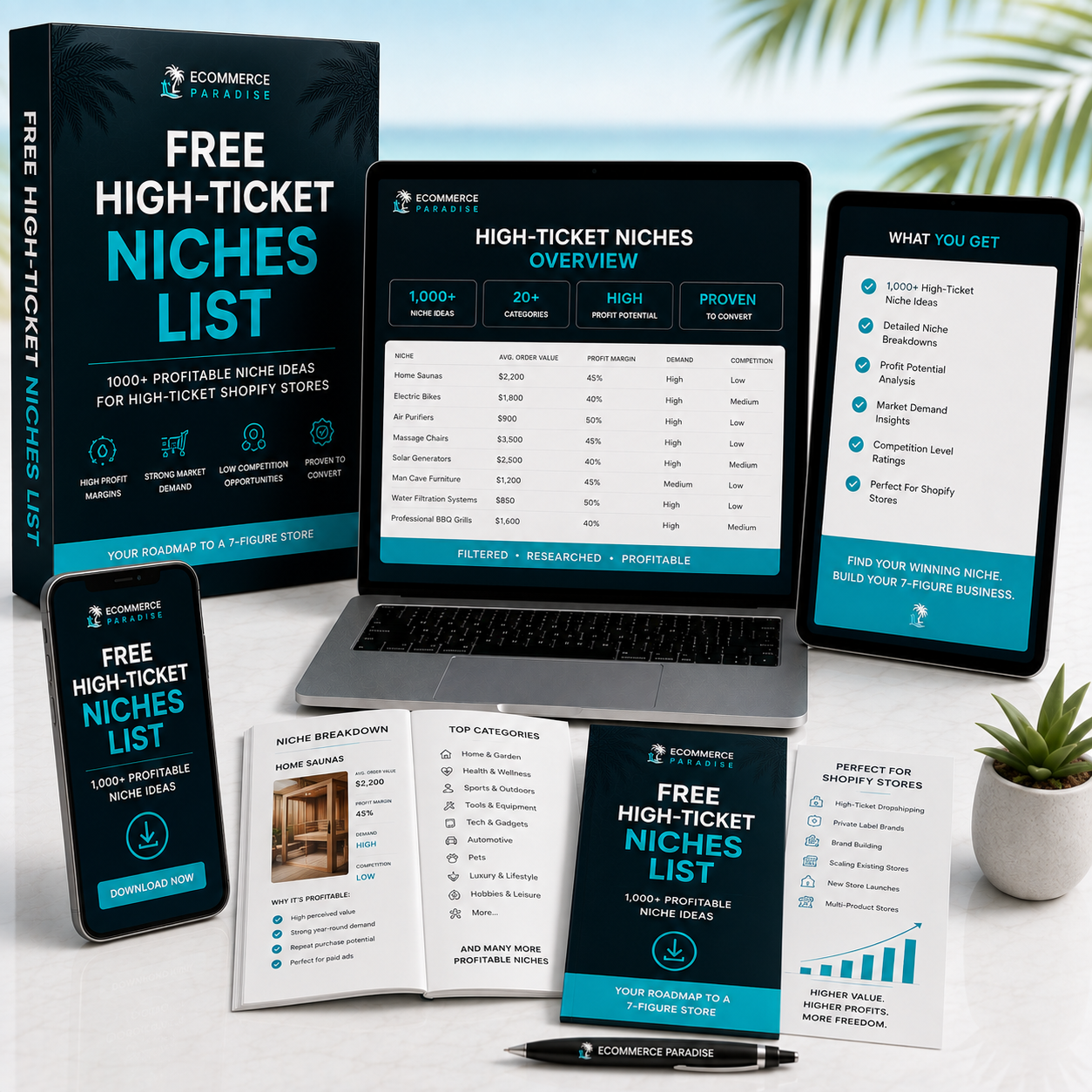
Still deciding what to sell?
Grab the free list of 1,000+ niches that work for high-ticket dropshipping, sorted by category.
Free. Unsubscribe any time.


