


Search for a WooCommerce coupon and two different people land on the same page. One wants a discount on the things they buy to run a WooCommerce store, and the other wants to know how to create coupon codes inside the store they already run. Both are fair questions, so this guide answers both, using what the vendors publish and what I could verify on October 7, 2026.
I run Ecommerce Paradise, and the pattern I see with coupon searches is the same every time: people hunt for a code before they have checked whether a code even exists. If you are still deciding whether a high-ticket store is the right business, my guide on what high-ticket dropshipping is is the place to start.
Online retail is big enough to be worth the effort. The Census Bureau put seasonally adjusted US retail e-commerce at $340.2 billion in the second quarter of 2026, or 17.1% of total retail sales, in its August 2026 release.
Here is the short version. WooCommerce itself is free and open source, so there is nothing to discount on the plugin, and I found no standing public code for the paid pieces around it. What I can show you is where real savings come from, how to read a “percent off” label, and how to build coupons in your own store without wrecking your margin. I have not bought these plans or tested these checkouts for this post, so every figure says where it came from, and you should confirm the final price on the signup page.
Disclosure: I may earn a commission if you sign up through my WooCommerce link, at no extra cost to you. That link opens a WordPress.com page, not WooCommerce.com, and I explain what that page offers below.
| Way to pay less | Where it comes from | What I could confirm | Main catch |
|---|---|---|---|
| WordPress.com Commerce plan, longer terms | Plan pricing on a WordPress.com page | $70 monthly, $45 annual, $36 two-year, $31.50 three-year; the page labels the savings 35%, 48% and 55% | The percentages are measured against the monthly price, and I could not confirm the renewal price from the plan grid |
| WooCommerce core plugin | WooCommerce | Free to download, no revenue share | Hosting, extensions and payment fees are separate |
| WooCommerce extension codes | WooCommerce Marketplace | No code published on the pricing page; the docs say codes do not apply to renewals | I could not confirm any standing offer |
| Hosting promo pricing | Individual hosts | Long-term promo rates, such as Hostinger’s 48-month price | The renewal rate is much higher than the promo rate |
| Coupons in your own store | Built into WooCommerce | Percentage, fixed cart and fixed product coupons | Every discount comes out of your margin |
| Third-party coupon sites | Aggregator pages | I could not verify any code as a standing offer | Codes may be expired, capped or invented to earn a click |
Pay Less for WooCommerce Hosting Without Hunting for a Code
The WordPress.com Commerce plan lists $31.50 a month on a three-year term against $70 monthly, a 55% gap, with a 14-day refund window on annual and multi-year plans.
WooCommerce Coupon Codes in October 2026: What Is Actually Published
WooCommerce’s own pricing page describes the platform as free and open source, with no platform fee and no revenue share. It then lists three places money goes: extensions at $29 to $299 a year each, hosting at $25 to $350 a month for most stores, and payment processing. I read that page for any mention of coupons, sales or promotions and found none.
That matters because it answers the first question. A plugin with a price of zero does not have a coupon, and the code you see on a coupon site for “WooCommerce” is either aimed at something else or not real. If a page promises a percentage off the plugin, treat that claim as a red flag.
What the Extension Docs Say About Codes
WooCommerce’s subscription documentation does mention coupon codes, but only to say where they do not work. In its words, “Coupon codes and promotional discounts do not apply to renewal charges.” It also says subscriptions renew at 100% of the current listed price for your term, based on the price shown on the product page at the time of renewal, not the price you first paid.
I tried the WooCommerce Black Friday page address and it returned a page-not-found error, so I cannot point you to a seasonal sale. If you plan to buy several extensions, join the WooCommerce email list and watch the product page rather than paying anyone for a code.
Why Coupon Sites Are Mostly Noise
Many coupon pages earn money when you click, which gives them a reason to list a code whether or not it works. The same is true of me, which is why my disclosure sits at the top. Before you spend more than a minute on a code, open the product page, note the price with no code, and see whether the cart changes. If it does not, stop.
What You Can Actually Discount When the Platform Is Free
Think of a WooCommerce store as layers, and ask which layers have a discount to offer. The core plugin has none because it is free. The layers that carry a price are hosting, paid extensions, a managed plan such as WordPress.com Commerce, payment processing, and your own time.
Hosting and managed plans are where promotions often live, and the ones I found were term discounts. Extensions are priced per year, with a lower per-year cost on some two-year terms. Payment processing is not a coupon item at all, although WooPayments’ fee documentation says to contact the Customer Success team about custom pricing, so a high-volume store should ask.
My separate guide to WooCommerce pricing in 2026 prices every layer from the published pages, and this post stays on the discount side of that picture.
The Offer Behind My Link: WordPress.com Commerce Pricing
My WooCommerce redirect goes through Automattic’s partner program to a WordPress.com landing page, not to WooCommerce.com. The page I reached on October 7, 2026 was headlined “69% Off WordPress.com Plans + Free Site Migration,” with “Up to 69% off select plans” in the subhead. It also listed a free domain for one year and a 14-day money-back guarantee.
Notice the words “select plans.” The 69% figure belongs to the cheapest plans, and the Commerce plan, which is the one that runs WooCommerce, showed 55%. Here is what the Commerce plan listed for each billing term, with my own arithmetic for the savings against the monthly price.
| Commerce billing term | Price per month | Label on the page | My arithmetic against $70 |
|---|---|---|---|
| Monthly | $70 | None | Baseline |
| Annual (12 months) | $45 | Save 35% | $25 less a month, about 36% |
| Two-year (24 months) | $36 | Save 48% | $34 less a month, about 49% |
| Three-year (36 months) | $31.50 | Save 55% | $38.50 less a month, 55% |
The percentages line up with the gap between each term and the monthly rate, and the same pattern holds on the other plans I checked. That means “55% off” is a reward for committing three years, not a coupon you apply. A three-year term at $31.50 comes to $1,134 for the 36 months, against $2,520 for 36 months at the monthly rate.
What I Could Not Confirm About Renewals
The plan grid text I could read left the renewal price as an unfilled template field, so I could not see a renewal figure. The landing page says the price you see today is the one you pay next year, and every year after, but that is the vendor’s claim, so confirm the renewal amount at checkout before you commit to three years. If you want to see the plan yourself, you can check the current Commerce plan terms and compare them to the table above.
Refunds and the Free Trial
WordPress.com’s support pages say annual, two-year and three-year plans are refundable within 14 days of purchase or renewal, and monthly plans within 7 days. Refunds are not prorated, so a three-year plan cancelled in month nine does not return the unused time. A domain registration or renewal is refundable only if you cancel it within 96 hours.
WordPress.com’s support pages also describe a 14-day free trial of the Commerce plan that creates a new site on your account. It lets you test a limited set of commerce features before buying, and the restrictions are real: the store stays in Coming Soon mode, you cannot install extra plugins, and you cannot take customer payments until you upgrade. The trial offer appeared on WordPress.com’s own Commerce page and not on the promo page my link opens, so look for it there and do not assume my link includes it.
Skip the Server Work and Keep WooCommerce Coupons
WordPress.com’s Commerce plan lists coupon codes among its features, bundles WooPayments and Product Add-ons, and has a 14-day refund window on annual and longer plans.
Extension Prices, Two-Year Terms and Renewals
WooCommerce sells extensions per year, and a few offer a two-year term. The Smart Coupons extension is a good example, because its marketplace page showed a 1-year plan at $129 and a 2-year plan at $206.40 (marked “Save 20%”), against $258 for two separate years. By my arithmetic that is $103.20 a year on the longer term.
The renewal rule is where budgets slip. WooCommerce says subscriptions renew automatically by default, charge the current listed price, and exclude coupons. If a subscription expires, you can renew it manually from your account, though the docs note the price may reflect current pricing if a long time has passed.
The 30-Day Refund Window
WooCommerce’s refund policy says extensions and themes bought from its marketplace carry a full refund within 30 days of purchase. Request it from your orders page, where the refund option appears only inside that window. That window is a better safety net than most codes, so test the extension in the first week.
Why Expired Extensions Are a Risk
An expired subscription keeps the extension installed but stops updates and support. WooCommerce’s documentation warns that outdated extensions can cause security and compatibility problems. Letting renewals lapse to save a few dollars is the wrong place to economize on a store that takes payments, so budget for the renewal date up front.
How a “79% Off” Hosting Label Really Works
The same arithmetic applies to hosting. Hostinger’s WooCommerce hosting page listed its Unlimited plan at $3.99 a month, marked 79% off a $18.99 regular price. The offer was 48 months for $191.52, against a regular price of $911.52, and the page said the plan renews at $16.99 a month.
Check the numbers and the pattern shows. $3.99 a month is the promo rate, $18.99 is the crossed-out list price, and $16.99 is what you pay when the term ends, which is more than four times the promo rate by my arithmetic. The “79% off” label describes the gap between the first two numbers and says nothing about the third.
Questions to Ask Before You Prepay a Term
Prepaying 48 months looks like a bargain until year five arrives. Ask what the renewal rate is, whether the free domain renews at a regular price, and what the refund window covers. For a comparison of managed options, my guide to the best WooCommerce hosting platforms puts several side by side.
Crossed-Out Prices Need a Real History
The FTC’s Guides Against Deceptive Pricing say a former price used for comparison should be the actual, bona fide price at which the item was offered to the public on a regular basis for a reasonably substantial period of time. You can read the language in 16 CFR Part 233, which is guidance, not a ruling on any vendor. I have not audited any vendor’s price history, and I am not suggesting anything is wrong, but it is a good reason to judge a deal by what you pay and not by the savings badge.
How to Create a Coupon in Your Own WooCommerce Store
The second meaning of this search is a store owner who wants to offer a code to customers. WooCommerce has this built in, and its documentation lays out the steps. Menus change between versions and extensions can add fields, so if your screen looks different, the logic below still holds.
Step 1: Turn Coupons On
Go to WooCommerce, then Settings, then General, and tick “Enable the use of coupon codes.” Save your changes. Until this is on, customers will not see a coupon field.
Step 2: Add the Coupon and Set the Discount Type
Go to Marketing, then Coupons, and select Add new coupon. Enter a code or use the Generate coupon code button, which creates a random one. Codes can include letters, numbers and special characters, and they are not case-sensitive, so “SAVE10” and “save10” both work.
Next, choose the discount type. WooCommerce offers three, and the documentation’s examples use three t-shirts at $20 each.
- Percentage discount: a percentage off the selected products, so 10% off $60 is $6.
- Fixed cart discount: a fixed total off the whole cart, so $10 off $60 is $10.
- Fixed product discount: a set amount per item, so $10 off three $20 shirts is $30.
Enter the amount without a currency or percent sign, so a 10% coupon is just “10”. Tick Allow free shipping if the coupon is meant to waive shipping, and set an expiry date if you want one. Coupons cannot be used on the date you set.
Step 3: Set Usage Restrictions
The Usage restriction tab controls who and what a code applies to. These are the fields I would look at first for a high-ticket store.
- Minimum spend and maximum spend: WooCommerce uses cart subtotal plus tax for the minimum.
- Individual use only: the coupon cannot be combined with other coupons.
- Exclude sale items: keeps the coupon off products already marked down.
- Products, categories and their exclusions: limit the coupon to specific products or categories, or keep it off others.
- Allowed emails: checked against the billing email, with a wildcard such as *@gmail.com if you need one.
Leaving the product fields empty lets the coupon apply to everything in the store, so be deliberate about it.
Step 4: Set Usage Limits and Publish
The Usage limits tab has three caps: a limit per coupon (total uses across all customers), a limit per user, and a limit on the number of items the coupon applies to. The item cap only works if you have named specific products in the restrictions. Then select Publish, or schedule the coupon to go live on a future date and time from the Publish settings.
Step 5: Create a Free Shipping Coupon
For a free shipping code, WooCommerce’s free shipping documentation says to set the free shipping method to require a valid coupon, then create a coupon with Allow free shipping ticked. You can also combine a minimum order amount with a coupon, and a checkbox decides whether the minimum is tested before or after the coupon discount. Test it with a dummy order before you send the code to anyone.
Want WooCommerce Coupons Without Running the Server Yourself?
The WordPress.com Commerce plan covers hosting, updates and backups, so the coupon steps above are the only part you have to learn. Annual plans have a 14-day refund window.
Which Coupon Type Fits a High-Ticket Store
A coupon that works on a $30 product can be expensive on a $3,000 one. The reason is simple: the discount comes straight out of a margin that is often thin, and the payment fee is charged on top. Here is my own arithmetic, with two assumptions I am labelling now: a $3,000 product that costs you $2,250 (a 25% gross margin), and a WooPayments card fee of 2.9% + $0.30, which is the US rate in its fee documentation.
| Coupon on a $3,000 order | Customer pays | Card fee | Profit after cost and fee | Extra orders needed to match |
|---|---|---|---|---|
| No coupon | $3,000 | $87.30 | $662.70 | None |
| 5% off | $2,850 | $82.95 | $517.05 | About 28% more |
| $100 off (fixed cart) | $2,900 | $84.40 | $565.60 | About 17% more |
| 10% off | $2,700 | $78.60 | $371.40 | About 78% more |
Look at the last row. A 10% code cuts profit per order from $662.70 to $371.40, which is a drop of about 44%, so you would need roughly 78% more orders to make the same money. These are illustrations, not forecasts, and your real cost and fee will differ.
What I Would Use Instead of Percent Off
For expensive items, a fixed cart discount with a minimum spend caps the damage, and a free shipping coupon can win a sale without touching the product price. Coupons restricted to specific categories, or tied to one customer’s email, keep a code from leaking. Whatever you pick, set a usage limit and an expiry date so a code cannot live forever on a coupon site.
Check Your Supplier’s Pricing Policy First
Some manufacturers publish minimum advertised price rules for their authorized dealers, and whether a public coupon code counts depends on the wording. Read your dealer agreement before you publish a code, and ask the supplier if the language is unclear. If you are still lining up suppliers, my step-by-step guide on how to find suppliers for high-ticket dropshipping covers authorized dealer terms.
Coupon Limits and Mistakes to Avoid
WooCommerce’s coupon documentation includes a few behaviors that surprise people. None of them is a bug, but each one can cost you money or confuse a customer if you do not plan for it.
- No auto-apply in core: WooCommerce core cannot apply codes automatically, so you have to send them by email, social media or another channel.
- Shipping is not discounted: a coupon only applies to cart items, so a code covering the whole cart still leaves the shipping charge unless you use a free shipping coupon.
- Tax comes after the coupon: coupons apply to product prices before tax is calculated, which can cause small rounding differences with fixed cart discounts.
- Sale items need a decision: if you do not tick Exclude sale items, a coupon can stack on a marked-down product, and per-cart coupons do not work when a sale item is added afterward.
- Expiry works on the date set: a coupon cannot be used on the expiry date itself, so set it a day later than you think.
Customers who enter an invalid code see an error message explaining why it failed, such as an expired code. Store managers can also add a coupon to a manually created order with the Apply coupon button, which helps when a customer calls to place an order.
Plugins That Go Beyond Core Coupons
Core coupons handle a flat code well and little else. If you want rules like buy one get one, gift cards or auto-applied links, you need an extension, and these are the ones the WooCommerce documentation and marketplace pointed to.
| Tool | What it adds | Price shown |
|---|---|---|
| Smart Coupons | BOGO deals, gift cards, store credit, bulk coupon codes, URL coupons | $129 for 1 year, with a 30-day money-back guarantee |
| AutomateWoo | Marketing automation, including emailed coupons | $159 a year |
| MailPoet | Newsletters and automation inside WordPress | Free plan up to 500 subscribers, paid plans from $10 a month |
Those prices are the figures shown on the WooCommerce documentation and marketplace pages as I read them, and the Smart Coupons description comes from its own page, so treat the feature list as the vendor’s claim. For a closer look at the email side, my MailPoet review covers where it fits a store.
Disclose When a Code Earns You Money
If you publish your own coupon page with affiliate links, the FTC’s endorsement guidance says to disclose the relationship clearly and conspicuously, and gives “I get commissions for purchases made through links in this post” as example wording. It also says the closer the disclosure is to your recommendation, the better. The FTC’s endorsement guide questions and answers explain what counts. This is general information, not legal advice, and I am not a lawyer or a licensed advisor.
Who Should Skip the Coupon Hunt
Skip the hunt if you are only downloading the plugin, because there is nothing to discount. Skip it if the saving is a few dollars on an extension that already has a 30-day refund, since the hour you spend costs more than the code saves. And skip any site that asks for payment details to reveal a code.
Skip coupons in your own store if your margin cannot take the discount in the table above. A store that sells a $3,000 item at a 25% margin is better served by a free shipping offer, an extended warranty add-on or a financing option than by a blanket percentage code. If you are still choosing what to sell, my high-ticket niches list is the free place to start.
If You Want Help Building the Store
Coupons are the last step, not the first. The store needs a niche, suppliers, a platform and a payment processor before a discount code matters. My WooCommerce setup guide for high-ticket stores covers the order I would use.
A payment processor will also ask for business details, so my business formation guide covers the entity and account basics.
If you would rather have someone build it, my done-for-you store build is the shortcut. If you want someone to pressure-test your pricing and promotions, my coaching is built for that.
And if you are at the very start, my free mini course covers the basics before you spend anything.
My Verdict on WooCommerce Coupons in 2026
Do not chase a code for WooCommerce. The plugin is free, I found no standing public code for the paid layers, and the biggest real saving I could verify is a longer term on a managed plan. If you want hosting and WooCommerce in one place, WordPress.com’s Commerce plan is the route I would price first, with the 14-day refund window on annual and longer plans as your safety net.
Inside your own store, treat coupons as a margin decision. A 10% code on a $3,000 sale cost about 44% of the profit in my example, so use fixed amounts, minimum spends, free shipping and usage limits instead of blanket percentages. Prices and offers change often, so confirm everything on the signup page before you pay.
Ready to Price Your WooCommerce Setup the Smart Way?
Compare the monthly $70, annual $45 and three-year $31.50 Commerce terms, then lean on the 14-day refund window before you commit to a long term.
Frequently Asked Questions
Is there a WooCommerce coupon code for the plugin itself?
No. WooCommerce describes itself as free and open source, with no revenue share, so the plugin has no price to discount. The paid pieces are hosting, extensions and managed plans such as the WordPress.com Commerce plan, and I found no standing public code for any of them.
Do WooCommerce extension coupons work on renewals?
Not according to WooCommerce’s documentation, which says coupon codes and promotional discounts do not apply to renewal charges. Renewals are billed at 100% of the current listed price for your term, so budget for that when you buy.
How do I create a coupon in WooCommerce?
Enable coupons under WooCommerce, Settings, General, then go to Marketing, Coupons and select Add new coupon. Choose a percentage, fixed cart or fixed product discount, set restrictions and usage limits, and publish. If you want to practice before buying, WordPress.com’s own Commerce page describes a 14-day trial, though it limits plugins and keeps the store in Coming Soon mode.
Can customers stack WooCommerce coupons?
It depends on how you set each code. The Individual use only checkbox stops a coupon from being combined with others, and the Exclude sale items checkbox keeps it off marked-down products. Test a combination with a dummy order before you publish a code.
Is the “up to 69% off” WordPress.com offer a coupon?
No, it is a term discount. By my arithmetic the percentages match each plan’s three-year price against its monthly price, and the Commerce plan’s figure is 55%. You can see the current plan terms on the page my link opens and confirm the renewal price at checkout.
Want the Store Built So You Can Focus on Selling?
Coupons only matter once a store has a niche, suppliers and a checkout. My done-for-you service builds and launches the store. Prefer to learn it yourself? Ask about coaching.
Related Articles
If you found this useful, these guides go deeper on related topics:
- WooCommerce Pricing 2026: What a Free Store Really Costs per Year
- How to Set Up WooCommerce for a High-Ticket Dropshipping Store
- 10 Best WooCommerce Hosting Platforms in 2026: Honest Performance and Pricing Comparison
- Squarespace Coupon and Promo Codes 2026: What’s Actually Available
- Shopify Rollouts Now Tests Discounts on Live Traffic

Trevor Fenner is an ecommerce entrepreneur and the founder of Ecommerce Paradise, a platform focused on helping entrepreneurs build and scale profitable high-ticket ecommerce and dropshipping businesses. With over a decade of hands-on experience, Trevor specializes in high-ticket dropshipping strategy, niche and product selection, supplier recruiting and onboarding, Google & Bing Shopping ads, ecommerce SEO, and systems-driven automation and scaling. Through Ecommerce Paradise, he provides free education via in-depth guides like How to Start High-Ticket Dropshipping, advanced training through the High-Ticket Dropshipping Masterclass, and fully done-for-you turnkey ecommerce services for entrepreneurs who want a faster, more hands-off path to growth. Trevor is known for emphasizing sustainable, real-world ecommerce models over hype-driven tactics, helping store owners build scalable, sellable, and location-independent brands.
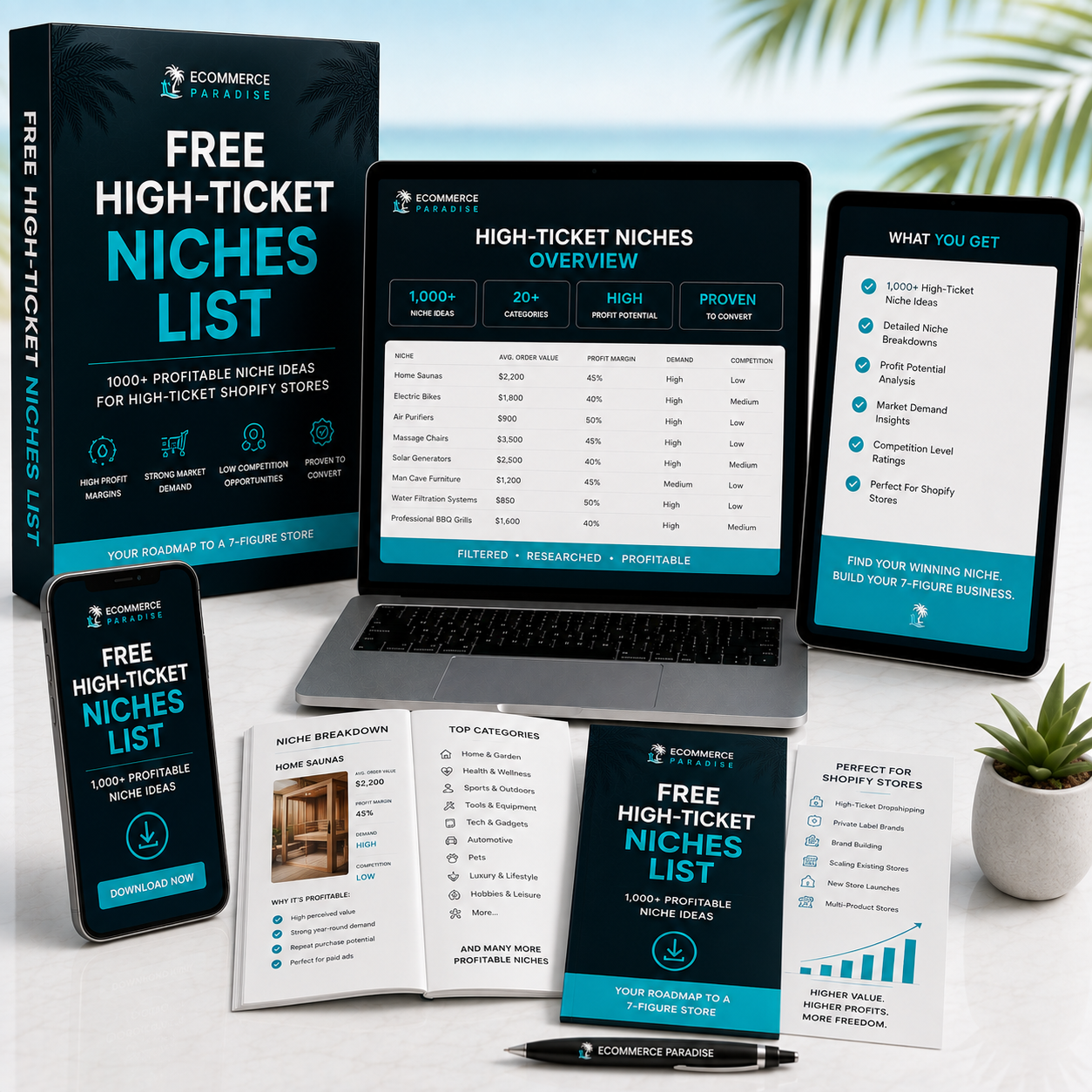
Still deciding what to sell?
Grab the free list of 1,000+ niches that work for high-ticket dropshipping, sorted by category.
Free. Unsubscribe any time.


