

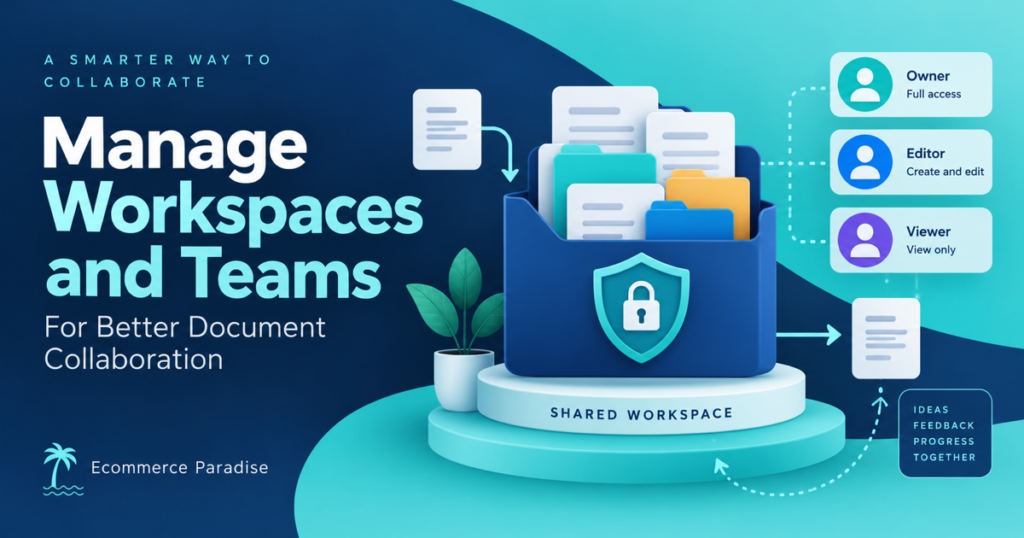
Businesses often rely on electronic signature platforms to manage contracts, employee paperwork, customer agreements, and other important documents. As organizations grow, keeping these documents organized becomes more challenging. Employees need access to the files required for their jobs, managers must maintain oversight, and administrators need to ensure that confidential information is shared only with the appropriate people.
Businesses that manage workspaces teams settings effectively can create a more organized approach to electronic signatures and document collaboration. By assigning appropriate roles, configuring workspace preferences, managing shared templates, and reviewing user access, administrators can help employees work efficiently without compromising document security or organizational policies.
Why Workspace and Team Management Matters
A workspace provides a central environment where employees can collaborate on documents and access shared resources. Team management determines how users participate in that environment and which responsibilities they can perform.
Without clear organization, employees may struggle to find the latest version of a contract or determine who is responsible for sending a document. Poorly managed permissions can also create unnecessary risks when sensitive files are accessible to people who do not need them.
Common Challenges in Document Collaboration
Organizations frequently encounter the following problems:
-
Scattered documents: Important files remain in individual accounts instead of shared locations.
-
Unclear responsibilities: Employees do not know who owns a document or manages a particular workflow.
-
Inconsistent templates: Different departments use outdated versions of the same agreement.
-
Excessive access: Users retain permissions they no longer need.
-
Administrative delays: Adding employees or changing responsibilities requires repeated manual coordination.
A structured workspace helps address these challenges by creating clear ownership, shared resources, and defined access rules.
Understanding Workspaces and Teams in SignNow
SignNow provides workspace and team management capabilities designed to support document collaboration. A workspace acts as a shared environment for organizing documents, templates, members, and administrative settings. Its associated team space allows members to work with shared resources instead of depending entirely on individually stored files.
How Workspaces Support Collaboration
Organizations can use separate workspaces to organize different business units, projects, or groups that need distinct document access and settings. For example, a company might maintain one workspace for human resources and another for sales contracts.
This arrangement can help teams maintain appropriate separation between their documents while allowing administrators to oversee workspace management.
SignNow also provides administrative controls for inviting members, assigning roles, and configuring settings that apply to users within a workspace.
Understanding Administrative Roles
Different users require different levels of access. A workspace administrator generally needs more control over membership and settings than an employee who simply sends or signs documents.
A practical division of responsibilities may look like this:
|
Role |
Typical responsibility |
|
Workspace administrator |
Manage members, workspace settings, and shared resources |
|
Department manager |
Coordinate document workflows and review departmental requirements |
|
Team member |
Prepare, access, send, or sign documents according to assigned permissions |
|
Compliance or operations staff |
Review applicable procedures, records, and access requirements |
The exact permissions depend on the platform’s role configuration and the organization’s policies. Administrators should verify available permissions before assigning responsibilities.
How to Organize Workspace Settings Effectively
Workspace settings influence how employees access documents and interact with electronic signature workflows. Establishing these settings carefully helps organizations create consistent working practices across their teams.
Configure Basic Workspace Preferences
Administrators should begin by establishing a clear workspace identity and deciding how documents will be organized. A descriptive workspace name helps users identify the correct environment, particularly when several departments or projects operate under the same subscription.
Useful configuration tasks include:
-
Choosing a recognizable workspace name.
-
Setting an appropriate workspace logo where supported.
-
Establishing a destination for shared team documents.
-
Reviewing invitation and signing preferences.
-
Configuring available login and authentication settings.
-
Checking applicable compliance options.
-
Reviewing integrations with supported cloud storage services.
SignNow’s workspace settings include options relating to branding, document destinations, invitation and signing behavior, login settings, and compliance configurations. Available options depend on the account and workspace configuration.
Standardize Settings Across Similar Teams
Departments performing similar work often benefit from consistent document-handling procedures. For example, a human resources team may use standardized onboarding templates and signing preferences across its recurring employment workflows.
Standardization does not mean every workspace must have identical settings. Teams handling different information or operating under different requirements may need separate configurations.
Managing Team Members and Access Permissions
Adding employees to a workspace is only one part of team administration. Organizations must also determine which users should have administrative authority and which resources each member needs to access.
Invite Members and Assign Appropriate Roles
Administrators should establish a clear process for adding new team members. This includes confirming the person’s business role, selecting the appropriate workspace, and assigning permissions that match their responsibilities.
For example, a new sales employee may need access to approved customer contract templates but should not automatically receive administrative control over workspace membership.
When employees change departments or leave the organization, administrators should review their existing access and make the necessary changes promptly.
Apply the Principle of Least Privilege
The principle of least privilege means giving each user only the permissions needed to perform their assigned tasks.
Organizations can apply this principle by:
-
Limiting administrative privileges to designated personnel.
-
Restricting sensitive documents to authorized teams.
-
Reviewing shared-folder access periodically.
-
Removing unnecessary permissions when responsibilities change.
-
Confirming that document owners and administrators are clearly identified.
These measures help reduce accidental disclosure and make workspace management more predictable.
Shared Documents and Templates: Keeping Teams Consistent
Shared documents are particularly useful when several employees need to work with the same agreements, forms, or business templates.
Create a Central Location for Approved Templates
Without a shared template system, employees may save their own copies of frequently used documents. Over time, different versions can circulate, increasing the risk that someone sends an outdated agreement.
A shared team folder provides a central location for approved resources. Administrators can establish naming conventions and communicate which templates employees should use for recurring tasks.
For example, a sales department might maintain approved service agreements, customer onboarding forms, and contract templates in a shared location. Employees can access the appropriate resources without recreating documents for every transaction.
Establish Clear Document Ownership
Teams should understand who is responsible for maintaining each template and reviewing changes. A designated owner can coordinate updates when company policies, contract terms, or internal procedures change.
A simple document management table can help establish accountability:
|
Document type |
Suggested owner |
Review responsibility |
|
Employment agreement |
Human resources |
HR or authorized legal reviewer |
|
Sales contract |
Sales operations |
Designated contract reviewer |
|
Purchase request form |
Procurement |
Procurement or finance manager |
|
Internal policy acknowledgment |
Relevant department |
Policy owner |
These assignments are organizational recommendations rather than automatic platform rules. Businesses should adapt them to their own approval policies.
Practical Applications Across Business Departments
Workspace and team settings can support a variety of document-heavy business processes. The most effective structure depends on the type of information being handled and the people involved.
Human Resources and Employee Onboarding
HR departments manage employment agreements, policy acknowledgments, onboarding forms, and other employee records. A dedicated workspace can help the department organize these documents and maintain access restrictions appropriate to the information involved.
For example, an HR administrator can organize approved onboarding templates and provide authorized staff with access to the forms required for new employees.
Sales and Customer Management
Sales teams often handle proposals, service agreements, and customer contracts. Shared templates help employees work with approved documents, while clearly assigned responsibilities help managers maintain oversight of recurring processes.
Separating sales resources from unrelated departmental documents can also make it easier for employees to locate the files they need.
Legal and Compliance Operations
Legal and compliance teams may need to review agreements, maintain records, and verify that document-handling procedures follow organizational requirements.
Appropriate workspace permissions help limit access to sensitive files. Teams should also review the retention, security, and audit capabilities available in their platform and configure them according to applicable policies.
Best Practices for Long-Term Workspace Management
Workspace administration should be treated as an ongoing responsibility rather than a one-time setup task. Teams change, employees move between departments, and document requirements evolve.
Review Access and Settings Regularly
A periodic review helps administrators identify outdated permissions, inactive users, duplicate templates, and inconsistent workspace configurations.
A useful review checklist includes:
-
Confirm that each member still needs their current level of access.
-
Remove or update permissions when employees change roles.
-
Check that shared templates are current and clearly named.
-
Review workspace settings against internal policies.
-
Verify that sensitive documents are stored in appropriate locations.
-
Confirm that applicable security and compliance controls remain suitable.
Train Employees on Workspace Procedures
Even well-configured settings cannot compensate for unclear working practices. Employees should understand where to find approved templates, how to share documents correctly, and whom to contact when access is missing.
Short training sessions and written procedures can help reduce mistakes. Administrators should also explain the difference between sharing a document with a specific person and placing it in a shared team location, since these methods may provide different levels of visibility.
Measure Whether the Structure Is Working
Businesses can review practical indicators such as the frequency of access-related requests, the number of outdated templates discovered, and the time required to locate frequently used documents.
These observations can reveal where workspace organization needs improvement. The objective is not to add unnecessary administrative steps but to create an environment where employees can find and use the correct resources efficiently.
Frequently Asked Questions
1. What is a workspace in SignNow?
A workspace is a shared environment for organizing documents, templates, team members, and administrative settings. It helps employees collaborate on business paperwork while allowing administrators to manage membership and configure relevant preferences.
2. Why are team roles and permissions important?
Roles and permissions determine what users can access and which administrative tasks they can perform. Assigning appropriate permissions helps prevent unnecessary access to sensitive documents and ensures that important settings remain under the control of authorized personnel.
3. Can businesses create separate workspaces for different departments?
SignNow supports multiple workspaces for organizations that need to separate groups, business units, or projects. Separate workspaces can have their own members and settings. Availability and limits depend on the applicable subscription and account configuration.
4. How do shared templates improve document management?
Shared templates allow team members to reuse approved documents instead of creating separate copies. This helps maintain consistency, reduces confusion about which version to use, and makes it easier for designated owners to manage updates.
Set Up Workspaces Around Real Responsibilities
For an ecommerce business, access should follow the work. A customer-service lead may need current return templates. A purchasing manager may need supplier agreements. A freelancer may need one approved asset, not the full contract archive. Start with those job-based needs instead of adding everyone to one shared space and trying to clean it up later.
Create a simple ownership matrix for shared templates, folders, and integrations. Every important workspace should have an accountable owner, a backup owner, and a review date. The point is not bureaucracy. It is making sure an urgent supplier update or account change does not depend on one person remembering where a file lives.
A Minimum Access-Control Checklist
- Use role-based access rather than shared administrator credentials.
- Give contractors and temporary staff only the folders and templates they need.
- Keep a separate process for sensitive documents such as banking, tax, and employee records.
- Review permissions after job changes, vendor changes, and offboarding.
- Make current templates easy to identify and archive retired versions clearly.
- Record who owns integrations and audit-log access.
The FTC’s Start with Security guide is a useful baseline for practical access control. For a deeper reference, the NIST control catalog helps teams think through permissions, logging, and accountability.
Electronic signature practices also need to respect the rules that apply to the agreement and the people signing it. The Electronic Signatures in Global and National Commerce Act is the primary US legal reference. It is not legal advice, but it is better background than assuming every document process has identical requirements.
Use Workspace Design to Support Store Growth
Good document organization makes supplier operations easier as the catalog grows. The supplier sourcing guide can help you define what belongs in a supplier record before team access expands.
Our high-ticket niches list helps you evaluate categories where technical details and supplier documents matter more.
For the wider model, see the high-ticket dropshipping guide.
The business formation checklist is a practical next step before you centralize sensitive records.
More operating resources are available at Ecommerce Paradise. If you need help structuring a new store and the processes around it, see my done-for-you service.
Run a Regular Workspace Maintenance Routine
Set a quarterly date to review members, roles, templates, shared links, and connected apps. This is where outdated access and duplicate templates are easiest to catch. Keep a small change log so the team knows why a role or folder structure changed.
When migrating documents into a shared workspace, move current materials first. Archive old versions separately rather than mixing them with live templates. Give each template a clear owner and a version label, then show staff where the approved version lives.
For larger teams, document the workflow around the workspace itself: who creates a template, who approves legal language, who can send a signature request, and who investigates an access issue. Clear ownership turns collaboration from a collection of files into a reliable process.
Design the Workspace Around the Work, Not the Software
Before creating folders or permissions, list the recurring work that needs a shared source of truth. A typical ecommerce operation may need separate spaces for supplier onboarding, product documentation, customer-service playbooks, finance approvals, and fulfillment exceptions. Each space should have a clear owner, a defined audience, and a short statement of what belongs there.
Keep the top level simple. Teams should not have to guess whether a supplier agreement lives in a product folder, a legal folder, or a manager’s personal drive. Use a predictable structure, a standard file name, and a simple version convention. The goal is that a new team member can find the current document without asking who last edited it.
Permissions should match responsibilities. Give people access to the information they need to perform their role, not broad access because it is convenient during setup. Remove access when a contractor finishes a project, an employee changes teams, or a supplier relationship ends. A periodic permission review is much easier than reconstructing who could see a document after a problem.
Use Handoffs to Test Collaboration Quality
The best way to evaluate a workspace is to watch a handoff. Can a buyer pass an approved product file to a support lead without sending five attachments? Can a warehouse partner find the current packing instruction? Can finance verify that the approved supplier terms are the same version used for a purchase order?
When a handoff fails, fix the system rather than creating another chat thread. Clarify the document owner, replace outdated copies, update the link that the team actually uses, and record the new process. Small corrections like these create more reliable collaboration as the business grows.

Trevor Fenner is an ecommerce entrepreneur and the founder of Ecommerce Paradise, a platform focused on helping entrepreneurs build and scale profitable high-ticket ecommerce and dropshipping businesses. With over a decade of hands-on experience, Trevor specializes in high-ticket dropshipping strategy, niche and product selection, supplier recruiting and onboarding, Google & Bing Shopping ads, ecommerce SEO, and systems-driven automation and scaling. Through Ecommerce Paradise, he provides free education via in-depth guides like How to Start High-Ticket Dropshipping, advanced training through the High-Ticket Dropshipping Masterclass, and fully done-for-you turnkey ecommerce services for entrepreneurs who want a faster, more hands-off path to growth. Trevor is known for emphasizing sustainable, real-world ecommerce models over hype-driven tactics, helping store owners build scalable, sellable, and location-independent brands.


