

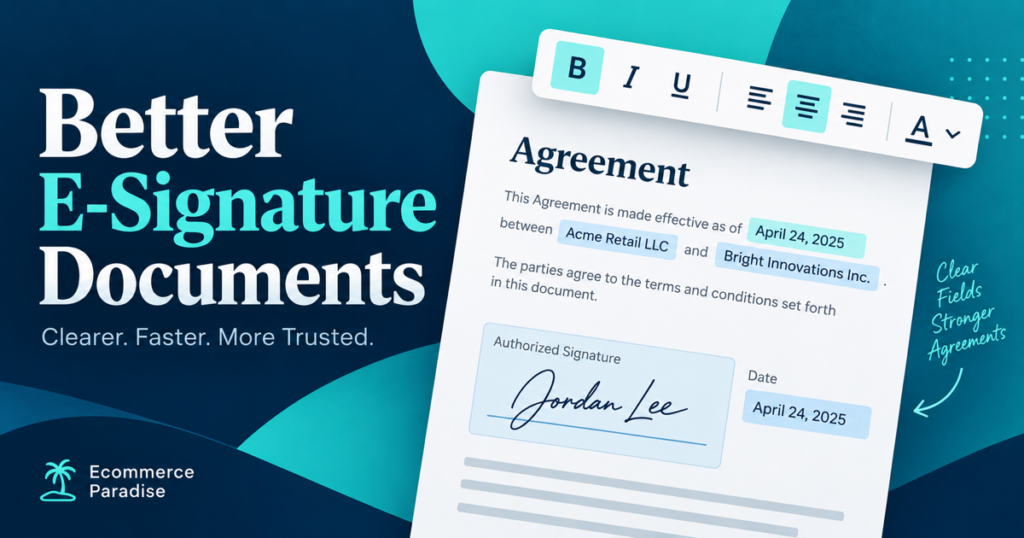
Businesses rely on digital documents to manage contracts, agreements, employee forms, customer information, and other important records. However, a document can become difficult to complete when text fields are poorly aligned, information is hard to read, or formatting does not match the surrounding content. Consistent presentation helps recipients understand what information they need to provide and where it belongs.
Electronic signature platforms allow organizations to prepare documents that recipients can complete and sign online. From employment agreements to customer contracts, these documents need to remain clear, professional, and easy to navigate. A well-organized layout also helps businesses maintain consistency when preparing reusable forms for different departments.
Why Text Formatting Matters in Electronic Documents
Text formatting is not simply a visual improvement. It can influence how easily people understand a document, identify important information, and enter the correct details.
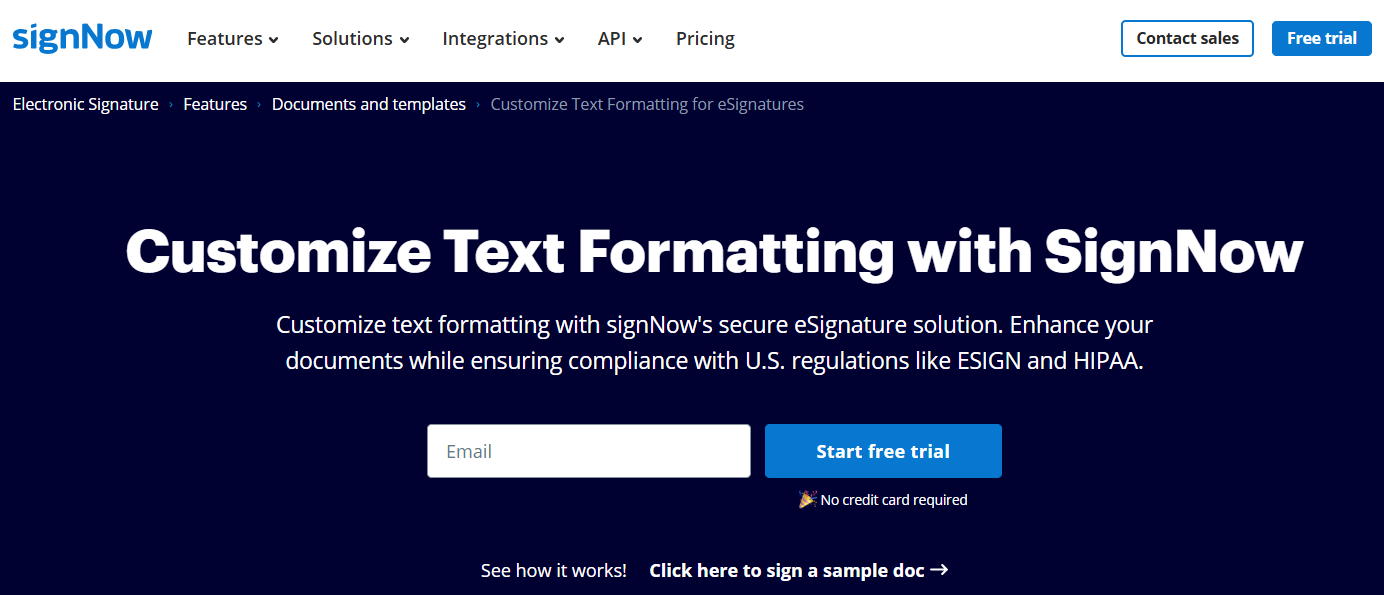
The ability to customize text formatting in electronic signature documents gives businesses greater control over how information appears inside fillable fields. By selecting suitable fonts, adjusting text size, applying styles, changing colors, and aligning text, organizations can create documents that are easier to read and complete. These adjustments are particularly useful when preparing reusable forms, processing customer agreements, and maintaining consistency across business workflows.
Improving Readability and Clarity
A document may contain names, addresses, dates, financial figures, and signature fields. If these elements appear inconsistent, recipients may struggle to identify the information required in each section.
Appropriate formatting establishes a clear visual structure. For example, a business can use consistent font sizes for names and addresses while making important instructions easier to distinguish from other content.
Useful formatting practices include:
-
Using readable font sizes throughout the document.
-
Keeping similar fields visually consistent.
-
Aligning text with the existing form layout.
-
Applying bold or underlined text selectively.
-
Choosing text colors that provide sufficient contrast.
-
Leaving enough space for longer answers.
These adjustments can make forms more practical without changing their underlying purpose.
Maintaining Professional Document Presentation
Businesses frequently send documents to customers, suppliers, employees, and external partners. Consistent formatting helps these documents maintain a professional appearance.
For example, a sales agreement with neatly aligned fields and readable text is easier to review than one where entered information appears crowded or inconsistent. The objective is to make the document understandable while preserving the original layout and meaning.
How SignNow Supports Text Formatting
SignNow provides formatting controls for supported fillable fields within electronic signature documents. These options help senders adjust the appearance of entered information to suit the document’s layout and requirements.
Available Text Formatting Options
The available controls allow document senders to adjust how information appears when recipients complete supported fields.
|
Formatting option |
Practical use |
|
Font family |
Match entered text to the surrounding document |
|
Font size |
Improve readability and fit the available space |
|
Bold, italic, and underline |
Emphasize selected information |
|
Text alignment |
Position information consistently within a field |
|
Text color |
Maintain contrast and visual consistency |
SignNow’s documented font options include Arial, Times New Roman, Courier New, Tahoma, and Comic Sans MS. Supported font sizes range from 8 to 72, although the appropriate choice depends on the document and available field space.
Applying Formatting to Fillable Fields
A practical workflow begins by opening a document and placing the required fillable fields. The sender can then select a supported text field and adjust its formatting using the available controls.
A typical process involves these steps:
-
Open the document in the editing interface.
-
Add the text fields needed by the recipient.
-
Select a field to access its formatting options.
-
Choose an appropriate font, size, style, color, and alignment.
-
Review the field’s position against the original document.
-
Preview the completed layout before sending it for signature.
Formatting should be checked before sending because a field that looks suitable in the editor may still require adjustments to accommodate longer answers or different screen sizes.
Practical Uses of Text Formatting Across Industries
Different departments use electronic documents for different purposes. Formatting should reflect the information being collected and the needs of the people completing each form.
Human Resources and Employee Onboarding
HR departments handle employment agreements, onboarding forms, policy acknowledgments, and employee information records. These documents often contain repeated fields for names, dates, job titles, and contact details.
Consistent text formatting helps maintain a uniform appearance across these forms. For example, HR teams can use the same font size and alignment for employee names and addresses, making documents easier to review.
When preparing reusable templates, teams should also ensure that field labels are clear and that confidential employee information is handled appropriately.
Real Estate and Property Management
Real estate professionals use digital forms for lease agreements, rental applications, property management documents, and other transaction records.
These forms may contain long addresses, tenant details, payment information, and dates. Proper alignment and sufficient space help prevent entered information from appearing crowded or overlapping existing text.
For instance, a property manager preparing a rental agreement should ensure that a tenant’s name fits within the designated field and that dates follow the intended format.
Finance and Accounting
Finance teams manage invoices, expense forms, purchase requests, and financial agreements. These documents require accurate information and a layout that makes individual values easy to identify.
Consistent text formatting can help separate reference numbers, payment details, and explanatory notes. However, formatting alone does not validate the accuracy of financial data. Businesses should also use appropriate field settings and review procedures.
Legal and Contract Management
Legal teams work with agreements that require careful review and consistent presentation. Formatting helps ensure that names, dates, party details, and other entered information appear in the intended locations.
The original contract wording should remain clear and unchanged unless an authorized revision is required. Text formatting should improve readability without creating ambiguity about contractual terms.
Best Practices for Formatting Electronic Signature Fields
A consistent formatting approach helps organizations avoid unnecessary differences between documents and reduces the amount of manual editing required.
Use a Consistent Style
Businesses should establish basic formatting guidelines for frequently used documents. These guidelines can define preferred fonts, standard text sizes, and alignment rules for common field types.
Recommended practices include:
-
Use the same font for similar fields across a template.
-
Choose readable sizes that fit the available space.
-
Avoid using too many styles or colors in one document.
-
Keep field placement consistent with the original form.
-
Use clear labels to explain what recipients should enter.
-
Preview the document before distributing it.
Check Field Length and Alignment
A field designed for a short name may not work well for a long company name or a detailed address. Before sending a document, consider the types of responses recipients may provide.
For forms that collect variable-length information, review the available field settings to determine whether the field can accommodate longer text. Test representative examples rather than assuming every response will have the same length.
Review the Document Before Sending
A final review should confirm that text is readable, fields are positioned correctly, and recipients can understand what information is required.
Teams should check documents on commonly used devices when possible. A layout that works on a desktop screen may be less convenient on a smaller mobile display.
Common Text Formatting Mistakes to Avoid
Poor formatting can make otherwise useful documents difficult to complete. Many problems can be prevented by reviewing the form before it enters regular use.
|
Common mistake |
Better approach |
|
Using very small text |
Choose a readable size appropriate for the field |
|
Applying too many font styles |
Maintain a simple, consistent visual hierarchy |
|
Misaligning text fields |
Position fields according to the document’s layout |
|
Using low-contrast colors |
Choose text colors that remain easy to read |
|
Leaving insufficient field space |
Test longer responses before sending |
|
Skipping the final preview |
Review the completed layout before distribution |
Organizations should also remember that formatting features vary by field type. SignNow supports formatting for applicable fillable fields, but some field types have different customization options. Senders should verify the settings available for each field instead of assuming every element can be formatted in the same way.
Frequently Asked Questions
1. What does text formatting mean in electronic signature documents?
Text formatting refers to controlling the appearance of information entered into a document. This can include font selection, font size, bold or italic styling, text color, and alignment. Appropriate formatting makes forms easier to read and helps maintain consistency across business documents.
2. Can I customize text formatting in SignNow?
Yes. SignNow provides formatting controls for supported fields, including font family, size, text decoration, alignment, and color. To use these options, open the document editor, select a supported field, and review the available formatting controls before sending the document.
3. Why is consistent formatting important for business forms?
Consistent formatting helps recipients recognize similar information across documents and understand where to enter their details. It also supports a professional presentation and can reduce confusion caused by crowded fields, inconsistent text sizes, or poorly aligned information.
4. Which font size should I use for fillable fields?
The appropriate font size depends on the document layout, field dimensions, and type of information being collected. Readability should be the main priority. Use a size that fits the available space and test the document with realistic responses before sending it to recipients.
5. Can formatting prevent mistakes when completing a document?
Clear formatting can help recipients identify fields and understand where information belongs, but it cannot prevent every mistake. Businesses should also use clear labels, appropriate field requirements, and available validation settings to improve data quality and reduce incomplete responses.
Formatting Is a Customer-Experience Detail
For a high-ticket seller, a document often appears at a high-trust moment: a financing form, a warranty registration, a delivery acceptance record, or a supplier agreement. If the instructions are cramped or the data fields are unclear, the recipient has to stop and ask for help. That creates friction at exactly the point when the business is trying to show it is organized.
Treat every reusable document as a small interface. The reader should understand the purpose, the required fields, the next action, and how to get help without hunting through the page. Simple, consistent formatting is one part of that experience.
A Pre-Send Review for Reusable Documents
- Check the form on a laptop and a phone before publishing it.
- Use a clear heading hierarchy and keep field labels close to the fields they describe.
- Use contrast that remains readable for people who do not see color the same way.
- Reserve bold text for truly important details instead of turning every instruction into emphasis.
- Leave enough room for a full legal name, address, or delivery note.
- Use a test recipient who did not build the form and watch where they hesitate.
The Web Content Accessibility Guidelines are useful background for contrast, text presentation, and clear interaction. They are designed for more than forms, but the underlying principle is the same: important information should be perceivable and understandable.
Protect the Information Inside the Form
Good formatting cannot replace good security. Limit access to document templates, make sure data fields go only to systems that need them, and review who can edit a customer-facing form. The FTC’s business guide to protecting personal information is a practical reference for handling sensitive business data.
For signature documents, use the Electronic Signatures in Global and National Commerce Act as a starting point for understanding US electronic-signature context. Check with qualified counsel for the rules that apply to a particular agreement, industry, or location.
Make Documents Part of the Operating System
Supplier forms, return records, and order-specific paperwork become more important as a catalog gets more technical. The supplier sourcing guide can help you decide which information should be captured before a new vendor relationship starts.
Use the high-ticket niches list to see why document quality matters more in categories with complex products and higher customer expectations.
For the business model behind those decisions, read the high-ticket dropshipping guide.
Before collecting more customer or team data, use the business formation checklist to put the basic foundation in place.
Find more practical workflows at Ecommerce Paradise. For hands-on help with the store systems that customers see, my coaching is available.
Use Formatting to Reduce Avoidable Support Work
Watch for the points where recipients abandon a form, submit incomplete information, or ask the same question repeatedly. A clearer label, a short example, or a better field size can solve the problem without adding another email to the workflow.
Test common edge cases. A long company name, an international address, a mobile phone number, or a customer using a small screen can expose layout problems that do not appear in a perfect internal test. Make fixes in the reusable template, not only in the document currently in front of you.
Keep the visual system simple. One body typeface, a restrained hierarchy, reliable contrast, and predictable labels tend to age better than a highly decorated template. The customer should focus on the agreement, not on deciphering the document design.
Document the Template Rules
Create a short internal guide for the people who edit forms. Include approved font sizes, label conventions, required disclosures, version names, and the approval route for changes. That reduces inconsistent updates when a new team member inherits the process.
Use a single owner for each high-impact template. Marketing may own presentation, operations may own the workflow, and legal may own certain language, but someone should coordinate the final version. The owner needs a way to communicate changes to the teams who send the document.
Test the Form With the People Who Actually Complete It
Internal reviewers often know the document so well that they cannot see its friction. Ask someone outside the drafting process to complete a realistic example on a laptop and a phone. Watch for the moment they pause, enter data in the wrong place, or ask what a field means. Those observations are more valuable than a decorative redesign.
Use realistic information in every test. Long names, apartment addresses, international phone numbers, order references, and multi-line delivery notes expose problems that a short placeholder cannot. If a key field is likely to contain variable-length information, make that clear in the template and give it sufficient space.
For customer-facing agreements, put the most important instructions immediately before the action. Do not rely on a block of small print at the beginning of the document to explain a field near the end. A plain-language label and a concise example will usually reduce support questions more effectively.
Control Template Changes
Formatting is part of the template, so it needs the same change discipline as the wording. Keep a named owner for each high-impact form, save a working version before editing, and record why a change was made. This is especially important when marketing, operations, finance, and legal each contribute to the same document.
Review the form after a material product, policy, or process change. A warranty form may need different instructions after the supplier changes its process. A delivery acceptance form may need a different photo requirement after the carrier workflow changes. Good formatting makes these updates easier to understand, but only a consistent review process keeps the form accurate.

Trevor Fenner is an ecommerce entrepreneur and the founder of Ecommerce Paradise, a platform focused on helping entrepreneurs build and scale profitable high-ticket ecommerce and dropshipping businesses. With over a decade of hands-on experience, Trevor specializes in high-ticket dropshipping strategy, niche and product selection, supplier recruiting and onboarding, Google & Bing Shopping ads, ecommerce SEO, and systems-driven automation and scaling. Through Ecommerce Paradise, he provides free education via in-depth guides like How to Start High-Ticket Dropshipping, advanced training through the High-Ticket Dropshipping Masterclass, and fully done-for-you turnkey ecommerce services for entrepreneurs who want a faster, more hands-off path to growth. Trevor is known for emphasizing sustainable, real-world ecommerce models over hype-driven tactics, helping store owners build scalable, sellable, and location-independent brands.


